You are here:
Apex-Defined Data Type
With the Apex-defined data type, flows can manipulate the kinds of complex data objects that are typically returned from calls to web services. Create Apex-defined variables in flows and directly process JSON returned from web calls.
Required Editions
| View supported editions. |
A developer can define an Apex class to serve as a pattern for automatic conversion from web to a flow, allowing full manipulation of the resulting objects to be carried out in flows using declarative approaches and no additional code. Apex-defined resources are useful for connecting flows to rich external web objects accessed via Mulesoft and REST calls. If a data type is not supported, flows can pass the value to a Lightning component and you can use Apex to operate on it.

Extend Flows with the Apex-Defined Data Type
Using a combination of Apex, flow, and Lightning components, you can automate business processes that involve complex data objects typically returned from calls to web services. For example, get external product data about a web product and then create records in Salesforce.
A call to a REST endpoint returns a JSON response with product data.
{
   "model": "Vintage Cruiser Jacket",
   "brand": "Acme",
   "identifiers": [
     {
       "SKU": "A-J001"
     },
     {
       "SKU": "A-J002"
     },
     {
       "SKU": "A-J003"
     }
   ],
   "price": {
     "amount": {
       "currencyValue": "500.00",
       "name": "Amount",
       "currency": "USD"
     },
     "salesUnit": {
       "code": "EA",
       "name": "Each"
     }
   }
}
See Also
Model JSON Objects with an Apex Class
Define a complex data object in an Apex class. For example, you could create a matching Apex class for a JSON object. The class acts as a template and converts the JSON into objects that a flow can use.
After you define the Apex classes for a web product, you can create an Apex action to get the data from a web service using a REST call. Store the returned data in flow variables that use the Apex-defined data type. Then operate on the data in flows, Apex, and Lightning components.
Here’s an example of a WebProduct Apex template. It contains the main WebProduct class and classes for Price and Identifiers. WebProduct has three types of data.
- The model and brand fields use the primitive String data type.
- The price field references the
Priceclass. Make sure that you save each class in separate class files because inner classes aren’t supported in the Apex-defined data type for flows. - The identifiers field is similar to price, but
is represented as a List. The
Identifiersclass lets a flow access JSON arrays to represent a list of three specific SKU numbers. - The
parsemethod carries out the conversion of the JSON to the flow-accessible Apex objects. - Fields in an Apex class for flows require the
@AuraEnabledannotation.
public class WebProduct {

@AuraEnabled
public String model;

@AuraEnabled
public String brand;

//Because the identifiers information is an array in the JSON schema, we create a separate class called Identifiers and define a property that contains a List.
@AuraEnabled
public List<Identifiers> identifiers;

//This field has an Apex-defined data type in the Price Apex class.
@AuraEnabled
public Price price;

//This method is used as part of the Create Apex Action section.
public static WebProduct parse(String json) {
return (WebProduct) System.JSON.deserialize(json, WebProduct.class);
}
The Identifiers Apex class defines the
SKU field.
public class Identifiers {

@AuraEnabled
public String SKU;

}
The Price Apex class defines the
amount and salesUnit fields.
public class Price {

//This field has an Apex-defined data type in the Amount Apex class.
@AuraEnabled
public Amount amount;


//This field has an Apex-defined data type in the SalesUnit Apex class.
@AuraEnabled
public SalesUnit salesUnit;

}
The Amount Apex class defines the
currencyValue, name, and
currency fields.
public class Amount {

@AuraEnabled
public String currencyValue;

@AuraEnabled
public String name;

@AuraEnabled
public String currency;

}
The SalesUnit Apex class defines the
code and name fields.
public class SalesUnit {

@AuraEnabled
public String code;

@AuraEnabled
public String name;

}

Create an Apex Action
After you create a mechanism to translate JSON data into flow resources, you can create
the Apex class that retrieves the JSON data. Use the @InvocableMethod annotation to define the class as an Apex action for flows.
The GetWebProduct Apex class defines an Apex action. It
gets product data from a REST endpoint and parses the JSON response into the WebProduct Apex object.
Starting in API version 66.0, custom Apex classes used as invocable action parameters require an accessible no-argument constructor. In this example, the Requests and Results inner classes don't define any constructors, so Apex provides an implicit no-argument constructor. If you add other constructors to these classes, the classes require an explicit no-argument constructor with the appropriate access modifier (public or global).
Developers can customize how this Apex action appears in Flow Builder by creating an
InvocableActionExtension metadata file. This metadata lets you control input order and
grouping, add custom headers, define picklists for input parameters, and create custom
property editors for specific inputs. For more information, see
“InvocableActionExtension” in the Metadata API Developer Guide.
global with sharing class GetWebProduct {

    @InvocableMethod
    public static List<Results> GetWebProduct(List<Requests> requests)
       {
            Http http = new Http();
            HttpRequest request = new HttpRequest();
            String endpoint = requests[0].endpoint;
            String submittedId = requests[0].submittedId;
            request.setEndpoint(endpoint + submittedId );
            request.setMethod('GET');
            HttpResponse response = http.send(request);

            Results curResult = new Results();
            String responseJSON = response.getBody();

            WebProduct curProduct = WebProduct.parse(responseJSON);
            curResult.WebProduct = curProduct;

            List<Results> resultsList = new List<Results>();
            resultsList.add(curResult);
            return resultsList;
       }

    global class Requests {
        @InvocableVariable
        global String submittedId;

        @InvocableVariable
        global String endpoint;
    }

    global class Results {
        @InvocableVariable
        global WebProduct WebProduct;
    }

}

This example uses the global access modifier because it's designed for a managed package scenario. If you're creating an Apex action only for use within your org, you can use public instead of global.
Configure an Apex Action
Add an Apex action to a screen flow and configure its inputs.
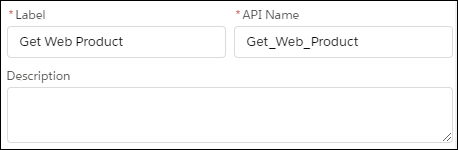
The Get Web Product Apex action stores the web product data in {!Get_Web_Product} automatically.
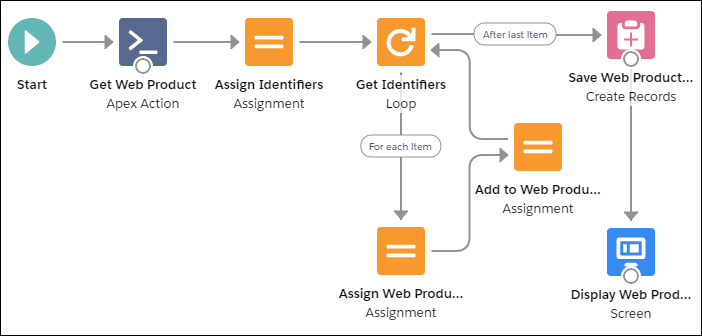
Now you can operate on the data in flows, Apex, and Lightning components. For example, build a flow to generate the product data by looping over the identifiers and assembling a collection of products. Save the collection of records to Salesforce, and display the data on a flow screen component.
Add a Custom Icon to an Apex-Defined Action
Add custom icons to your Apex-defined invocable actions to make them easier to find on the Flow Builder canvas.
The custom icon can be an SVG file or an existing Salesforce Lightning Design System (SLDS) icon.
SVG files must meet these requirements:
- The
<svg>element in the file includes theid,xmlns, andviewBoxattributes. - The
<svg>element in the file doesn’t include thestyle,height, andwidthattributes. - The file doesn’t include a
<clipPath>element. - Each
<path>element in the file includes afillattribute.
For example, this SVG file is supported as a custom icon.
<svg id="top" xmlns="http://www.w3.org/2000/svg" viewBox="0 0 48 48"><path fill="#673ab7" d="M12,44c-1.657,0-3-1.343-3-3V7c0-1.657,1.343-3,3-3h16l11,11v26c0,1.657-1.343,3-3,3H12z"/><path fill="#5e35b1" d="M39 15L28.883 14.125 39 24.124z"/><path fill="#b39ddb" d="M39,15h-8c-1.657,0-3-1.343-3-3V4L39,15z"/><path fill="#f5f5f5" d="M22 23H32V25H22zM22 28H32V30H22zM22 33H32V35H22zM17.5 22.5A1.5 1.5 0 1 0 17.5 25.5 1.5 1.5 0 1 0 17.5 22.5zM17.5 27.5A1.5 1.5 0 1 0 17.5 30.5 1.5 1.5 0 1 0 17.5 27.5zM17.5 32.5A1.5 1.5 0 1 0 17.5 35.5 1.5 1.5 0 1 0 17.5 32.5z"/></svg>Only Standard Object and Custom Object SLDS icons are supported as custom icons for Apex-defined invocable actions.
- If you’re using an SVG file, upload the file as a static resource in your org.
- Set the
iconNameattribute of theInvocableMethodannotation for the invocable action to the name of the icon.
For SVG icons, specify the name as resource:namespace__iconName:svgID.
For example:
public class CustomSvgIcon {

@InvocableMethod(iconName='resource:google:top')
public static void run() {}

}
public class CustomSvgIcon {
@InvocableMethod(label='myIcon' iconName='resource:myPackageNamespace__google:top')
global static List<Integer> myMethod(List<Integer> request) {
List<Integer> results = new List<Integer>();
results.add(1);
return results;
}-
iconName is the name that you specified when you uploaded the icon.
-
svgID is the value of the
idattribute of the <svg> element in the SVG file. -
namespace is the namespace of the package that includes the invocable action to customize. If the invocable action is in a managed package, namespace__ is a required prefix. Otherwise, it’s optional. To use a custom icon for an invocable action in a managed package, declare the method that defines the invocable action as
global.
For SLDS icons, specify the name as slds:category:name. For example:
public class CustomSldsIcon {

@InvocableMethod(iconName='slds:standard:choice')
public static void run() {}

}- category is the name of the category of the icon.
- name is the name of the file in SLDS.
When a user adds the invocable action in Flow Builder, the custom icon appears on the Flow Builder canvas to represent it.
