You are here:
Understanding When a Screen Flow Finishes
Screen flows restart automatically when finished, redirecting users to the first screen. Override this behavior by adding local actions or configuring distribution settings like retURL parameters.
Required Editions
| View supported editions. |

| Distribution Method | Default Finish Behavior | Override Options |
|---|---|---|
| URL (direct URL, web tab, custom button, custom link) | Starts new interview |
|
| Lightning page | Starts new interview | Add a local action to the flow |
| Experience Builder page | Starts new interview | Add a local action to the flow |
| Flow Quick Action (Does not apply to LWC quick actions that have flows embedded.) | Closes dialog | Add a local action to the flow |
| Utility bar | Starts new interview | Add a local action to the flow |
| lightning:flow Aura component | Starts new interview |
|
| lightning-flow LWC component | Starts new interview |
|
| flow:interview Visualforce component | Starts new interview |
|
See Also
Redirect Flow Users with a Local Action
By default, when a flow finishes, a new interview starts and the user sees the first screen of the flow. To instead redirect the user to another page, build or install a local action that does so. Then add the action to your flow with a Core Action element. For example, a local action can open a record, list view, or URL or to show a toast message. Or it can use the Lightning Console JavaScript API to close a console tab.
Required Editions
| Available in: Lightning Experience |
| View supported editions. |
force or lightning events often don’t work properly when you run the
flow from:- Flow Builder
- Flow detail pages or list views
- Web tabs
- Custom buttons and links
Instead, test and distribute the flow with a Lightning page, Experience Builder page, flow action, or utility bar. Your developer can also add the appropriate event handlers directly to the component.

A flow creates a lead using information entered in the Lead Info screen. The Lead Info screen stores the value of the lead ID in the leadId variable that was manually created. Then it runs the Open Lead local action, which passes the lead ID into an Aura component by using the Record ID attribute. The component uses a Lightning event to open the created lead.
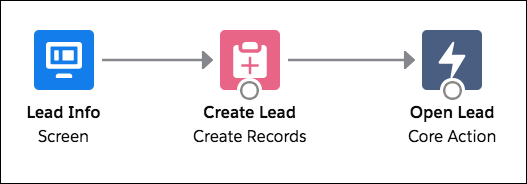
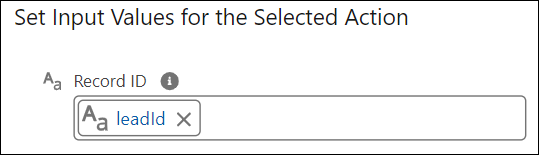
Let’s look at the Aura component that the local action calls: c:navigateToRecord.
Component Markup
<aura:component implements="force:lightningQuickAction, lightning:availableForFlowActions">
   <aura:attribute name="recordId" type="String" />
</aura:component>
Design Resource
The recordId attribute is declared in the design
resource so that it’s configurable in the local action.
<design:component>
   <design:attribute name="recordId" label="Record ID" />
</design:component>
Client-Side Controller
When the local action runs, the flow calls the invoke method, which uses
the force:navigateToSObject event to navigate to the created record.
({    invoke : function(component, event, helper) {
   // Get the record ID attribute
   var record = component.get("v.recordId");

   // Get the Lightning event that opens a record in a new tab
   var redirect = $A.get("e.force:navigateToSObject");

   // Pass the record ID to the event
   redirect.setParams({
      "recordId": record
   });

   // Open the record
   redirect.fire();
}})