You are here:
Use Prompt Templates to Generate Record Summaries Example
This example gets a list of open customer cases for a given account, and then integrates this data with a field generation prompt template.
Required Editions
| Available in: Lightning Experience |
| View supported editions. |
| This feature requires the Einstein for Sales, Einstein for Service, or Einstein Platform add-on. To purchase, contact your Salesforce account executive. |
| User Permissions Needed | |
|---|---|
| To open, edit, create, activate or deactivate a flow using all flow types, elements, and features available in Flow Builder, including Einstein and Agentforce for Flow: | Manage Flow |
| To create and manage prompt templates in Prompt Builder: | Prompt Template Manager permission set |
Let's say you want to provide up-to-the-minute summaries of customer cases for a given customer to your company's sales team before they make customer calls. You want to create a field generation prompt template that integrates a template-triggered prompt flow. The flow obtains case data for an LLM to summarize.
Before creating your field generation prompt template, you create a flow that retrieves a list of open customer cases. For this example, you create the Get Open Cases for Account flow.
-
Turn on Einstein.
- From Setup, in the Quick Find box, enter Einstein Setup, and then click Einstein Setup.
- Turn on Einstein.
-
Open the Flows list view.
- From the Automation app, select the Flows tab.
- From the Flows tab in any Lightning app, click the actions menu and select Open Flow.
- From Setup, in the Quick Find box, enter Flows, and then select Flows.
Note that the Automation app and Flows tab options don't require Setup access. -
Create the flow.
- From the Automation app, click New | Autolaunched | Template-Triggered Prompt Flow.
- From Setup, click New Flow | Autolaunched | Template-Triggered Prompt Flow.
-
Configure the flow.
- Select Automatic Inputs.
-
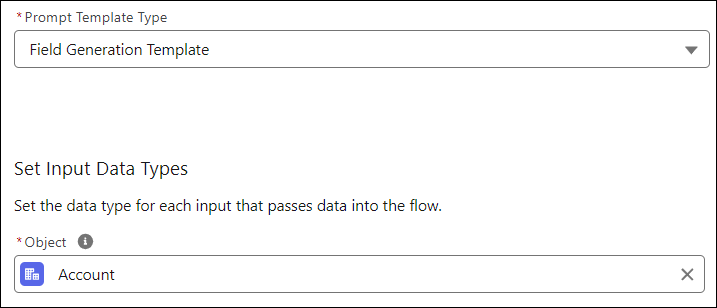
For Prompt Template Type, select Field Generation
Template.
Each prompt template type is associated with its prompt template type in Prompt Builder.
-
For Object, select Account.
-
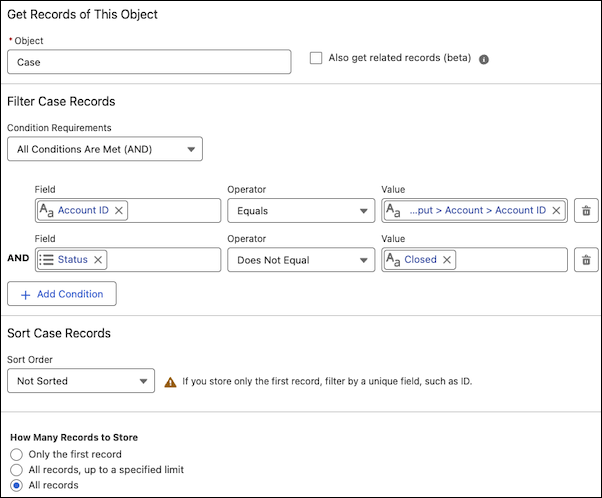
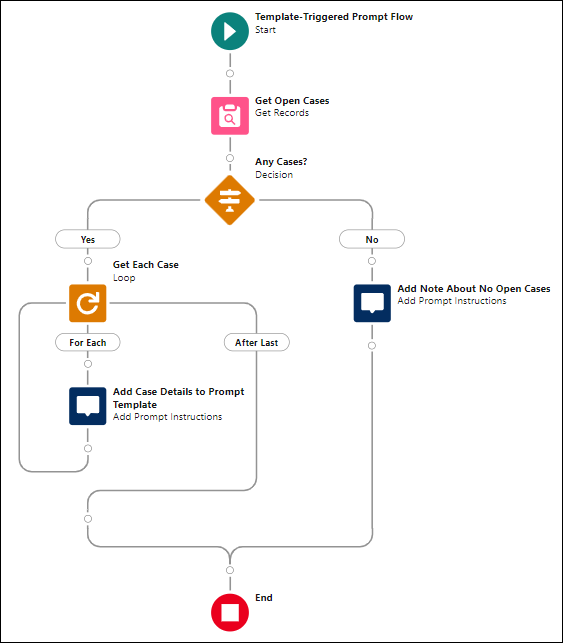
Add the Get Records element and configure it.
- For Label, enter Get Open Cases.
- For Object, select Case.
- For Condition Requirements, select All Conditions Are Met (AND).
- For Field, select Account ID.
- For Operator, select Equals.
- For Value, select Prompt Template Input then Account then Account ID.
- Click Add Condition.
- For Field, select Status.
- For Operator, select Does Not Equal.
- For Value, select Closed.
-
For How Many Records to Store, select All Records.
-
Add the Decision element and configure it.
- For Label, enter Any Cases?
- For Select Decision Logic, select Define Manually (Default).
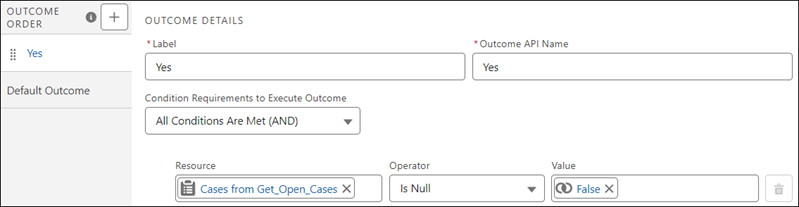
- On New Outcome, for Outcome Label, enter Yes.
- For Condition Requirements to Execute Outcome, select All Conditions Are Met (AND).
- For Resource, select Cases from Get Open Cases.
- For Operator, select Is Null.
- For Value, select False.
- Click Default Outcome.
- For Label, delete the text, and enter No.
-
On the No outcome path, add the Add Prompt Instructions element.
- For Label, enter: Add Note About No Open Cases.
-
For Prompt Instructions, enter: There are no open
cases..
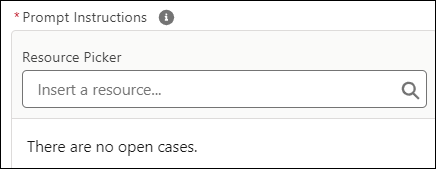 If the flow takes this outcome path, the flow stores this text in the $Output global variable. When the flow finishes, the flow passes the text to the field generation prompt template.
-
On the Yes outcome path, add the Loop element.
- For Label, enter Get Each Case.
-
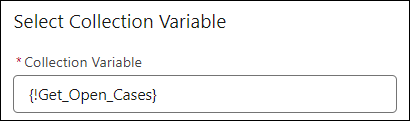
For Collection Variable, select Cases from
Get_Open_Cases.
-
On the For Each path, add the Add Prompt Instructions element.
- For Label, enter: Add Case Details to Prompt Template.
-
For Prompt Instructions, enter:
Case details: {!Get_Each_Case.Subject}, {!Get_Each_Case.Description}.
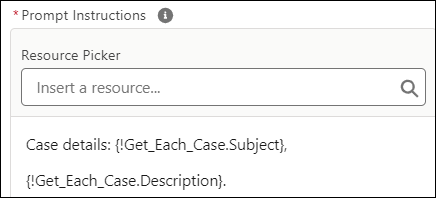
If the flow takes this outcome path, the merge fields are replaced with Salesforce data such as the subject and description text for a case. The flow stores the prompt instructions text in the $Output global variable. Each time the flow runs the Add Prompt Instructions element, the text is appended to existing text in the $Output global variable. It can contain details about multiple cases. When the flow finishes, the flow passes the text that's stored in the $Output global variable to the field generation prompt template.
-
Click Save.
- For Flow Label, enter: Get Open Cases for Account.
- Click Save, and then click Activate.
Now that you completed the flow, you create a field generation prompt template in Prompt Builder. You add the flow to the prompt template. When you preview the prompt template in Prompt Builder, it triggers the flow to run, and the flow sends its prompt instructions to the prompt template. See Create a Prompt Template
