You are here:
Create a Reusable Template-Triggered Prompt Flow Example
This example creates a sample flow that's available to all prompt templates. Multiple prompt templates can use a single, well-maintained flow for data processing, so this approach saves time, ensures consistency, simplifies development, and improves the reliability of AI-generated outputs.
Required Editions
| Available in: Lightning Experience |
| View supported editions. |
| This feature requires the Einstein for Sales, Einstein for Service, or Einstein Platform add-on. To purchase, contact your Salesforce account executive. |
| User Permissions Needed | |
|---|---|
| To open, edit, create, activate or deactivate a flow using all flow types, elements, and features available in Flow Builder, including Einstein and Agentforce for Flow: | Manage Flow |
| To create and manage prompt templates in Prompt Builder: | Prompt Template Manager permission set |
Let's say you're a Salesforce admin, and your teams request an easier way to get new cases for an account. You create a prompt template that launches a template-triggered prompt flow to get the case details for the prompt template.
Before creating your prompt template, you create a flow that retrieves the new cases. For this example, you create the Get New Cases for Account flow.
-
Turn on Einstein.
- From Setup, in the Quick Find box, enter Einstein Setup, and then click Einstein Setup.
- Turn on Einstein.
-
Open the Flows list view.
- From the Automation app, select the Flows tab.
- From the Flows tab in any Lightning app, click the actions menu and select Open Flow.
- From Setup, in the Quick Find box, enter Flows, and then select Flows.
Note that the Automation app and Flows tab options don't require Setup access. -
Create the flow.
- From the Automation app, click New | Autolaunched | Template-Triggered Prompt Flow.
- From Setup, click New Flow | Autolaunched | Template-Triggered Prompt Flow.
-
Configure the flow.
-
Select Manual Inputs.
Each prompt template type is associated with its prompt template type in Prompt Builder.
-
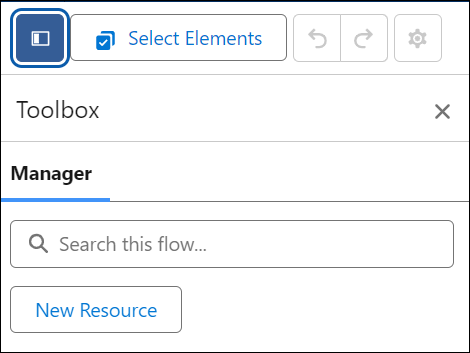
In Toolbox Manager, click New Resource.
- For Resource Type, select Variable.
-
Set the variable API name and description.
The API name must match the prompte template's API name if the inputs are Text data types or the flow includes more than one input that matches with the prompt template input . For this example, use API name: Account
- For Data Type, select Record.
-
For Object, select Account.
This data type corresponds to the Account input in a prompt template that references this flow.
-
Select Available for input.
This option lets Prompt Builder set the input.
-
Select Manual Inputs.
-
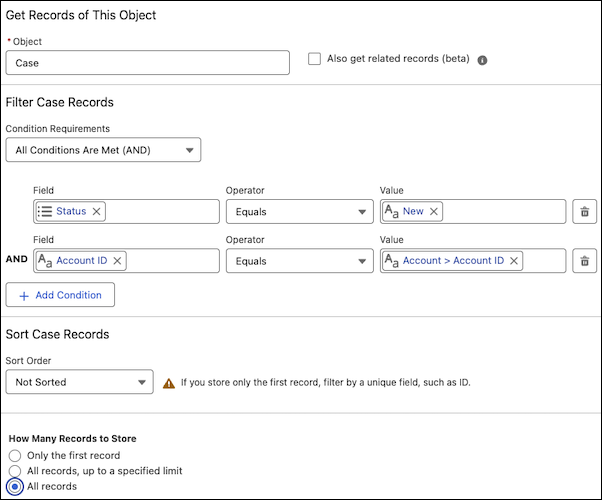
Add the Get Records element and configure it.
- For Label, enter Get New Cases.
- For Object, select Case.
- For Condition Requirements, select All Conditions Are Met (AND).
- For Field, select Status.
- For Operator, select Equals.
- For Value, select New.
- Click Add Condition.
- For Field, select Account ID.
- For Operator, select Equals.
- For Value, select Account then Account ID.
-
For How Many Records to Store, select All Records.
-
Add the Decision element and configure it.
- For Label, enter Any New Cases?
- For Select Decision Logic, select Define Manually (Default).
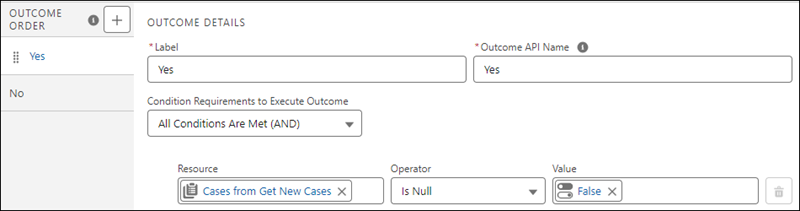
- On New Outcome, for Outcome Label, enter Yes.
- For Condition Requirements to Execute Outcome, select All Conditions Are Met (AND).
- For Resource, select Cases from Get New Cases.
- For Operator, select Is Null.
-
For Value, select False.
- Click Default Outcome.
- For Label, delete the text, and enter No.
-
On the No outcome path, add the Add Prompt Instructions element.
- For Label, enter: Add Note About No New Cases.
-
For Prompt Instructions, enter: No new cases..
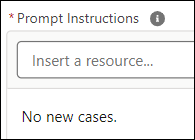 If the flow takes this outcome path, the flow stores this text in the $Output global variable. When the flow finishes, the flow passes the text to the field generation prompt template.
-
On the Yes outcome path, add the Loop element.
- For Label, enter Add Cases.
-
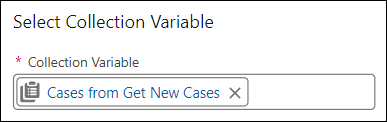
For Collection Variable, select Cases from Get New
Cases.
-
On the For Each path, add the Add Prompt Instructions element.
- For Label, enter: Add Case Details.
-
For Prompt Instructions, enter:
Case Details: {!Add_Cases.Subject}, {!Add_Cases.CaseNumber},{!Add_Cases.Description},{!Add_Cases.ContactEmail}.
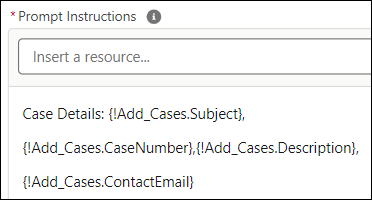
If the flow takes this outcome path, the merge fields are replaced with Salesforce data such as the subject, description, case number, email for a case. The flow stores the prompt instructions text in the $Output global variable. Each time the flow runs the Add Prompt Instructions element, the text is appended to existing text in the $Output global variable. It can contain details about multiple cases. When the flow finishes, the flow passes the text that's stored in the $Output global variable to the field generation prompt template.
-
Click Save.
- For Flow Label, enter: Get New Cases for Account.
- Click Save, and then click Activate.
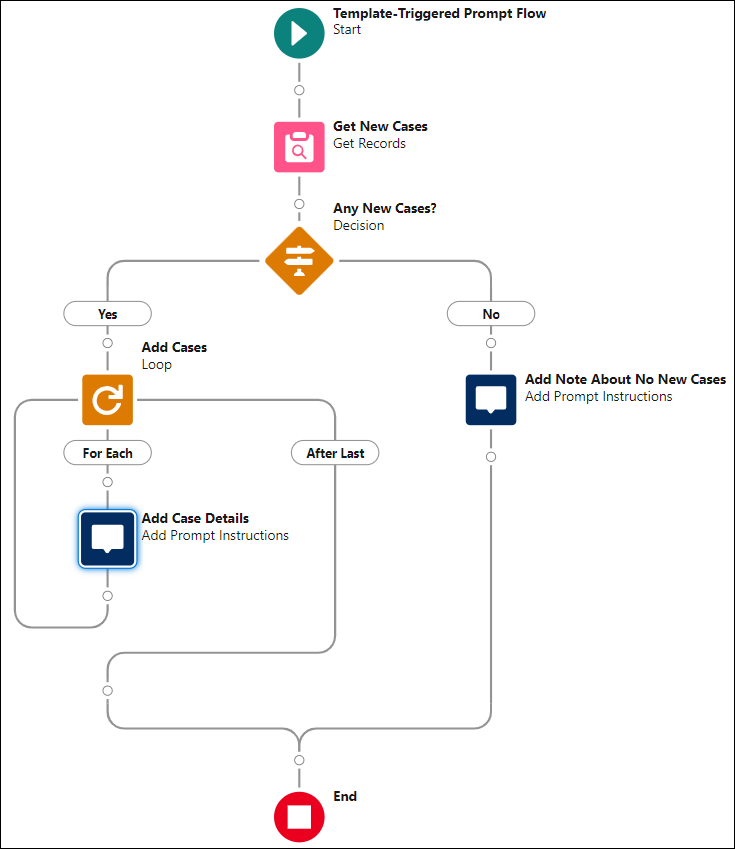
Now that you completed the flow, you create a prompt template in Prompt Builder that includes an Account input. You add the flow to the prompt template. When you preview the prompt template in Prompt Builder, it triggers the flow to run, and the flow sends its prompt instructions to the prompt template.
