You are here:
Scheduled Paths
For record-triggered flows, you can use scheduled paths to run part of a flow at a dynamically scheduled time after a triggering event.
Required Editions
| View supported editions. |
| User Permissions Needed | |
|---|---|
| To open, edit, create, activate or deactivate a flow using all flow types, elements, and features available in Flow Builder, including Einstein and Agentforce for Flow: | Manage Flow |

This video explains how using scheduled paths in a record-triggered flow can help you schedule flow actions.
View this video in a separate tab.
Add a Scheduled Path to Your Flow
You can create scheduled paths for record-triggered flows that are optimized for actions and related records. You can base the scheduled time on when the record is created or updated or on a field value in the record.
Scheduled paths run in system context, so they have permission to access and modify all data. But the running user associated with the flow’s actions is the user who originally changed the record.
Before you create a scheduled path, define your org’s Default Workflow User. This setting tells Salesforce which user to default to if the user who triggered the flow is inactive. It’s possible that the default user is already set in your production org, but it’s a good idea to confirm it. You set the Default Workflow User on the Process Automation Settings page in Setup.
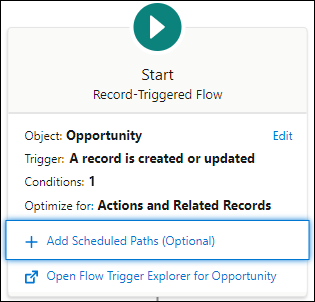
-
To add a scheduled path, click Add Scheduled Paths (Optional) in a flow’s Start element. To
add a scheduled path if the flow already contains scheduled paths, or to edit an existing
scheduled path, click Edit.
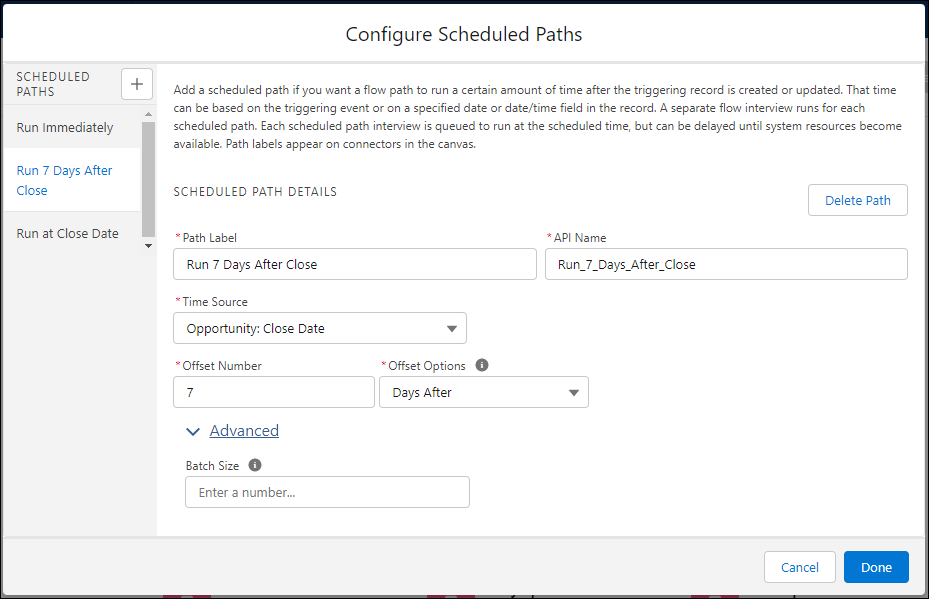
- Enter a Path Label. The API Name is generated automatically.
- Specify a Time Source for the scheduled path. That time can be based on the triggering event or on a specified date or date/time field in the record.
- To run the scheduled flow path at a specified time before or after the selected Time Source, enter an Offset Number and select an Offset Option. Otherwise, enter 0 for the Offset Number.
- Enter a Batch Size. The default and maximum value is 200, and the minimum is 1. The batch size is the number of records that a path can process at the same time. For example, if you specify a batch size of two and you have seven records scheduled in the same time interval, they run in four batches. Use this field to avoid hitting Apex governor limits.
View pending scheduled paths on the Time-Based Automations Setup page. From Setup, in the Quick Find box, enter Time-Based Automations, and then select Time-Based Automations.
Set Batches in Scheduled Paths
Scheduled Paths can run in batches when there’s numerous paths set to run at the same time.
All records that meet the conditions and are scheduled to be processed at the same time are grouped into batches, up to the batch size that you set. If your paths are set to run 10 minutes apart, they aren’t batched.
The batch size is the number of records that a path can process at the same time. The default and maximum value is 200, and the minimum is 1. For example, if you specify a batch size of two and seven records to be processed at the same time, Flow Builder groups them into four batches. You can set the batch size value in Advanced features. Otherwise, the default of 200 is used. Specifying a batch size for your path can help you to avoid hitting the per-transaction Apex limit.
Asynchronous limits apply to scheduled paths, making it easier to complete complex operations without hitting limits.
Use the When Record is Created or Updated Trigger
Let’s look at an example where a path is scheduled to run when a record is created or updated.
When a scheduled path is configured to run with Time Source set to When Record is Created or Updated, the condition requirements for the flow must include one of these options.
- Trigger the Flow When is set to A record is created.
- When to Run the Flow for Updated Records is set to Only when the record is updated to meet the conditions.
When you select the Only when the record is updated to meet the conditions option, the scheduled path is scheduled only when the previous version of the record didn’t meet the conditions and now the updated version of the record does.
For example, configure a flow trigger on Account with Trigger the Flow when is set to A record is created or updated and a condition set to Industry Equals Agriculture. Set When to Run the Flow for Updated Records to Only when the record is updated to meet the conditions.
When does the scheduled path run?
| Created or Updated Record | Does the Path Run? |
|---|---|
| Create an Account record with Industry equals Agriculture | Yes, because the new record meets the criteria. |
| Create an Account record with Industry equals Finance | No, because the new record doesn’t meet the criteria. |
| Update an existing Account record to change the Billing City. Industry equals Agriculture. | No, because the original value of Industry was already Agriculture. Any already scheduled paths remain scheduled. |
| Update an existing Account record to change Industry from Finance to Agriculture. | Yes, because the updated record meets the criteria. |
| Update an existing Account record to change Industry from Agriculture to Finance. | No, and any already scheduled paths are canceled. It’s important to remember that every time there’s an update, the criteria are evaluated again to see if it’s still TRUE. |
Use Conditions with OR
Let’s look at an example that uses the OR condition with scheduled paths.
Set a trigger on the Account object with Trigger the Flow when set to A record is created or updated and an OR condition set to:
- Industry equals Agriculture OR BillingState equals CA
- When to Run the Flow for Updated Records is set to Only when the record is updated to meet the conditions.
When the record is updated, does the scheduled path run?

| Original Record | Updated Record | Does the Path Run? |
|---|---|---|
Industry equals Agriculture Billing State equals NV |
Industry equals Agriculture BillingCity equals CA |
No. The original record met the condition. That BillingCity changes has no effect. The condition is met before and after. |
Industry equals Finance Billing State equals NV |
Industry equals Agriculture BillingCity equals NV |
Yes. The original record didn’t meet the condition, but the updated record does. |
Industry equals Finance Billing State equals CA |
Industry equals Finance BillingCity equals NV |
No, and any scheduled paths are canceled because the updated record no longer meets the condition. |
Limitations and Considerations
Understand the limitations and considerations when adding scheduled paths to your record-triggered flows.
Use this table as a guide when deciding between adding a scheduled path to a record-triggered flow or creating a scheduled-triggered flow.
| Consideration | Scheduled Paths | Schedule-Triggered Flows |
|---|---|---|
| Flow Type | Record-Triggered | Schedule-Triggered |
| Trigger | A record is created, updated, or deleted | A specific date and time |
| What Time | A specified amount of time after the trigger or A specified amount of time before or after a date on the triggering record |
A specific date and time |
| Frequency | Runs once for each time it’s triggered | Can run once, daily, or weekly |
Scheduled paths are only available on these types of record-triggered flows.
| Trigger | No Condition | A Condition Exists |
|---|---|---|
| Every time a record is updated and meets condition requirements | Only when a record is updated to meet the condition requirements | |
| A record is created | X | X |
| A record is updated | X | |
| A record is created or updated | X | |
| A record is deleted | X |
- In record-triggered flows, the $Record__Prior variable isn’t supported in flow elements that are part of a scheduled path or in the formula for entry criteria of scheduled paths.
- The maximum scheduled-path interviews per 24 hours are 250,000, or the number of user licenses in your org multiplied by 200, whichever is greater. One interview is created for each scheduled path that ran on a record-triggered flow. Paths that run immediately don’t count toward this limit. If the limit is exceeded, the remaining interviews are processed when the limit is reset.
- If the flow can be triggered by record updates with Time Source set to be based on a
field value such as
dueDate, consider this behavior. If Time Source is set to a future time and condition requirements are met, the scheduled path runs at that new time regardless of whether the scheduled path already ran. You can use this record trigger configuration to schedule recurring actions on a record by updating the record’s date field. - If a record-triggered flow with scheduled paths is deactivated, any pending automations on the scheduled paths are canceled. The pending automations stay on the time-based automations list until the time that they’re scheduled to run. At that time, the flow's activation status is checked. If the flow is deactivated, all pending automations are canceled. If the flow has a new active version, the pending automations are processed under that currently active version. For scheduled-triggered flows, the entry conditions aren’t retried, and all pending entries are processed.
- Scheduled paths and asynchronous paths are batched differently. In a scheduled path, all the records that meet the conditions and are scheduled to be processed in the same minute are grouped up to the batch size into one batch.
- Synchronous Apex transactions invoked by an asynchronous flow contribute to synchronous per-transaction Apex limits. Asynchronous flows include scheduled flows and flows with scheduled or asynchronous paths.
- If a scheduled path interview fails one time, the error email is sent and retried 15 minutes later. The path is retried a maximum of 5 times. So, the scheduled path is retried after 15 minutes, after 30 minutes, and then again in 60, 120, and 240 minutes. This retry count doesn’t appear in the Time-Based Automations page, but when a retry is scheduled, the Scheduled Date column shows the time of the next attempt.
- When run in bulk, if some flow interviews are successful and others fail, the transaction is rolled back and the successful flow interviews are retried immediately. The maximum retries in this scenario is 2.
- If a path is scheduled but doesn’t run at the specified time, it can be because the run of the path failed, potentially due to a problem in the flow itself. You receive an email informing you of the error. Or it can be because your org exceeded the rolling 24-hour limit. The flow is rescheduled and tried again.
- During the run of an asynchronous scheduled path, the flow throws the MAX_DEPTH_IN_FLOW_EXECUTION exception if it tries to schedule the same asynchronous path again. This prevents infinite loops and ensures the flow runs efficiently.
- Scheduled path information is available in these debug log events.
| Debug Log Event | Description |
|---|---|
| FLOW_SCHEDULED_PATH_QUEUED | An event is logged when a scheduled path is added to the queue after a record is created or updated. |
| FLOW_VALUE_ASSIGNMENT | An event is logged when a scheduled path runs. |
Considerations
When a scheduled path is configured with Every time a record is updated and Meets the condition requirements and the run time is field-based, for example, run 1 hour before Opportunity.CloseDate, the flow behaves exactly as if the scheduled path is configured as Only when a record is updated to meet the condition requirements. It doesn’t matter whether the corresponding entry conditions are configured for Every time a record is updated or Only when a record is updated to meet the condition requirements.
- An existing scheduled path schedule remains scheduled as long as the condition is TRUE and the date/time specified by the Time Source and Offset hasn’t been reached yet.
- Changes to the time-source field cause the scheduled path to be scheduled at the new date, provided the date is in the future. This scenario occurs regardless of whether the scheduled path is currently scheduled or not.
