You are here:
Limit User Access to Run Flows
Limit which users can run flows based on their user record, profile, or permission set. To apply more granular security to an individual flow, override the default behavior, then grant access to that specific flow based on user profile or permission set.
- Give Users the Run Flows Permission
Assign the Run Flows permission to control which users can run flows directly, including screen flows from the UI and autolaunched flows that run in user context, such as flows launched from Apex, Lightning pages, or APIs. System-triggered flows—record-triggered, platform event-triggered, and schedule-triggered flows—run automatically and don't require the initiating user to have the Run Flows permission. Regardless of flow type, the running context needs the appropriate object, field, and record permissions for a flow to complete successfully. - Configure User Profile or Permission Set Access to a Flow
For individual flows that you create or clone, you can override default behavior and restrict access to users with enabled profiles or permission sets only. - Configure Guest User Profile Access to a Flow with Flow Interview Sharing Rules
By default, only the user who started the flow interview can resume it. To grant access to a flow interview to someone other than the user who started it, use flow interview sharing rules. You can control access to specific flows for the Guest User profile only through the profile page.
Give Users the Run Flows Permission
Assign the Run Flows permission to control which users can run flows directly, including screen flows from the UI and autolaunched flows that run in user context, such as flows launched from Apex, Lightning pages, or APIs. System-triggered flows—record-triggered, platform event-triggered, and schedule-triggered flows—run automatically and don't require the initiating user to have the Run Flows permission. Regardless of flow type, the running context needs the appropriate object, field, and record permissions for a flow to complete successfully.
Users need the Run Flows permission to:
- Run screen flows
- Run autolaunched flows that run in the user context
- Pause or resume flow interviews
- Complete orchestration and approval work items

-
To assign the Run Flows permission to a profile, complete these tasks:
- From Setup, in the Quick Find box, enter Profiles, and then select Profiles.
- Select the profile that you want to update.
- Under General User Permissions, select Run Flows.
- Click Save.
-
To assign the Run Flows permission to a permission set, complete these tasks:
- From Setup, in the Quick Find box, enter Permission Sets, and then select Permission Sets.
- Select the permission set you want to update.
- Click App Permissions.
- Under Flow and Flow Orchestration, select Run Flows.
- Click Save.
Configure User Profile or Permission Set Access to a Flow
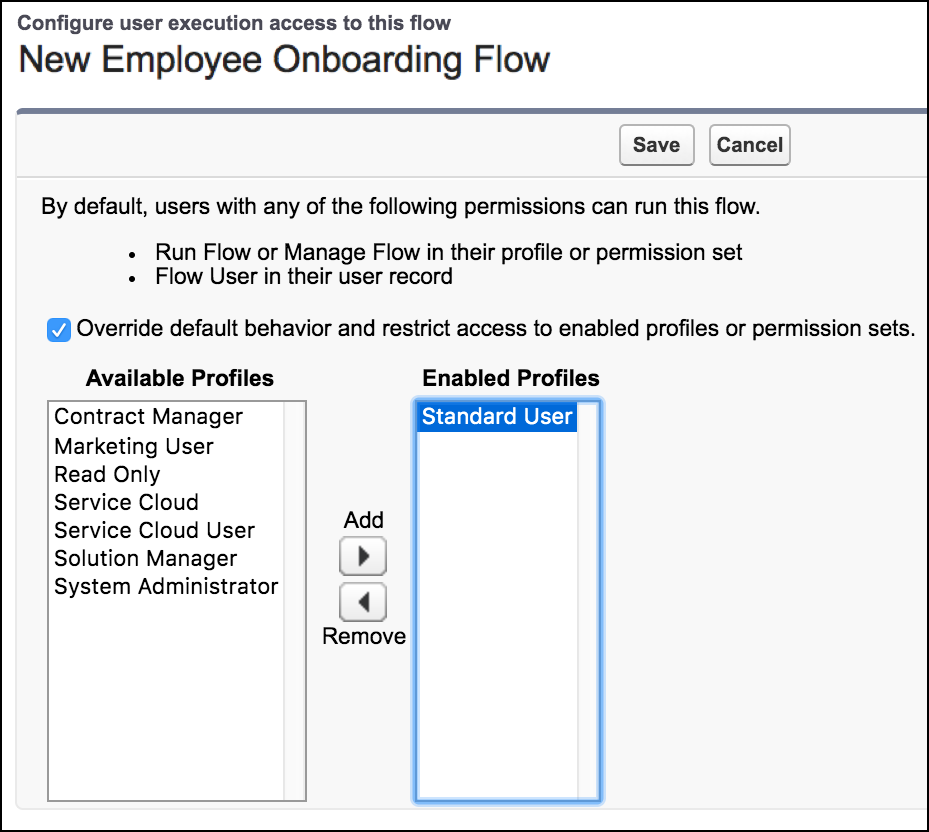
For individual flows that you create or clone, you can override default behavior and restrict access to users with enabled profiles or permission sets only.
If you select Override default behavior and restrict access to enabled profiles or permission sets, the user who resumes or runs the flow needs to have permission to the individual flow also. Even users with Run Flow or Manage Flow in their profile or permission set needs to be assigned to a profile or permission set that’s enabled to access the flow. To override the default behavior and restrict access, follow these guidelines.
- From Setup, in the Quick Find box, enter Flows, and then select Flows.
-
From the actions menu
 for the flow that you want to edit, click Edit
Access.
for the flow that you want to edit, click Edit
Access.
- In Apps, click Flow Access.
- Click Edit.
- Select Override default behavior and restrict access to enabled profiles or permission sets.
- Add the available profile to the enabled profiles.
- Save your work.
Configure Guest User Profile Access to a Flow with Flow Interview Sharing Rules
By default, only the user who started the flow interview can resume it. To grant access to a flow interview to someone other than the user who started it, use flow interview sharing rules. You can control access to specific flows for the Guest User profile only through the profile page.
You can control access to specific flows for the Guest User profile through the profile page only.
Permission to access a flow is checked only at the entry points, such as when a flow starts or resumes.
Permission for a flow is checked only at the top level. For example, flow A calls flow B. User X has a profile that can access flow A but not flow B. User X can run flow B, but only through flow A. User X can’t run flow B directly.
- From Experience Builder for the site associated with the Guest User profile, go to .
- Under Guest User Profile, click the profile name.
- Click .
- Add or remove flows from the Guest User Profile.
- Save your work.
