You are here:
Creating Flow Formulas with Flow Formula Builder
You can use Flow Formula Builder to build an expression in Formula-type resources or in the Collection Filter or Start elements of a record-triggered flow. To build your expression, select from a list of functions and operators. To catch errors as you work, check the formula syntax for each expression.
Required Editions
| View supported editions. |
| User Permissions Needed | |
|---|---|
| To open, edit, create, activate or deactivate a flow using all flow types, elements, and features available in Flow Builder, including Einstein and Agentforce for Flow: | Manage Flow |


- Automate a process for records where the closed date changed for US-based accounts that have more than 100 employees.
- Automate a process for new case records for Premier support accounts in North America and Europe that have revenue of over US$1,000,000.
Create Formulas in the Flow Start Element with Formula Builder
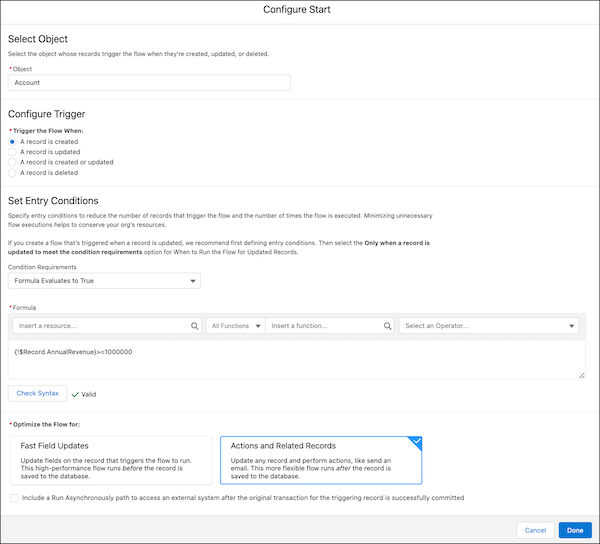
You can use Flow Formula Builder to build an expression in the Start element of a Record-triggered Flow. To build your expression, select from a list of functions and operators. To catch errors as you work, check the formula syntax for each expression.
- Edit the Start element in a Record-Triggered flow.
- Select the object with records that trigger the flow.
- Select when to trigger the flow.
- In the Set Entry Conditions section, set Condition Requirements to Formula Evaluates to True.
-
Insert a resource from the list of Global Variables.
- You can add more than one resource to an expression.
-
Insert a function.
- To see a list of functions, click Insert a function.
- To filter functions by category, select the All Functions dropdown and choose the category.
- Select an operator from the dropdown.
- Complete the expression.
- After you build each expression, click Check Syntax. The formula builder shows one error at a time.
- Complete the configuration for the Start element.
- Click Done.
-
Save your work.
Create Formulas in the Flow Collection Filter with Formula Builder
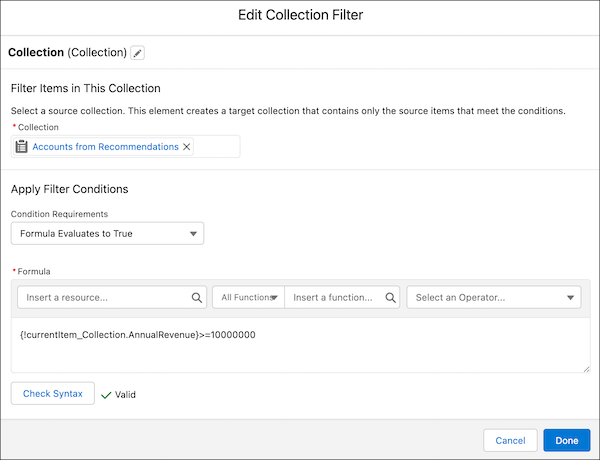
You can use Flow Formula Builder to build an expression in the Collection Filter element of a flow. To build your expression, select from a list of functions and operators. To catch errors as you work, check the formula syntax for each expression.
- Add an element to a flow.
- Select Collection Filter.
- Edit the generated Label if needed. Flow Builder generates it based on the element's configuration, and the API Name populates based on the label.
- Select a collection.
- In the Apply Filter Conditions section, set Condition Requirements to Formula Evaluates to True.
-
Insert a resource from the list of Global Variables.
- You can add more than one resource to an expression.
-
Insert a function.
- To see a list of functions, click Insert a function.
- To filter functions by category, select the All Functions dropdown and choose the category.
- Select an operator from the dropdown.
- Complete the expression.
- After you build each expression, click Check Syntax. The formula builder shows one error at a time.
- Click Done.
-
Save your work.
Create Formulas in Flow Formula-type Resources with Formula Builder
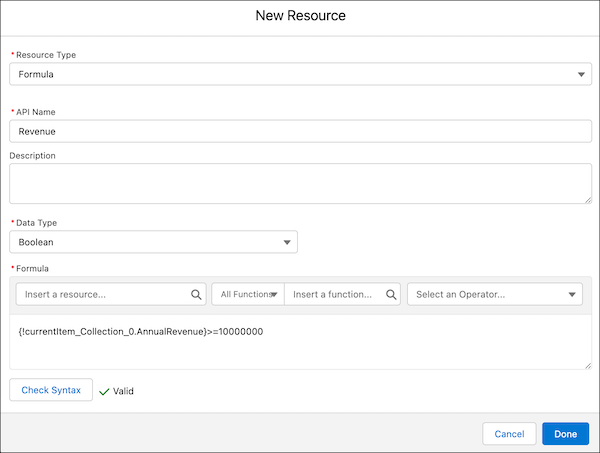
You can use Flow Formula Builder to build an expression in Flow Formula-type resources. To build your expression, select from a list of functions and operators. To catch errors as you work, check the formula syntax for each expression.
- In Flow, in the Toolbox, in Manager, click New Resource.
- From the Resource Type dropdown, select Formula.
- Enter an API Name.
- Select the Data Type.
-
Insert a resource from the list of Global Variables.
- You can add more than one resource to an expression.
-
Insert a function.
- To see a list of functions, click Insert a function.
- To filter functions by category, select the All Functions dropdown and choose the category.
- Select an operator from the dropdown.
- Complete the expression.
- After you build each expression, click Check Syntax. The formula builder shows one error at a time.
- Click Done.
-
Save your work.