You are here:
Let Users Pause Flow Interviews
When users can’t finish a flow interview, give them the option to pause it for later by customizing your org’s process automation settings. For example, a customer service representative can pause an interview when the customer doesn’t have all the necessary information.
Required Editions
| View supported editions. |
| User Permissions Needed | |
|---|---|
| To edit process automation settings: | Customize Application |
| To create, update, and delete flow list views: | Manage Flow |
- From Setup, enter Automation in the Quick Find box, then select Process Automation Settings.
- Select Let users pause flows.
- Click Save.
Screens automatically display the Pause button after Let Users Pause Flows is enabled.
- Add Record Context to Your Flows
All it takes to associate your org’s paused interviews with a record is setting the $Flow.CurrentRecord global variable in your flow. That way, you can find all the paused flow interviews related to that record. For example, in the Change Address flow, set $Flow.CurrentRecord to {!recordId} so that all Change Address interviews are associated with the relevant contact. - Customize Who Has Access to Paused Flow Interviews
By default, users can resume paused flow interviews as long as they have edit access. To control who has edit access, build a sharing model for the Flow Interview object. Configure the org-wide default access level, and build sharing rules to override that default for specific users or groups. - Restrict Who Can Resume Shared Flow Interviews
By default, users with the Run Flows permission or a Flow User feature license can resume any paused flow interview that they have edit access to. You can set Salesforce to only allow each interview to be resumed by the interview owner, or by an admin with Manage Flow permission and view access to the interview. - Delete a Paused Flow Interview
Delete long running or paused flow interviews to take actions on them, for example, to update or delete the flow version.
See Also
Add Record Context to Your Flows
All it takes to associate your org’s paused interviews with a record is setting the $Flow.CurrentRecord global variable in your flow. That way, you can find all the paused flow interviews related to that record. For example, in the Change Address flow, set $Flow.CurrentRecord to {!recordId} so that all Change Address interviews are associated with the relevant contact.
Required Editions
When a user pauses an interview or an interview runs a Wait element, the interview is associated with the record through the FlowRecordRelation object.
- At the beginning of your flow, add an Assignment element.
- For Variable, select $Flow.CurrentRecord.
- For Operator, leave equals selected.
-
For Value, select a variable that contains the appropriate ID.
Make sure that the variable contains only one ID.

Customize Who Has Access to Paused Flow Interviews
By default, users can resume paused flow interviews as long as they have edit access. To control who has edit access, build a sharing model for the Flow Interview object. Configure the org-wide default access level, and build sharing rules to override that default for specific users or groups.
Required Editions
The default sharing model for interviews is Private, which means that users inherit edit access from users lower in the role hierarchy. If your org uses a role hierarchy, users can resume all interviews that users lower in the hierarchy own or have edit access to.
Users with the CEO role have read/write access to all flow interviews in the org, even if the interview owner isn’t part of the hierarchy.
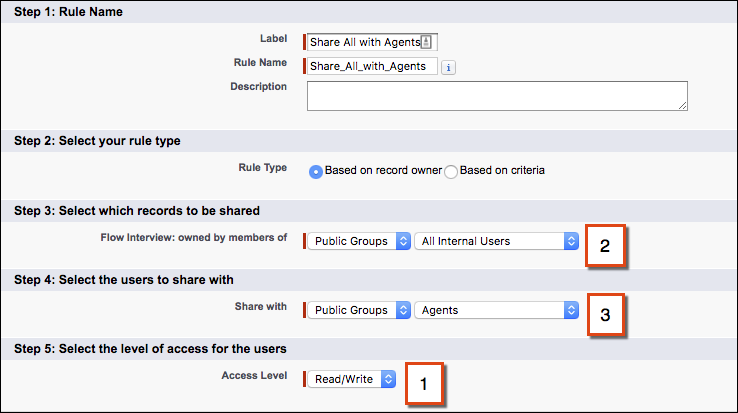
For example, to let all agents in your org resume any interview:
- Add all agents to the Agents public group.
- For Flow Interview, leave the organization-wide default set to Private.
- In a flow interview sharing rule, give read/write access (1) for interviews owned by internal users (2) to the Agents public group (3).
Restrict Who Can Resume Shared Flow Interviews
By default, users with the Run Flows permission or a Flow User feature license can resume any paused flow interview that they have edit access to. You can set Salesforce to only allow each interview to be resumed by the interview owner, or by an admin with Manage Flow permission and view access to the interview.
Required Editions
| View supported editions. |
| User Permissions Needed | |
|---|---|
| To edit process automation settings: | Customize Application |
| To create, update, and delete flow list views: | Manage Flow |
To require the resuming user to be the interview owner, or an admin with the Manage Flow permission and view access to the interview, complete these steps.
- From Setup, enter Automation in the Quick Find box, then select Process Automation Settings.
- Deselect Let users resume shared flow interviews.
- Click Save.
Delete a Paused Flow Interview
Delete long running or paused flow interviews to take actions on them, for example, to update or delete the flow version.
Required Editions
| View supported editions. |
| User Permissions Needed | |
|---|---|
| To open, edit, create, activate or deactivate a flow using all flow types, elements, and features available in Flow Builder, including Einstein and Agentforce for Flow: | Manage Flow |

- From Setup, enter Flows in the Quick Find box, then select Flows.
-
For each interview that you want to delete, click Del, or click
 and select
Delete.
and select
Delete.
