Loading
Salesforce now sends email only from verified domains. Read More
Automate Your Business Processes
Table of Contents
Select Filters

          No results
          No results
          Here are some search tips

          Check the spelling of your keywords.
          Use more general search terms.
          Select fewer filters to broaden your search.

          Search all of Salesforce Help
          Edit Quip Document Action

          Edit Quip Document Action

          Edit content in a document, spreadsheet, or slide. Add or replace content based on a document section.

          Required Editions

          Available in: Lightning Experience
          View supported editions for Quip.

          In Flow Builder, add an Action element to your flow. In the Action field, enter Quip, and select Edit Quip Document.

          Warning
          Warning Quip is retiring slides on January 31, 2021. After this date, the Copy Content action in Process Builder and Flow Builder no longer works, and Slides isn’t a valid document type for the Edit Document and Create Document actions. Tell Me More

          Set Input Values

          Use values from earlier in the flow to set the inputs for the action.

          Input ParameterDescription
          Content Location

          Location in the document where you want to add content. Valid values are:

          • append–To add content to the end of the document, enter this value.
          • prepend–To add content to the beginning of the document, enter this value.
          • after_section–To add content after a designated section, enter this value. Valid only if Section Anchor Link is specified.
          • before_section–To add content before a designated section, enter this value. Valid only if Section Anchor Link or Section Match Type is specified.
          • replace_section–To replace an existing section with new content, enter this value. Valid only if Section Anchor Link or Section Match Type is specified.
          • after_document_range–To add content to a template after a document range, enter this value. Valid only if Document Range Heading is specified.
          • before_document_range–To add content to a template before a document range, enter this value. Valid only if Document Range Heading is specified.
          • replace_document_range–To replace existing content based on a document range, enter this value. Valid only if Document Range Heading is specified.
          Document URL URL of the document that you want to edit. For example: https://salesforce.quip.com/GVnGbtEasAGa
          Edit Document Type

          Type of document that you want to edit. Valid values are:

          • document–To edit a document, enter this value.
          • spreadsheet–To edit a spreadsheet, enter this value.
          Content

          Optional. Content added to the document that you want to edit. Valid only if Content Format is set to html. Valid values are:

          • String values
          • @[Salesforce user ID]–To @mention a Salesforce user in the document, enter the Salesforce ID. If the user’s Salesforce email is connected to Quip, the user ID is replaced with a Quip user @mention. If not, the Salesforce ID is replaced with the user’s Salesforce email.
          • @[person1@quip.com]–To @mention a user by email, enter this value.
          • @Everyone–To send a notification to everyone in the document, enter this value.
          Content Format

          Optional. Format of content added to the document. By default, content format is set to html. Valid values are:

          • html–To format text added to Document Content with html, enter this value.
          • liveapp–To add a live app to your document, enter this value. Only valid if Document Type is set to document.
          Disable Extra Lines in Quip Optional. Boolean parameter that prevents Quip from inserting an extra line between paragraphs. The default is false, meaning that by default extra lines are inserted.
          Document Range Heading Optional. Heading text that marks the start of the document range.
          Element Type

          Optional. The type of spreadsheet element to edit. Only valid if Document Type is set to spreadsheet. Valid values are:

          • row–To edit a spreadsheet row, enter this value.
          • column–To edit a spreadsheet column, enter this value.
          Image Number

          Optional. Image index of an image on a slide. Only valid if Document Type is set to slides. Valid values are:

          • Image integers–Integers represent an image index on a slide. Images are ordered from top to bottom. Images closer to the top of a slide have an image integer of 1. Images closer to the bottom have the biggest integers. If there are multiple images on a slide with the same vertical positions, the image numbers are ordered from left to right. If there are multiple images on a slide with the same horizontal and vertical positions, the image that is behind the other one has an image number of 1. The image in front has an image number of 2.

          Quip is retiring slides on January 31, 2021. After this date, the Copy Content action in Process Builder and Flow Builder no longer works, and Slides isn’t a valid document type for the Edit Document and Create Document actions. Tell Me More

          Image URL

          Optional. The URL of an image in a slide deck. Only valid if Document Type is set to slides.

          Quip is retiring slides on January 31, 2021. After this date, the Copy Content action in Process Builder and Flow Builder no longer works, and Slides isn’t a valid document type for the Edit Document and Create Document actions. Tell Me More

          Live App Type

          Type of live app added to the document. Required if Content Format is set to liveapp. Only documents support live apps. Valid values are:

          • salesforce_record–To add the Salesforce Record live app to the document, enter this value.
          • salesforce_list–To add the Salesforce List live app to the document, enter this value.
          Object Type Type of object used by the Salesforce List live app. Required if Live App Type is set to salesforce_list. Only string values are supported. For example: Account, Opportunity, or CustomObject__c.
          Record Name Optional. Name of the record added to the document through the Salesforce Record live app. Valid only if the Live App Type is set to salesforce_record. Only string values are supported.
          Record Type Optional. Type of object used by the Salesforce Record live app. Valid only if Live App Type is set to salesforce_record. Only string values are supported. For example: Account, Opportunity, or CustomObject__c.
          Salesforce List View ID Optional. ID of the Salesforce list view added to the document. Valid only if Live App Type is set to salesforce_list.
          Salesforce Org Name Optional. Salesforce org name used in the live app. Valid only if Content Format is set to liveapp. Only string values are supported. For example: Acme.
          Salesforce Record ID Optional. ID of the Salesforce record added to the document. Valid only if Live App Type is set to salesforce_record.
          Section Anchor Link URL of a section in the document where you want to add or replace content. Valid only if Content Location is set to before_section, after_section, or replace_section. For example: https://[quip_site_url]/GVnGAtEawAGh/Source-Slide#JUJACAuc0ps, where Source-Slide#JUJACAuc0ps is a specific slide in the slide deck.
          Section Match Type

          Placement of keywords used to identify the section where you want to add or replace content. Valid only if Content Location is set to before_section, after_section, or replace_section, and the Document Type is document. Keywords aren’t case-sensitive and ignore HTML tags. Valid values are:

          • prefix–To find a keyword in a document based on the first part of a word, enter this value. For example, hello is the prefix for helloworld.
          • suffix–To find a keyword in a document based on the end of a word, enter this value. For example, world is the suffix for helloworld.
          Section Style

          Format of the document section where you want to add or replace content. Required if Section Type is set to textmatch. Valid values are:

          • paragraph–To find a keyword in a paragraph, enter this value.
          • heading–To find a keyword in a heading, enter this value.
          • list–To find a keyword in a list, enter this value.
          Section Text Keywords to identify the section where you want to add or replace content. Required if Section Match Type is specified. Only string values are supported.
          Section Type

          Optional. Determines how a section is edited. Valid values are:

          • anchorlink–To edit a document section based on its anchor link, enter this value. Valid only if Section Anchor Link is set up.
          • textmatch–To edit a document section based on a keyword, enter this value.
          Slide Layout

          Optional. The slide element to edit. Only valid if Document Type is set to slides. Valid values are:

          • single_column–To edit a slide column, enter this value.
          • image–To edit a slide image, enter this value.

          Quip is retiring slides on January 31, 2021. After this date, the Copy Content action in Process Builder and Flow Builder no longer works, and Slides isn’t a valid document type for the Edit Document and Create Document actions. Tell Me More

          Slide Number

          Optional. The slide index to edit. Only valid if Document Type is set to slides. For example, to edit the first slide of a deck, enter 1.

          Quip is retiring slides on January 31, 2021. After this date, the Copy Content action in Process Builder and Flow Builder no longer works, and Slides isn’t a valid document type for the Edit Document and Create Document actions. Tell Me More

          Store Output Values

          Output Parameter Description
          Document ID ID of the edited document
          Document Link URL of the edited document
          Document Title Title of the edited document
          Example
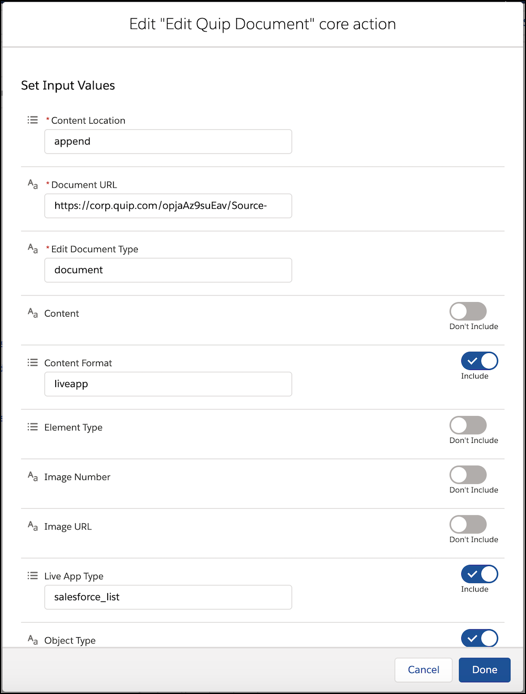
          Example A sales rep wants to update their Account Plan and add a list view of open opportunities related to the account. You can create a flow that uses the Edit Document core action to add the Salesforce List live app to the end of the Account Plan.
          append list live app to document
          Example
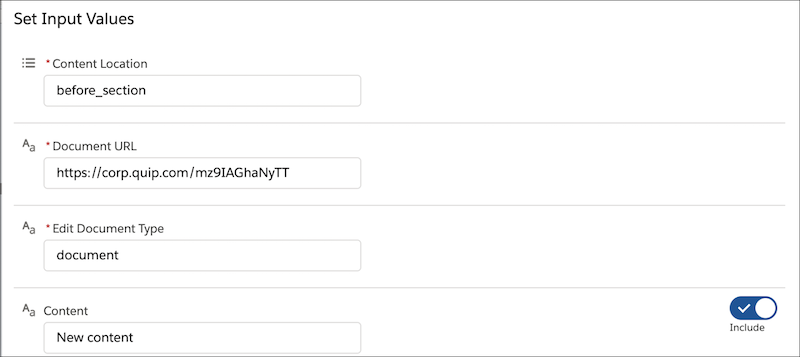
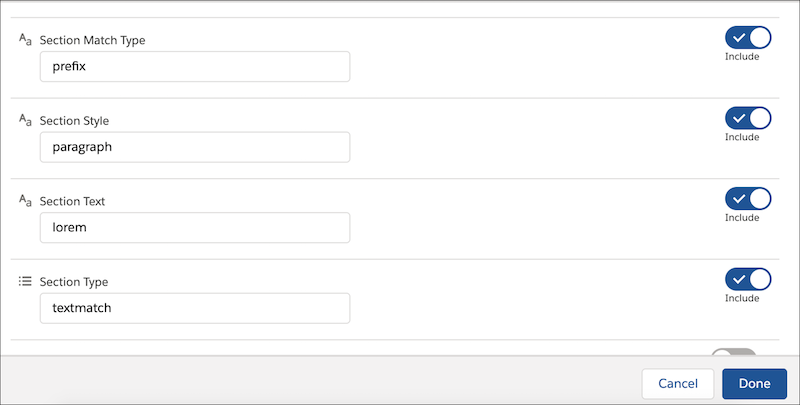
          Example A service manager wants to update an Account Plan with an account history. The account is up for renewal and the service manager wants to make sure that the sales rep has the necessary background on past cases before contacting the customer. You can create a flow that uses the Edit Document core action to add an account history to an Account Plan and place it before the placeholder lorem.
          Add content before section
          edit doc before lorem
           
          Loading
          Salesforce Help | Article