Loading
Salesforce now sends email only from verified domains. Read More
Automate Your Business Processes
Table of Contents
Select Filters

          No results
          No results
          Here are some search tips

          Check the spelling of your keywords.
          Use more general search terms.
          Select fewer filters to broaden your search.

          Search all of Salesforce Help
          Copy with Live Paste Action

          Copy with Live Paste Action

          Copy content from a source Quip document and paste it to a new document with Live Paste. When the source content is updated, Quip documents with the live pasted content also update.

          Required Editions

          Available in: Lightning Experience
          View supported editions for Quip.

          In Flow Builder, add an Action element to your flow. In the Action field, enter Quip, and select Copy with Live Paste.

          Set Input Values

          Use values from earlier in the flow to set the inputs for the action.

          Input ParameterDescription
          Source Section Anchor Links URLs of the sections in the source document that you want to copy content from. Anchor links must be from the same document and separated with commas. Valid only if Content Type is set to anchor link.
          Content Location

          Optional. Location in the document where you want to live paste your copied content. Valid values are:

          • append–To live paste content to the end of the document, enter this value.
          • prepend–To live paste content to the beginning of the document, enter this value.
          • after_section–To live paste content after a designated section, enter this value. Valid only if Target Section Anchor Link is specified.
          • before_section–To live paste content before a designated section, enter this value. Valid only if Target Section Anchor Link is specified.
          • replace_section–To replace an existing section with live pasted content, enter this value. Valid only if Target Section Anchor Link is specified.
          • after_document_range–To live paste content after a named document range, enter this value. Valid only if Target Document Range Heading Text is specified.
          • before_document_range–To live paste content before a named document range, enter this value. Valid only if Target Document Range Heading Text is specified.
          • replace_document_range–To replace a named document range with live pasted content, enter this value. Valid only if Target Document Range Heading Text is specified.

          By default, Content Location is set to append.

          Content Type

          Type of content that you want to copy. Valid values are:

          • anchor_link–To copy content based on a section anchor link URL, enter this value.
          • document_range–To copy content from a template based on a document range name, enter this value.
          Source Document Range Heading Heading text from the document range that you want to copy. Valid only if Content Type is set to document_range.
          Target Document URL URL of the document that you want to copy live pasted content to.
          Target Section Anchor Link Optional. URL of the section in the target document where you want to copy live pasted content to.
          Target Document Range Heading Text Heading text from the document range where you want to live paste your copied content.
          Update Automatically

          Optional. Automatically update the target document when the source content is updated and Live Paste is on. Valid values are:

          • true
          • false

          By default, Update Automatically is set to false.

          Store Output Values

          Output Parameter Description
          Document ID ID of the document where live pasted content was added.
          Document Link URL of the document where live pasted content was added.
          Document Title Title of the document where live pasted content was added.
          Example
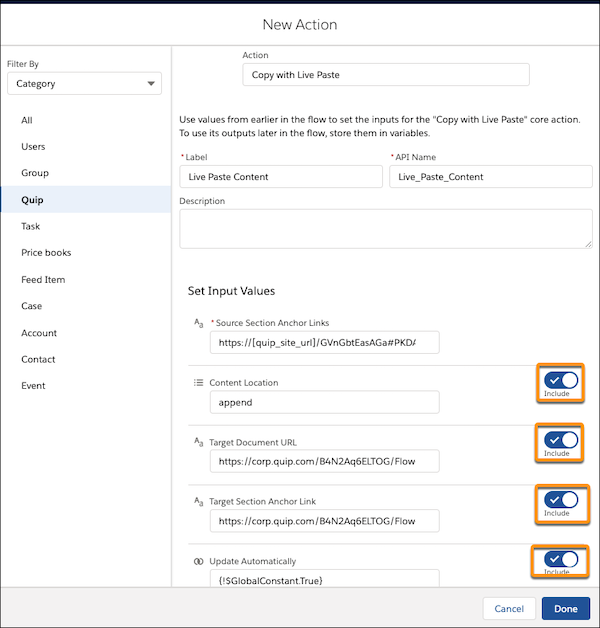
          Example A sales manager wants to add instructions to all Account Plans to teach their sales reps what to do next. But the sales manager doesn’t want to update each one individually. You can create a flow that uses the Copy with Live Paste core action to add the updated instructions to the end of the Account Plan.
          Copy with Live Paste flow with selected fields highlighted
           
          Loading
          Salesforce Help | Article