Loading
Salesforce now sends email only from verified domains. Read More
Automate Your Business Processes
Table of Contents
Select Filters

          No results
          No results
          Here are some search tips

          Check the spelling of your keywords.
          Use more general search terms.
          Select fewer filters to broaden your search.

          Search all of Salesforce Help
          Send Conversation Messages Action

          Send Conversation Messages Action

          Send a messaging component to one or more messaging users in an enhanced messaging channel or Enhanced In-App Chat.

          Required Editions

          Available in: Lightning Experience
          View supported editions.

          In Flow Builder, add an Action element to your flow. In the Action field, enter Messages, and select Send Conversation Messages.

          Set Input Values

          Field Description
          Messaging Users Select a collection variable that contains the IDs of up to 100 messaging users to receive the message. To send more than 100 messages, divide your end user recipients into batches of 100 or fewer and repeat the action for each batch.
          Messaging Component Select a messaging component, which provides the content of your message. Only notification messaging components can be sent with flow actions. You can also reference up to 5 custom parameters on the selected messaging component.
          Messaging Timing

          Optionally, select an option to limit when the message is sent.

          • Any Time: Send the message regardless of whether the messaging user is engaged in an active messaging session with your company.
          • Not During Active Sessions: Send the message unless the messaging user is engaged in a session with a status of Active. The message is sent when the session’s status changes.
          • Not During Open Sessions: Send the message unless the messaging user is engaged in a session with a status other than Error or Ended. The message is sent when the session’s status changes to Error or Ended.
          Apply Messaging channel consent preferences

          Determine who receives the message.

          • To respect messaging users' consent settings for a channel, select Yes, apply Messaging End User settings. This is the most common approach.
          • To add custom consent logic, select No, I’ll apply custom consent logic. For example, if a channel requires users to explicitly opt in, you can select No, I’ll apply custom consent logic and customize your flow to send the message to users who both implicitly and explicitly opt in.
          • To send the message only to messaging users who opted into a particular subscription, select Yes, choose a communication subscription. In the subsequent field, enter a flow variable that provides the subscription ID. The subscription must be tied to the channel where you’re sending the message. This option is visible only if you have a unified channel that supports marketing interactions.
          Session Longevity

          Decide whether to end the session after the message is sent. Available values are:

          • No, Keep Session Open: After the flow sends the message, keep the messaging session in a New state. If the end user doesn’t respond within 48 hours, the session ends. This is a good option if you expect customers to respond to automated messages and want service reps to see their response in context.
          • Yes, End Session Immediately: After the flow sends the message, end the messaging session. If the customer responds, a new messaging session is created and routed to your support team.

          Usage

          Here’s an example of the Send Conversation Messages action in a simple flow.
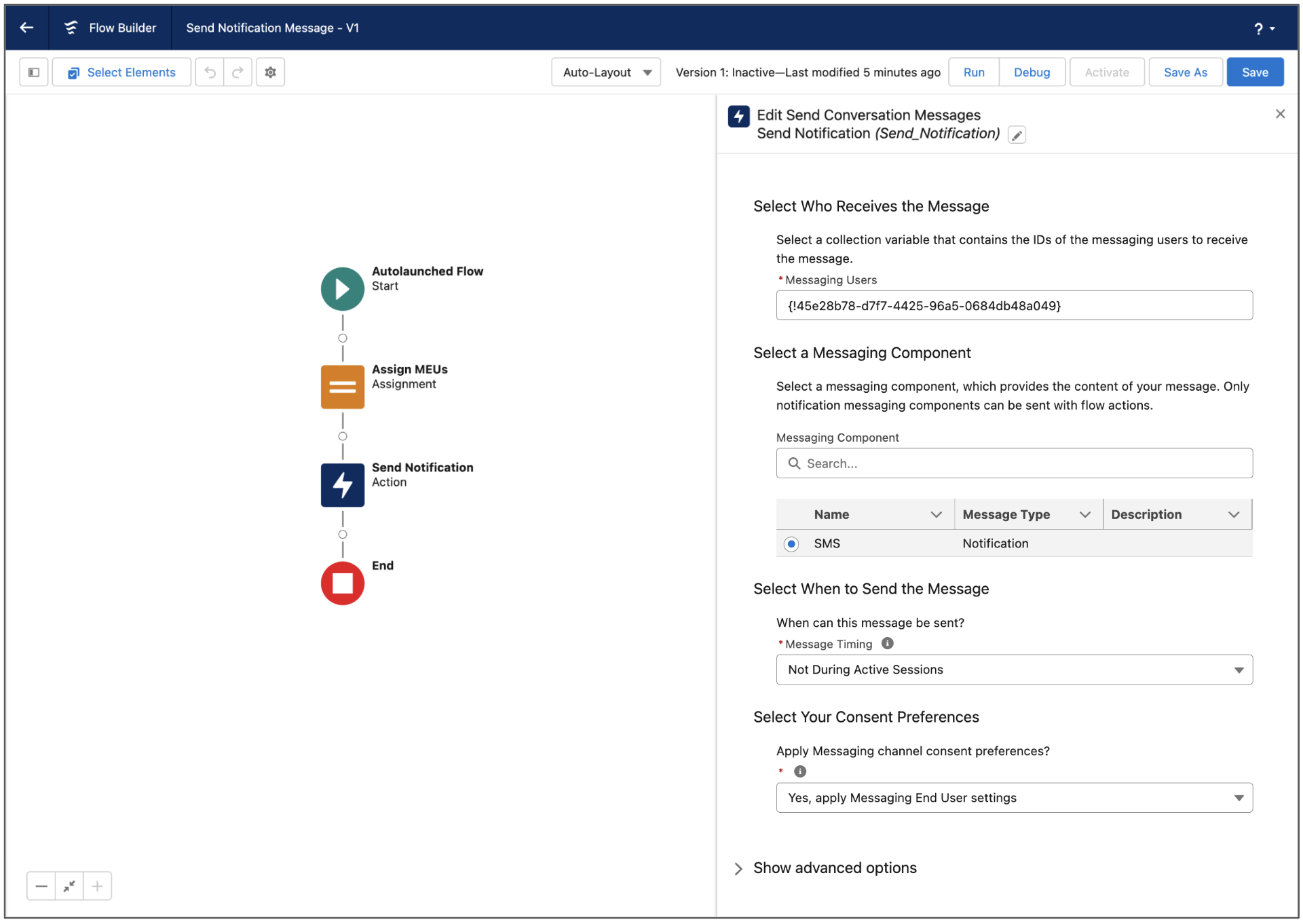
          Send Conversation Messages action

          To track messages sent by this action, query the ConvMessageSendRequest object.

           
          Loading
          Salesforce Help | Article
