You are here:
Assignment Element
Set values in variables, including collection variables, record variables, record collection variables, and global variables.
Required Editions
Usage
To update the value of a variable, add an Assignment element to your flow. Specify the API name of a variable, an operator, and the value to use.
To update the value of more than one variable in an Assignment element, click Add Assignment. For each row, specify the variable, the operator, and the value to assign. At run time, variable assignments are made consecutively in the order they're listed in the element.
| Field | Description |
|---|---|
| Variable | The API name of the variable you want to assign a value to. Select an existing variable, or create one. |
| Operator | The operation to perform for the assignment. The available operators depend on the data type of the specified Variable. See Flow Operators in Assignment Elements |
| Value | The value to use in the assignment or the API name of a resource that contains the value to use in the assignment. Variable and Value in the same row must have compatible data types. |

To set the field values for a record variable and then add the record variable to a record collection, use an Assignment element on a Loop element's For Each path. To create all the records at the same time, use the record collection variable with a Create Records element outside of the loop.
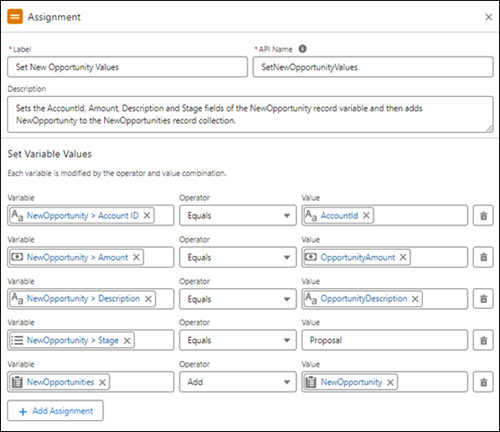
This example updates the Account ID, Amount, Description, and Stage fields of the NewOpportunity record variable and then adds the record variable to the NewOpportunities record collection variable.
This example contains five variables:
- NewOpportunity: Data Type is Record and Object is Opportunity.
- AccountId: Data Type is Text.
- OpportunityAmount: Data Type is Currency.
- OpportunityDescription: Data Type is Text.
- NewOpportunites: Data Type is Record and Object is Opportunity. Allows multiple valuesis selected.
The Assignment element in this example has five rows:
- The first row sets the record variable's account ID to a variable value:
- Variable is NewOpportunity > Account ID
- Operator is Equals
- Value is AccountId
- The second row sets the record variable's amount to a variable value:
- Variable is NewOpportunity > Amount
- Operator is Equals
- Value is OpportunityAmount
- The third row sets the record variable's description to a variable value:
- Variable is NewOpportunity > Description
- Operator is Equals
- Value is OpportunityDescription
- The fourth row sets the record variable's stage to a literal value from the picklist
associated with the Stage field:
- Variable is NewOpportunity > Stage
- Operator is Equals
- Value is Proposal
- The fifth row adds the record variable to the record variable collection:
- Variable is NewOpportunities
- Operator is Add
- Value is NewOpportunity
Here's an Assignment element that sets properties of an opportunity record variable and then adds the variable to an opportunities record collection
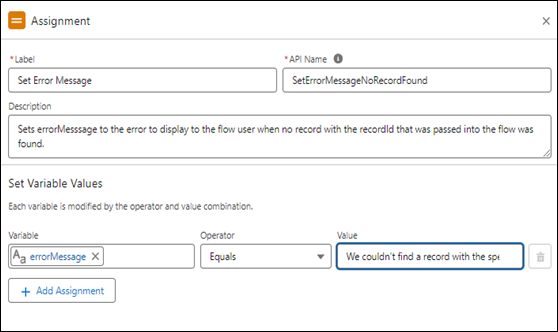
To set a variable equal to a relevant error message, use an Assignment element on a Fault path. Next, use a Go To connector to go to a Screen element that displays errors to the flow user. The Screen element uses the variable from the Assignment element in a Display Text component.
This example sets the value of the ErrorMessage variable to a string that identifies the problem and what to do about it.
This example contains one variable: ErrorMessage where Data Type is Text.
This example contains one row:
- Variable is ErrorMessage
- Operator is Equals
- Value is We couldn't find a record with the specified record ID. Check the record ID and try again.
Here's an Assignment element that sets the value of a variable to a literal string