You are here:
Get Records Element
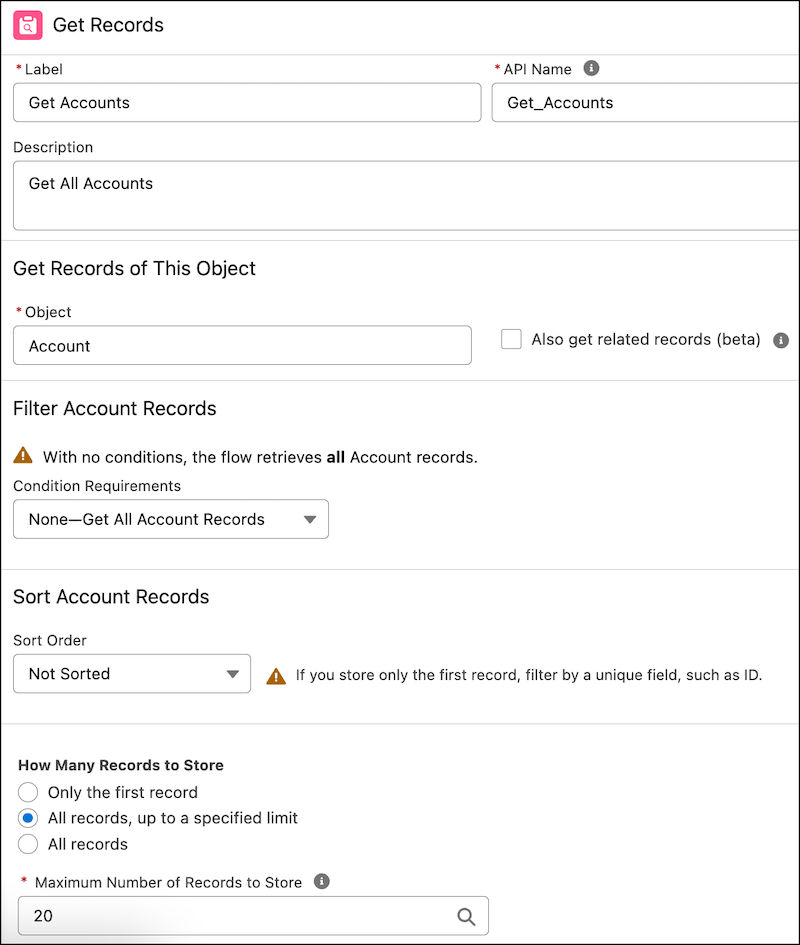
The Get Records element finds all Salesforce or Marketing Object records that meet the filter and sort conditions and stores values from the retrieved records in variables. You can retrieve Salesforce standard and custom object records, or Marketing Object records, by using the Get Records element.
Required Editions
This video explains what the Get Records element is and why you should use it in a flow.
View this video in a separate tab.
This transcript provides a text-based version of the video content.
Did you know that Flow is not connected to your data? Flow has no idea what's going on in your Salesforce Org. So how do we get data into a Flow? If only there were a data element to help us get data into Flow? Oh wait, there is. In order to pull information into Flow, we use the Get Records Data Element. Get Records allows you to choose an object to get records from and even set criteria to decide which records to get. You can get one or many records to work with. Within the record, you can either get all the fields or select just the fields you need. Once the records are in the Flow, you can work with the information in several ways. You can inform decisions, update the records that you pulled into the Flow, update other records; all of these decisions, updates, etc., are temporary and exist only in the Flow until the information is sent back to your Salesforce Org. This can be done with the Create, Delete, and Update Records Data Elements. Get Records pulls info into your Flow, and the create, delete, and update records elements push that info back into your Salesforce Org.
Get Related Records (Beta)

Related records in the Get Records element are available in autolaunched flows. See Get Related Salesforce Records from a Flow (Beta).
How Many Records to Store
Identify the object with records that you want to find. Narrow the list of returned records by specifying filter conditions and a sort order.
| Select | If you want to |
|---|---|
| Only the first record | Store only the first record that meets the specified criteria. For example, use this option to retrieve caller details by finding the first record that matches the caller's phone number. |
| All records | Store all records that meet the specified criteria. For example, use this option when you want to gather all contacts associated with a specific account for a marketing campaign. |
| All records, up to a specified limit. | Store all records up to a specified upper limit. Specify a number between 2 and 20,000 as an upper limit. You can use literals, variables, constants, or formulas of the number data type in the Maximum Number of Records to Store field. For example, use this option to retrieve the first 50 records so that you can analyze a sample from a large dataset. |
How to Store Record Data
When you add a Get Records element to a screen flow or an autolaunched flow, Salesforce automatically stores all the record values in a flow variable. When the flow moves to the next element, the values are assigned to the variable.
| Select | If you want to |
|---|---|
| Automatically store all fields | Automatically store all the fields of the records that meet your specified filter conditions. Every field in the retrieved records is stored in a flow variable. This option is useful when you must work with multiple fields from the records and want to ensure that all data is available without specifying each field individually. For example, use this option to store all opportunity fields when you want to analyze every opportunity in your pipeline. You can then use the fields for a detailed analysis or use them in subsequent flows. |
| Choose fields and let Salesforce do the rest | Manually specify which fields you want to store from the retrieved records. With this option, you can be selective about the data that you store, which can be more efficient if you only need specific fields. For example, use this option when your customer service rep needs to update only the priority and status of all open cases assigned to them. You can reduce complexity and improve performance by getting only the needed fields from the records. |
| Choose fields and assign variables (advanced) | Store record values manually in a screen flow or autolaunched flow. For example, to calculate the total value of all won opportunities for a specific campaign, assign the amount field to a specific variable. Choosing fields and assigning variables makes it easy for the flow to add these values and perform other calculations based on the total amount. See Choose fields and assign variables (advanced) |
Choose fields and assign variables (advanced)
| If you want to | Then |
|---|---|
| Store field values manually for only the first record |
|
| Store field values manually for more than one record | Store the values in a record collection variable. When you use a record collection variable to create, update, or delete multiple records at one time, you reduce the number of DML requests in your flow. You’re more likely to stay within your org’s limits. See Flow Bulkification in Transactions. Here are some examples.
|
Sort the Retrieved Records
Sort the retrieved records in ascending or descending order based on the selected field. Sort orders are useful when you want to process records in a specific sequence. When you sort records by a date field and select ascending order, the oldest dates show first. If you select descending order, the most recent dates show first. When you sort records by a numerical field and select ascending order, the lowest values show first. If you select descending order, the highest values show first.
When you sort records in ascending order, null values appear at the beginning of the list because null values are considered the smallest possible values. Conversely, when you sort records in descending order, null values appear at the end of the list.
Find Out How Many Records Were Retrieved
If you want to know the number of records returned by the Get Records element, first create a number variable. Next, assign the number variable the value of the record collection variable from the Get Records element by using the assignment element with the Equals Count operator. When you debug the flow, the value of the number variable tells you how many records were retrieved.
Error Handling If No Records Are Returned
If your Get Records element is set to "Choose fields and assign variables (advanced)" and no records match the filter conditions, the flow doesn't retrieve any records. The variables you use to store field values are empty or null. This means that any flow logic that depends on these variables needs to handle the case of no data is present. Use decision elements to check whether the variables are empty before proceeding with actions that depend on the retrieved data. If your flow is user-facing, provide feedback to the user indicating that no matching records were found. This feedback can improve the user experience by making it clear why certain actions or data are not available.
Considerations for Defining Filter Criteria
-
When you define multiple filters, the filter logic usually defaults to AND. However, if multiple filters have the same field selected and use the equals operator, the filters are combined with OR.
For example, your filters check whether a case’s Type equals Problem (1), Type equals Feature Request (2), and Escalated equals true (3). At run time, the filters are combined to
(1 OR 2) AND 3. - The available filter operators depend on the data type of the selected fields. For details, see Flow Operators in Data Elements and Record Choice Sets.
- To use a Data Cloud object as the data source, your org must include a data mapping for the object. Data mapping relates Data Lake Object (DLO) fields to Data Model Object (DMO) fields. If your org doesn’t include a mapping, you can’t select a Data Cloud data space or object in the Get Records element.
- Marketing Object records are available with Starter Suite, Marketing Cloud Growth, and Marketing Cloud Advanced editions. To use a Marketing Object as the data source, you need Read, Create, Edit, and Delete permissions on Marketing Objects.
