You are here:
Path Experiment Element
Experiment with up to 10 different versions of a customer journey to determine the most effective path. The Marketing Cloud Path Experiment element randomly assigns individuals to paths for an unbiased outcome. Use automated path selection for faster optimization. Use manual path selection for added control or if you’re using data from outside Salesforce.
Required Editions
| Available in: Lightning Experience |
| Available in: Salesforce Enterprise and Unlimited Editions with Marketing Cloud Advanced Edition, and in Starter and Pro Suite Editions. Your edition determines the options that you have. |

Prerequisites
To add the Path Experiment element to a flow, the user requires either the Marketing Cloud Manager or Marketing Cloud Admin permission set. The Path Experiment element also requires that you set up personalization features. For detailed instructions, see Set Up Personalization Features in Marketing Cloud Next. Path Experiment is available in automation event-triggered flows and segment flows.
Automated Path Selection (Recommended)
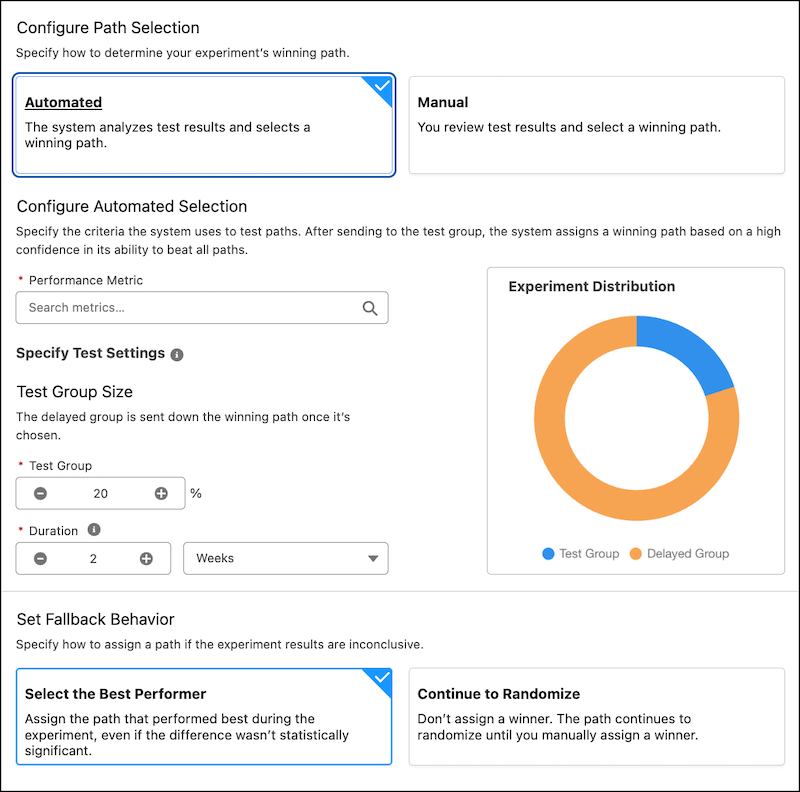
To use automated path selection, select Automated, then configure your performance metric, test settings, and fallback behavior. During automated path selection, the system tests paths, then selects a winner. The system uses Bayesian prediction to select a winning path. If a path meets or exceeds 95% confidence to beat all other paths after testing, it’s declared as the winner. If no path meets or exceeds 95% confidence to beat all other paths, the experiment uses your selected fallback behavior.
| Field | Description |
|---|---|
| Performance Metric | The metric used to measure a path’s level of success in your experiment. The performance metric can be a standard event, such as Email Link Clicks, or a custom engagement signal. For detailed information about custom engagement signals, see Engagement Signals. |
| Test Group | The percentage of your audience to run the experiment on. |
| Duration | The amount of time the experiment runs. |
Manual Path Selection
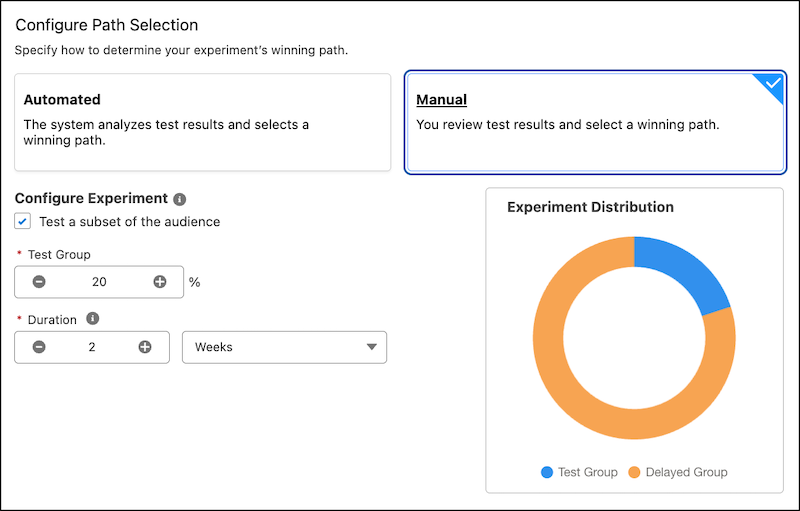
To use manual path selection, select Manual, then configure your test settings. To experiment on a subset of your audience, select Test a subset of your audience in the Path Experiment properties panel. You can test a subset of the audience only for flows configured to run one time. Enter the percentage of the audience to include in the experiment. Then enter the delay duration for the remaining group. When the duration expires, the delayed group enters the experiment and follows randomly assigned paths based on the distribution percentages.
| Field | Description |
|---|---|
| Test Group | The percentage of your audience to run the experiment on. |
| Duration | The amount of time the experiment runs. |
Paths
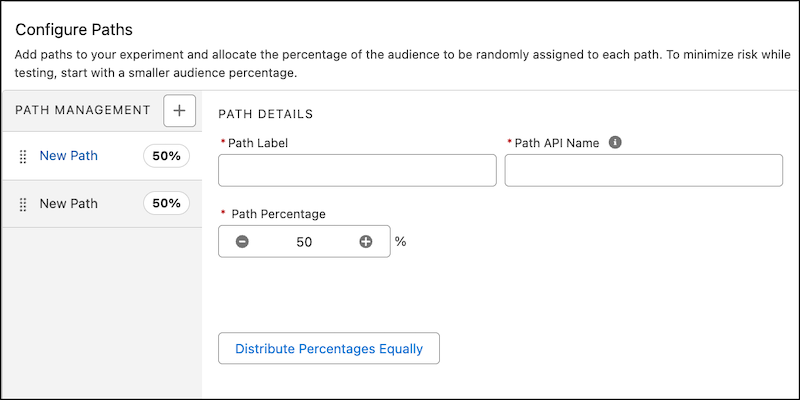
Create a path for each customer journey that you want to test. Specify an audience percentage for each path. Flow randomly assigns each individual an experiment cohort and path based on the distribution percentage. After the initial assignment, each individual always receives the same path when reentering the experiment. The individual can reenter through a loop or Go To connector.
| Field | Description |
|---|---|
| Path Label | Identifies the path on the canvas. |
| Path API Name | The requirement for uniqueness applies only to elements within the current flow. Two elements can have the same API name, provided they're used in different flows. An API name can include underscores and alphanumeric characters without spaces. It must begin with a letter and can’t end with an underscore. It also can’t have two consecutive underscores. |
| Path Percentage | The distribution percentage of individuals to send down this path. The total distribution percentage across all paths must equal 100%. |
Path Assignment and Test Group Distribution
The Path Experiment element uses randomization to assign individuals to paths and test groups. The percentages you set are targets, not guaranteed counts. The actual distribution doesn't always match your specified percentages exactly, especially with smaller audiences.
The system assigns each individual based on their unique ID and the experiment ID. This calculation places each person into a specific bucket, which determines their path assignment and whether they're in the test group. Because the system assigns each person individually rather than dividing the total evenly, the results work like probability rather than exact division.
For example, you configure two paths with a 50% distribution each and run the experiment on a small audience of 6 people. The actual split can be 4 people in one path and 2 in the other, rather than exactly 3 and 3. The same applies to test groups. With an 80% test group setting for 10 people, you sometimes see 7 or 9 people instead of exactly 8. Larger audiences yield distribution results closer to your set percentages.
This behavior applies to both path percentages and test group percentages.
Debug a Path Experiment Element
Run your Path Experiment element in debug mode to test its behavior. Click Debug, select triggering records and any other relevant debug options, and then click Run. On the Debug panel's Details tab, find the Select Resume Path card after the Path Experiment card.
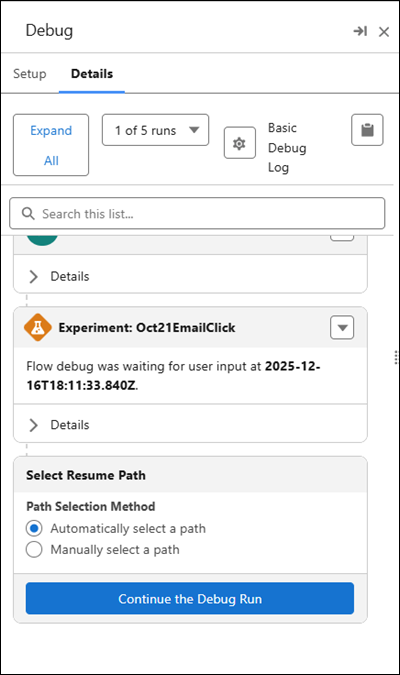
To randomize path assignment, select Automatically select a path.
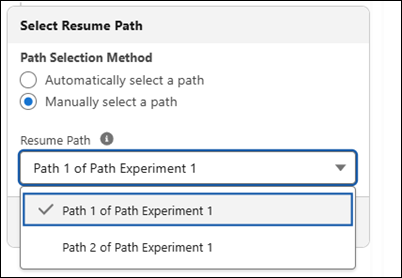
To test a specific path, select Manually select a path, and then for Resume Path, select a path.
Click Continue the Debug Run.
Manually Select a Winning Path
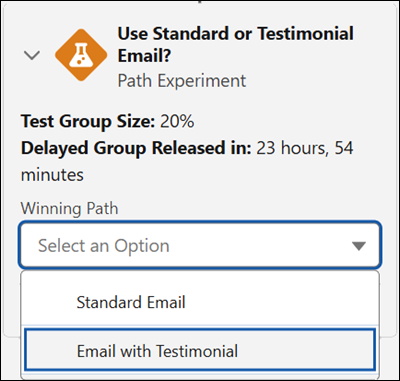
To select a winning path for an activated flow, select the Path Experiment element on the Flow Builder canvas. In the Winning Path dropdown, select the path to designate as the winning path. Selecting a winning path sends all new, remaining, and delayed audience members down that path. Manually selecting a winning path doesn't require saving a new flow version.
View Path Comparison Analytics
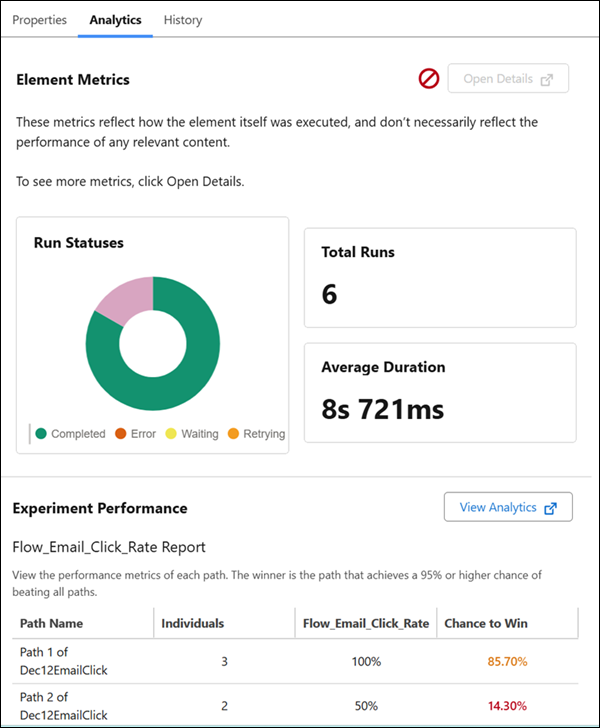
Review how paths in your experiment are performing by using the Analytics tab in the Path Experiment properties panel. This tab shows participant counts, performance metrics, and confidence levels for each path. The Analytics tab is available for segment flows that have a progress status of Activated, Completed, Canceled, or Error. However, if the flow status is Error, no analytics data appears. To access detailed analytics reports, click View Analytics.
Path outcome metrics show the overall performance result for each path. To view path outcome metrics, in the Path Experiment element's Analytics tab, click Open Details.
View Path Experiment History
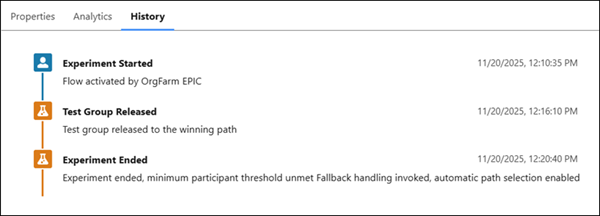
Track what happened during your path experiment by using the History tab in the Path Experiment properties panel. The tab shows all changes after activation, including when each event occurred, who made the change, and whether the action was automated or manual. Review events such as experiment start, winner selection, delayed group releases, and fallback handling. The History tab appears for segment flows with a progress status of Activated, Canceled, or Error.
Path Experiment Notifications
The user who activates a flow receives an in-app notification when the path experiment completes. The notification informs you about the experiment outcome. For example, it shows which path won, whether fallback handling occurred, or if the experiment was inconclusive. These notifications are sent automatically without extra setup. If the user who activated the flow is deactivated, Salesforce doesn’t send a notification.

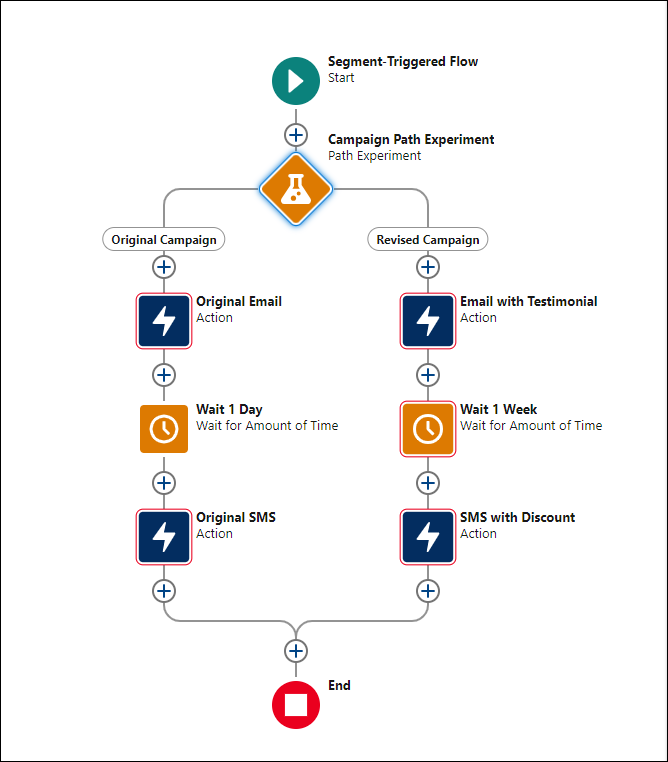
With the Path Experiment element, you can test the effectiveness of two subscription renewal campaigns.
- Send 80% of the individuals to Path 1, and send them a renewal email. The flow waits for one day before sending a follow-up SMS.
- Send 20% of the individuals to Path 2, and send them a renewal email that includes testimonials. The flow waits for one week before sending a follow-up SMS with a discount code.
To see more details about message engagement results, create a Data 360 report by using one of the Message Engagement DMOs. Filter the report by the flow element ID.