You are here:
Address Screen Input Component
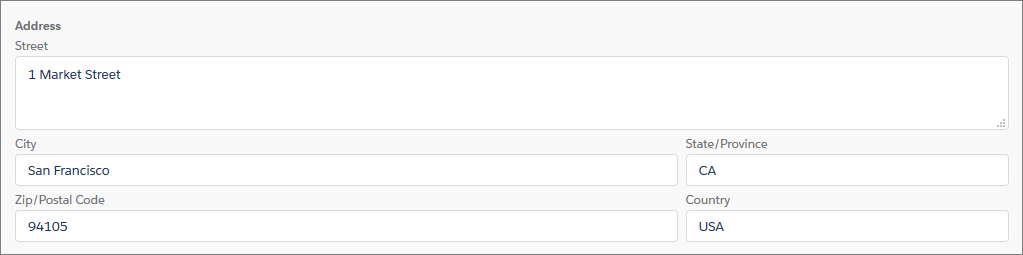
Simplify gathering address information by adding the Address component to a flow screen. The Address screen component shows a complete address form that’s customized to your settings. It can also use state and country/territory picklists.
Required Editions
| View supported editions. |
For information about adding screen components to your flow screen, see Screen Element.

Configure the Address Component
You can select resources from the flow, such as variables or global constants, or you can manually enter a value.
| Attribute | Description |
|---|---|
| API Name | The API name of the component. An API name can include underscores and alphanumeric characters without spaces. It must begin with a letter and can’t end with an underscore. It also can’t have two consecutive underscores. |
| City Value | The city in the address. To give City a default value, set this attribute's value. This attribute accepts single-value text resources. |
| Country Code | The code for the country in the address. To give a country a default value, set this attribute's value. This attribute accepts single-value resources, treated as text. |
| Country Options | The active countries and territories configured in state and country/territory picklists. To override the options, set this attribute to a comma-delimited set of countries and territories. This field populates a dropdown menu of options. This attribute accepts single-value text resources. |
| Country Value | The value for the country in the address. To give a country a default value, set this attribute's value. This attribute accepts single-value text resources. |
| Disabled | If set to true, the user can’t modify the value. The default value is false. This attribute accepts a resource with a Boolean value. |
| Label | The label for the heading that appears preceding the group of address fields. This attribute accepts single-value text resources. |
| Postal Code Value | The postal code for the address. For example, the ZIP code. To give the postal code a default value, set this attribute's value. This attribute accepts single-value text resources. |
| Required | If set to true, the running user must enter a value. The default value is false. This attribute accepts a resource with a Boolean value. |
| Show Google Maps Search Field | Indicates whether to include a search field powered by Google Maps in the
component. To include a search field, enter The default value is
|
| Google Maps Search Field Label | The label that appears preceding the Google Maps search field. |
| State or Province Code | The code for the state or province in the address. If you configure State/Province Options, this value is selected by default. To give the state a default value, set this attribute's value. This attribute accepts single-value text resources. |
| State or Province Options | The active states that are configured in state and country/territory picklists. To override the options, set this attribute to a comma-delimited set of states. This field populates a dropdown menu of options. This attribute accepts single-value text resources. |
| State or Province Value | The value of the state or province in the address. If you configure State/Province Options, this value is selected by default. To give the state a default value, set this attribute's value. This attribute accepts single-value text resources. |
| Street Value | The street number and street name for the address. To give Street a default value, set this attribute's value. This attribute accepts single-value text resources. |
Set the Component Visibility
Specify the logic that determines when the flow displays the component.
| Option | Description |
|---|---|
| When to Display Component | Configure when the component is displayed by using conditional logic. You can set the components to:
|
Validate Input
Provide a formula that evaluates whether what the user entered is valid and the error message to display if invalid.
| Option | Description |
|---|---|
| Error Message | Specify the error message that appears below the component if the user enters an invalid value. |
| Formula | Provide a formula expression that returns a Boolean value. If the formula expression evaluates to true, the input is valid. If the formula expression evaluates to false, the error message appears below the component. If the user leaves the field blank and the field isn’t required, the flow doesn’t perform the validation. If the user leaves the field blank and the field is required, the flow shows the default error message and not your custom error message. |
Store the Address Component’s Values in the Flow
The flow stores values automatically. If you store values manually, store the attribute’s output value in a variable.
To store values manually, select Manually assign variables (advanced).
All attributes are available to store in flow variables. Most likely, you must store one of these attributes.
| Attribute | Description |
|---|---|
| City Value | What the user entered in the City Value field. Store this value in a single-value text variable or a text field on a record variable. |
| Country Code | What the user entered in the Country Code field. Store this value in a single-value text variable or a text field on a record variable. |
| Country Value | What the user entered in the Country Value field. Store this value in a single-value text variable or a text field on a record variable. |
| Postal Code Value | What the user entered in the Postal Code field. Store this value in a single-value text variable or a text field on a record variable. |
| State or Province Code | What the user entered in the State or Province Code field. Store this value in a single-value text variable or a text field on a record variable. |
| State or Province Value | What the user entered in the State of Province Value field. To update records in orgs with the State and Country/Territory Picklists setting enabled, use State or Province Code instead. Store this value in a single-value text variable or a text field on a record variable. |
| Street Value | What the user entered in the Street Value field. Store this value in a single-value text variable or a text field on a record variable. |

- Navigates to another screen and returns to the component’s screen.
- Pauses the flow then resumes it.
- Navigates to the next screen and triggers an input validation error.
Setting the attribute enables a flow to remember the value. The flow stores the value automatically. If you store values manually, store the attribute’s output value in a variable.
Specify the Behavior of Values on Revisited Screens
Specify what this component does when a user enters a value, navigates to a previous screen, and then returns to the screen with this component.
Considerations
- To update records in orgs with the State and Country/Territory Picklists setting enabled, use the Country Code and State or Province Code outputs instead of the Country Value and State or Province Value outputs.
- The Country and State/Province fields show as picklists instead of text fields when
either:
- The screen flow is embedded in a Lightning Experience site
- The screen flow is embedded in an Aura Experience site and the State and Country/Territory Picklists setting is enabled
- The Google Maps search field isn’t supported in Playground, Experience Builder sites, Lightning Out, Lightning Components for Visualforce, and standalone apps.
