You are here:
Lookup Screen Input Component
Have users search for and select one or more existing records in a screen flow so you can use that record later in the flow. When you configure a Lookup component, you set the component to mimic an existing lookup field on an object so it borrows the same functionality. For example, if you're adding an account lookup screen component, use the account lookup field on the Contact object to mimic the functionality. The flow temporarily uses the definition of the standard Contact.AccountId field to enable the account lookup screen component, even though no contact record is created or updated.
Required Editions

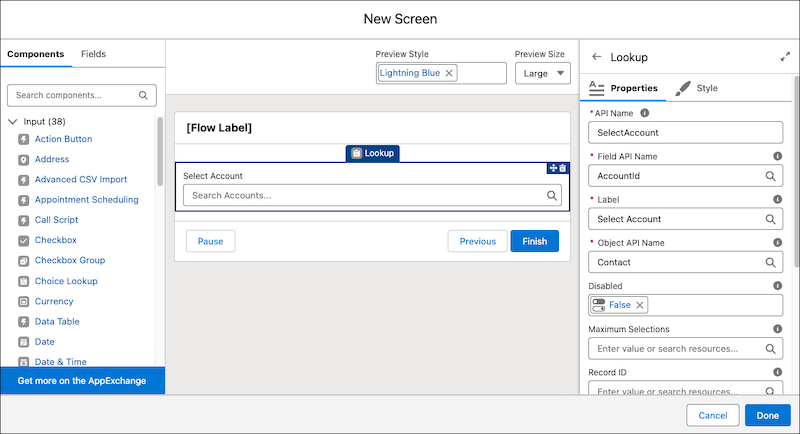
Configure the Lookup Component
| Attribute | Description |
|---|---|
| API Name | The API name of the component. An API name can include underscores and alphanumeric characters without spaces. It must begin with a letter and can’t end with an underscore. It also can’t have two consecutive underscores. |
| Field API Name | The API name of a lookup field on the source object referenced in Object API Name. The lookup field referenced in Field API Name must be a field on the object referenced in Object API Name. For example, to add a lookup for an account, find an object that has an account lookup field on it. In this case, let’s use the account lookup field on the Contact object. The API name of the account lookup field on the Contact object is AccountId, so enter AccountId for Field API Name, then enter Contact for Object API Name. |
| Label | The text that shows at the top of the component that tells the running user how to use the screen component. For example, if you’re adding an account lookup, the label could be Select Account. |
| Object API Name | The API name of the source object that has the lookup field referenced in Field API Name. The source object can be any object that has the type of lookup field that you want to use. The lookup field referenced in Field API Name must be a field on the object referenced in Object AI Name. To use the Lookup component, the running user of the flow must have the Create permission on the source object. For example, to add a lookup for a contact, find an object that has a contact lookup field on it. In this case, let’s use the contact lookup field on the Case object. The API name of the Case object is Case, so enter Case for Object API Name, then enter ContactId for Field API Name. |
| Disabled | If set to true, the user can’t modify the value. The default value is false. This attribute accepts a resource with a Boolean value. |
| Maximum Selections | The maximum number of records that the user can select. The default value is 1. |
| Record Id | Initially, if Maximum Selections is 1 or Maximum Selections is greater than 1 and the Record ID Collection field is null, the record ID selected by default for the lookup. When a user runs the flow, the value changes to the flow user’s selection. |
| Record Id Collection | Initially, if Maximum Selections is greater than 1, the default record IDs for the lookup. If Maximum Selections is greater than 1 and the Record ID field is null, the first value is the record IDs selected by default for the lookup. You can specify any number of record IDs up to the Maximum Selections value. When a user runs the flow, the value changes to the flow user’s selections. |
| Required | If set to true, the running user must enter a value. The default value is false. This attribute accepts a resource with a Boolean value. |

Store the Lookup Component’s Values in the Flow
The flow stores values automatically. If you store values manually, store the attribute’s output value in a variable.
To store values manually, select Manually assign variables (advanced).
All attributes are available to store in flow variables, but most likely you must store these attributes.
| Attribute | Description |
|---|---|
| Record ID | If the Maximum Selections value is 1, the ID of the record that the user selects. You can store this value in a Text variable. |
| Record ID Collection | If the Maximum Selections value is greater than 1, the list of IDs of the records that the user selects. If the Maximum Selections value is 1 and Record ID is null, the first value in the collection is the ID of the record that the user selects. You can store this value in a Text collection variable. |
| Record Name | If the Maximum Selections value is 1, the value of the Name field of the record that the user selects. If the Maximum Selections value is greater than 1, the value of the Name field of the first record that the user selects. You can store this value in a Text variable. This value isn’t populated when the Name field of the record is an external object. |

- Navigates to another screen and returns to the component’s screen.
- Pauses the flow then resumes it.
- Navigates to the next screen and triggers an input validation error.
Setting the attribute enables a flow to remember the value. The flow stores the value automatically. If you store values manually, store the attribute’s output value in a variable.
Set the Component Visibility
Specify the logic that determines when the flow displays the component.
| Option | Description |
|---|---|
| When to Display Component | Configure when the component is displayed by using conditional logic. You can set the components to:
|
Validate Input
Provide a formula that evaluates whether what the user entered is valid and the error message to display if invalid.
| Option | Description |
|---|---|
| Error Message | Specify the error message that appears below the component if the user enters an invalid value. |
| Formula | Provide a formula expression that returns a Boolean value. If the formula expression evaluates to true, the input is valid. If the formula expression evaluates to false, the error message appears below the component. If the user leaves the field blank and the field isn’t required, the flow doesn’t perform the validation. If the user leaves the field blank and the field is required, the flow shows the default error message and not your custom error message. |
Specify the Behavior of Values on Revisited Screens
Specify what this component does when a user enters a value, navigates to a previous screen, and then returns to the screen with this component.
Considerations
- The Lookup flow screen component isn’t compatible with mobile devices or standalone Aura apps.
- Dependent lookup filters aren't enforced for the Lookup component in a screen flow. A lookup filter is dependent when its criteria reference another field on the current record or a related record. Because the Lookup component collects input independently and lacks a specific record context, it can't evaluate the dependency. Instead of returning an error, the component ignores the filter and displays unfiltered results to the user. Use fixed, static values on the right-hand side of lookup filter criteria instead. However, other lookup filters are enforced exactly as they are on Lightning Experience record pages. When the flow accesses the Salesforce database, all lookup filters are strictly enforced. For example, when the flow runs a Create Records element, the flow fails if the lookup field's value doesn't meet the filter requirements.
- To filter records based on resources and information from the flow, consider using a Choice Lookup component.
- A custom lookup field to a user record isn’t supported.Tip To let a flow user choose from a list of user records, employ a standard User lookup field like CreatedById or LastModifiedById. OwnerId isn’t supported.
- At run time, when the flow user types two characters in the field, it shows up to five recent records whose Name field matches the query.
- Lookups to an external record aren't supported.
- During run time, if the lookup field defined in Field API Name
isn’t on an assigned page layout, the lookup component displays
Search
            undefined...
. To display the correct text, add the defined lookup field to all of the source object’s page layouts that are assigned to running users. - Invalid Record IDs are ignored. A Record ID is invalid if it isn’t a valid Salesforce Record ID or its key prefix doesn’t match with the field API name object.
- If the Maximum Selections value is 1 and the Record ID Collection and Record ID are both changed, the Record ID takes precedence. The Record ID Collection is ignored.
- If the Maximum Selections value is greater than 1, the Record ID Collection takes precedence when Record ID is populated. But, if Record ID Collection isn’t populated, the Record ID is used to populate Record ID Collection as a single it
- Relationship fields that are related to more than one object, also known as polymorphic fields, aren’t supported. For example, because a task record’s WhoId field can be related to a contact or a lead, it isn’t supported for this component.
- Field API Name and Object API Name are case-sensitive.
- The Lookup flow screen component doesn’t support filtering by the source object record type.
