You are here:
Create Event Invites with a Subflow in Prompt Flow Example
Use a referenced flow to create meeting invites for each marketing event generated by a sales email template-triggered prompt flow.
Required Editions
| Available in: Lightning Experience |
| View supported editions. |
| This feature requires the Einstein for Sales, Einstein for Service, or Einstein Platform add-on. To purchase, contact your Salesforce account executive. |
| User Permissions Needed | |
|---|---|
| To open, edit, create, activate or deactivate a flow using all flow types, elements, and features available in Flow Builder, including Einstein and Agentforce for Flow: | Manage Flow |
| To create and manage prompt templates in Prompt Builder: | Prompt Template Manager permission set |
Template-triggered prompt flows aren't compatible with prompt templates created in Winter '24.
Let's say you're a Salesforce admin. You create a flow that sends instructions to the prompt template to get Marketing events in the same city and state where your contacts live. Now, you can add a prompt flow as a referenced flow in the parent flow. This new flow creates a meeting invite for your contacts for each marketing event.
Before creating your parent flow, you create a flow that retrieves a list of marketing events. See Example of Sales Email Template-Triggered Prompt Flow.
-
Open the Flows list view.
- From the Automation app, select the Flows tab.
- From the Flows tab in any Lightning app, click the actions menu and select Open Flow.
- From Setup, in the Quick Find box, enter Flows, and then select Flows.
Note that the Automation app and Flows tab options don't require Setup access. -
Create the flow.
- From the Automation app, click New | Autolaunched | Template-Triggered Prompt Flow.
- From Setup, click New Flow | Autolaunched | Template-Triggered Prompt Flow.
-
Configure the flow.
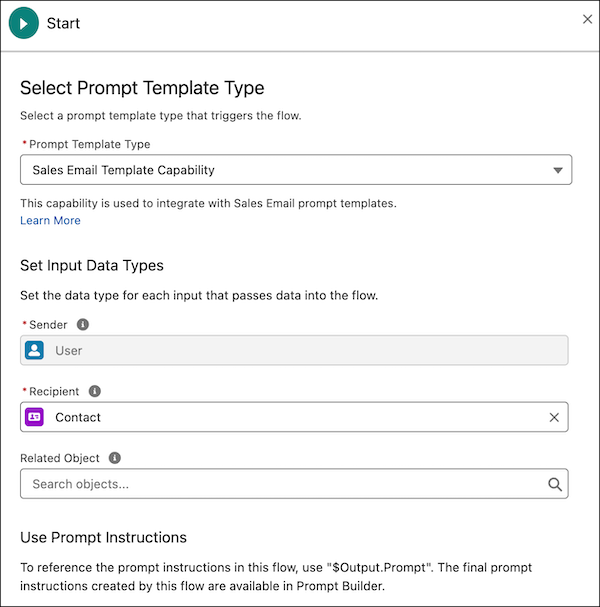
- Select Automatic Inputs.
-
For Prompt Template Type, select Sales Email Template.
Each prompt template type is associated with its prompt template type in Prompt Builder.
- For Recipient, select Contact.
-
Add a Subflow element and configure it.
-
Click
 , and then click the Subflow element.
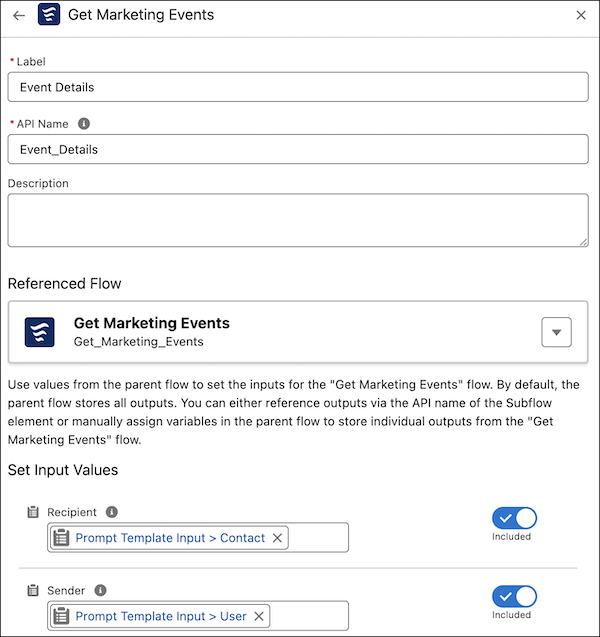
- For Label, enter Event Details, and use the default API name Event_Details.
- For Recipient, select Prompt Template Input > Contact.
- For Sender, select Prompt Template Input > User.
-
Click
-
Add the Add Prompt Instructions element and configure it.
-
Click , and then click the Add Prompt Instructions
element.
- For Label, enter Meeting Invite, and use the default API name Meeting_Invite.
- For Prompt Instructions, enter Send a meeting invite to {!$Input.Recipient.Name} with {!Event_Details.Prompt}.
-
Click
-
Save your flow.
- For Flow Label, enter Send Marketing Events Invite, and use the default API name Send_Marketing_Events_Invite.
- Save your work.
- Before activating the flow, click Debug to troubleshoot for any flow errors.
-
Set the debug options and input variables.
If you want to run the flow as another user, ensure that Let admins debug flows as other users is enabled in Process Automation Settings.
-
Click Run.
The debug details for the run appear in a panel on the right.
- To see the results, review the debug details. If the flow fails, troubleshoot the flow errors.
- Activate the flow.
Now that you completed the flow, you create a sales email prompt template in Prompt Builder. You add the parent flow to the prompt template. When you preview the prompt template in Prompt Builder, it triggers the parent flow, which then runs the referenced flow. The parent flow sends its prompt instructions to the prompt template.
