You are here:
Transform Element
Select the flow resources for mapping and transforming source data to target data. You can use the Transform element in screen flows, autolaunched flows with no triggers, and record-triggered flows.
Required Editions
| View supported editions. |
| Field | Description |
|---|---|
| Source Data | The data to transform.
|
| Target Data | The data after it’s transformed
|
| Formula | The formula expression that transforms the data. The formula expression can:
The formula result must be compatible with the data type of the target field. In the formula, the [$EachItem] merge field syntax represents each item in a collection. For example, the merge field references a collection of orders, and each order item has a Customers field. Each Customers field contains a Name field: {!Orders[$EachItem].Customers[$EachItem].Name} |
Usage
To use the Transform element, understand these general limitations.
- When you transform a collection, the transformation can’t include sorting or filtering data. To filter or sort a collection, you can use the Collection Filter or Collection Sort element in the flow instead.
- Viewing the debug details of the source and target data in a rich and interactive format is supported only for autolaunched and record-triggered flows.
- When the resource for target data is an Apex class from an external service
registration, the debug details in Flow Builder show modified field names.
 Note When an external service is registered, Salesforce creates an Apex class that stores the input and output of the service.
- If a field uses a reserved name, z0 is prepended to the field name, for example, z0type. When the flow calls out to the external service, the original field name—in this example, type—is used. See Apex Reserved Keywords.
- Fields that append _set, such as name_set, are added automatically to the dynamic Apex class. The fields appear only in the flow debug details and when you inspect the dynamic Apex class. See External Service Registrations in Apex.
- Accessing related records via lookup fields on standard, custom, and external objects isn’t supported.
- Data graphs are supported in segment-triggered flows and automation event-triggered flows with data graph triggers.
- A collection on a data graph isn’t supported. For example, the Transform element can’t aggregate a collection on a data graph.
When you use these screen components and data types, understand these limitations.
- The flow resource for the source or target data doesn’t support the Checkbox Group, Picklist, and Choice Lookup screen components.
- The flow resource for the source data doesn’t support screen flow components that are primitive data types, including Boolean, Currency, Data, DateTime, Number, String, and Time. For example, the source data doesn’t support Checkbox, Date, Datetime, Long Text Area, Display Text, Radio Button, and Text screen components.
Understand these rules that preserve the integrity of the data structure in collections.
- When mapping a field in a source collection to a field in the target collection, both collections must be at the same hierarchical level in their respective resources. For example, the collection A in the source data and collection A in the target data aren’t within any other collections. Because they’re both the top collections in their respective resources, you can map fields between them.
- Before you map a field in a collection that’s within another collection, map the field
in the parent collection. For example, the flow resources for the source and target data
each contain collection A, which has the same data structure. Collection A contains
collection B. Before you map fields in collection B, map a field in collection A, and then
map a field in collection B.
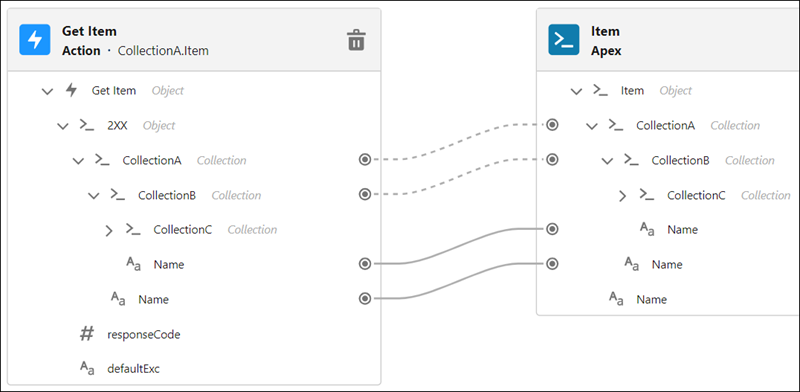
At run time, if a target data field isn’t mapped or is null, it’s removed from the flow resource that’s generated from the Transform element.
Review these limitations for a join transformation.
- A collection that’s within another collection can’t be joined.
- To map a source field with a target field, both fields must be the same data type. For example, if the source field is an Apex-defined data type, then the target field must be the same Apex-defined data type.
- Each selected field to join can only map to one target field in the target collection.
- If you remove or modify a source collection or source field that’s already selected or mapped in a join transformation, then the join transformation becomes invalid.
- A join transformation includes only one target collection. When you have multiple join transformations, each one includes its own unique target collection.
- If you map a target collection in a join transformation, the target collection is unavailable for other mappings outside the join transformation.
- Data graphs aren’t supported.
To avoid exceeding the Apex CPU limit with a join transformation, review these guidelines. You can check the debug logs to see how much CPU time is taken by each transform element.
- For flow paths that run immediately, limit each source collection to contain fewer than 700 records.
- For flow paths that run on a schedule or asynchronously, limit each source collection to contain fewer than 1,500 records.
- When a collection contains fewer than 600 records in each source collection, map 200 or fewer source fields to target fields.
Limits
- The Transform element supports mapping up to one nested collection.
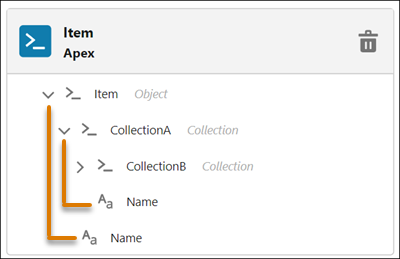
- A field on an Apex-defined flow resource can reference up to 10 levels of Apex-defined
fields within it. For example, the Name field on CollectionA is the first level. A field
on CollectionB is the second level, and so on.
- Debug details show up to 20 records in a collection.
- In the Transform element, a formula expression can contain up to 255 characters. Characters that exceed 255 are truncated. To enter more than 255 characters in a formula expression, you can create a formula resource in the flow. The formula resource can exceed 255 characters in its formula expression. In the Transform element, you can select the formula resource when you use a formula to transform data.
