You are here:
Send Reminders After Waiting for an Event Example
Create a flow that sends multiple reminders after waiting for several time-based events, such as two weeks and one week before a contract ends.
Required Editions
| View supported editions. |
You're designing a flow that reminds contract owners to follow up with their customers before the contract ends. Rather than sending just one reminder, however, the flow sends them regularly. This example shows how to use one Wait element to send a reminder two weeks before and then again one week before the contract ends. You could easily extend this flow to send reminders at more intervals, such as three days and one day before the contract ends.
Example
This flow already contains these populated variables. Before the flow runs the Wait element, it looks up and stores the contract's EndDate and OwnerId.
- {!contract} is a record variable that contains the contract's EndDate and OwnerId
- {!contractId} is a text variable that contains the contract's Id
- {!oneWeekVisited} is a Boolean variable whose default value is {!$GlobalConstant.False}
- {!twoWeeksVisited}is a Boolean variable whose default value is {!$GlobalConstant.False}
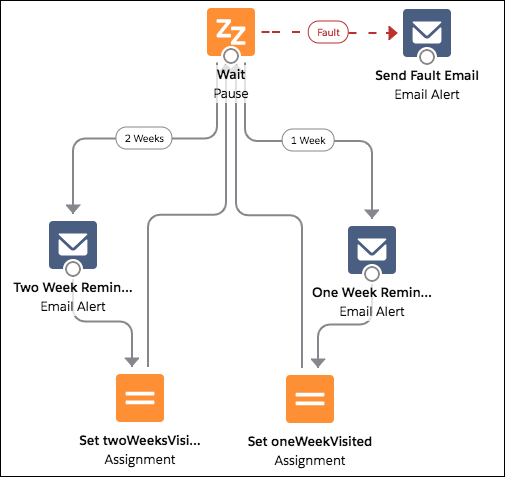
Because the flow sends the reminder emails both two weeks and a week before the contract's end date, the Wait element defines two time-based resume events that use record-based time.

For both of these events, the offset is declared in Days, because weeks isn't an acceptable offset unit.
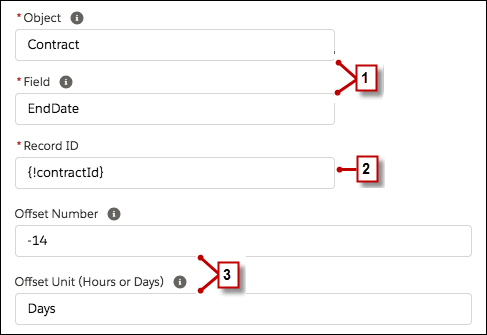
The base time for the first event ("2 Weeks") is the value of Contract.EndDate (1) on the record whose ID is stored in {!contractId} (2). The offset is -14 days (3) to represent two weeks.
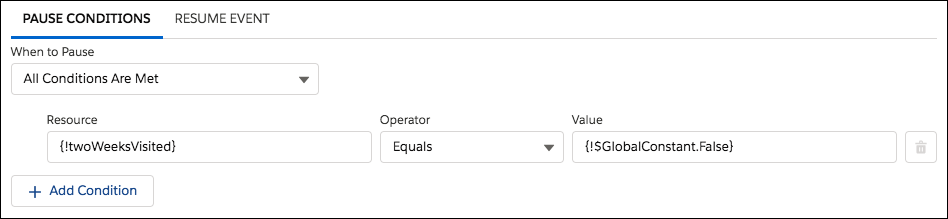
You want to use the same Wait element for every reminder, so after a flow interview sends one email reminder, it returns to the Wait element. But first, to ensure that the interview doesn't send the same email again and again, use wait conditions. When an interview runs a Wait element, it first checks the conditions for each wait configuration to determine whether to wait for those events. If a wait configuration has conditions set and those conditions aren't met, the interview doesn't wait for the associated resume event.
For the first resume event, the interview checks whether the Boolean variable {!twoWeekVisited} is set to false. The variable's default value is set to {!$GlobalConstant.False}, so the flow waits for the event until the variable's value is changed.
Indicate what the flow does when the "2 Weeks" event occurs by connecting the Wait element to other elements. Then, before you return the flow path to the Wait element, change the value of {!twoWeeksVisited} to {!$GlobalConstant.True}. You can do so with an Assignment element. If the value for {!twoWeeksVisited} isn't false when the Wait element runs, the flow doesn't wait for the "2 Weeks" event to occur. Essentially, the interview checks whether the first resume event has occurred yet, since the variable is changed to true only in the associated wait configuration's path. If that resume event has occurred (and the variable isn't set to false), the interview knows not to wait for that event.
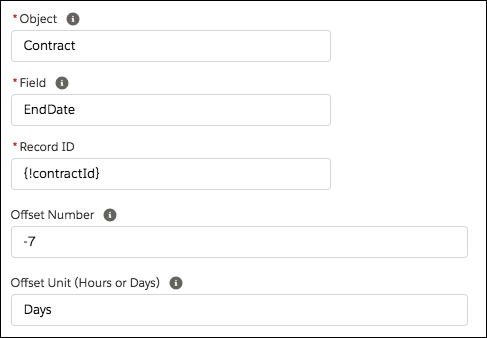
The second event ("1 Week") has the same base time as the first event; the offset is -7 days to represent a week.
For the second event, the flow checks whether the Boolean variable {!oneWeekVisited} is set to false. If it isn't, the flow doesn't wait for this event.
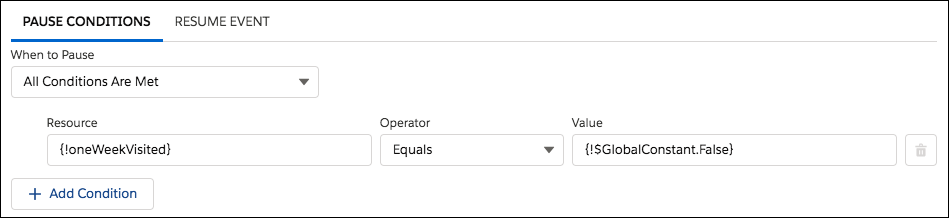
Like with the first wait configuration, use an Assignment element to change the value of {!oneWeekVisited} to {!$GlobalConstant.True} before the flow path returns to the Wait element. As long as {!oneWeekVisited} isn't false, the flow doesn't wait for the "1 Weeks" event to occur.
Just in case something goes wrong, set a fault path. In this example, the fault path sends an email that contains the fault message to the user who created the flow.
