You are here:
Create Tasks After Waiting for a Platform Event Example
Create a flow that automates your supply ordering by pausing your flow until a platform event confirms shipment, then create a follow-up installation task for the next day.
Required Editions
| View supported editions. |
The vendor that you buy supplies from has a platform event for you to subscribe to. The platform event, called Vendor Response, includes the order number, order status, and expected delivery date.

The Order Printer Supplies flow starts when the Printer Management process launches it. The process populates the following variables in the flow.
- {!assetId}—The asset's ID
- {!assetOwner}—The asset's owner
- {!inkManufacturer}—The manufacturer of the printer's ink
- {!inkNeeded}—Whether the printer needs more ink
- {!inkType}—Specific type of ink that the printer uses
- {!paperNeeded}—Whether the printer needs more paper
- {!paperSize}—Paper size that the printer uses
- {!serialNumber}—The asset's serial number
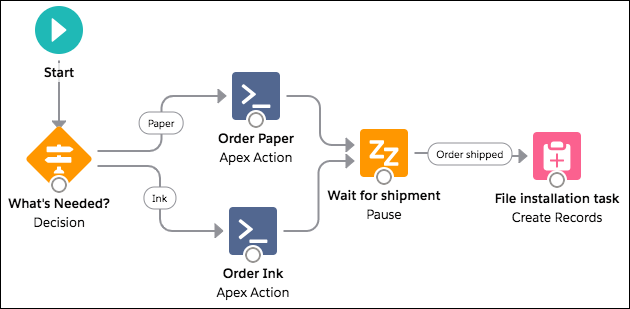
First, the flow determines whether to order ink or paper. Based on the decision, it submits an order of ink or paper with the vendor by using an Apex action. Then it pauses until the vendor sends a platform event message that says the order has been shipped. When Salesforce receives the specified event message, the flow resumes and creates a task for the asset's owner to install the new supplies.
Decision Element
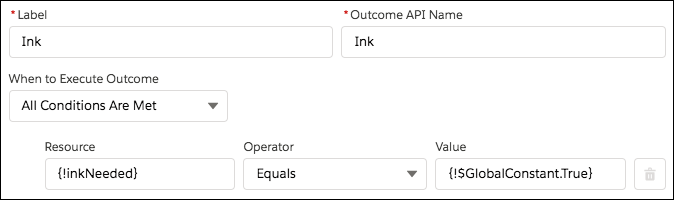
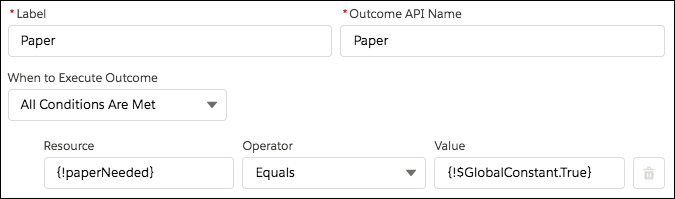
The decision includes two outcomes: Ink and Paper. The Ink outcome is true if the variable {!inkNeeded} is true. The Paper outcome is true if the variable {!paperNeeded} is true.
Apex Action Elements
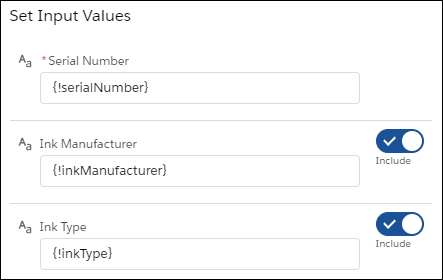
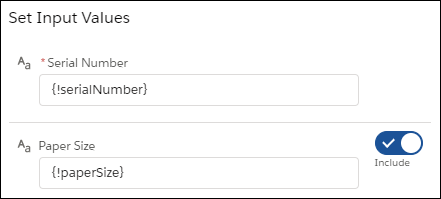
The flow includes two Apex actions that submit a supply order with a vendor but provide different information to it based on whether the flow ran the Ink outcome or Paper outcome. All the variables used for input values (like {!serialNumber} and {!paperSize}) are set when a process launches the flow.
The first Apex action provides information about which ink to order.
The second Apex action provides information about which paper to order.
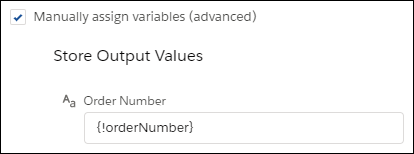
In both Apex actions, the action returns an order number. The flow stores that value in the {!orderNumber} variable to reference in the Wait element.
Wait Element
After the Apex action submits the supply order, the flow waits for confirmation that the order has been shipped. That confirmation is received through the Vendor Response platform event.
The flow pauses until Salesforce receives a Vendor Request event message with specific values. The order number must be the same as the order number that the Apex action provided. And the order status must be Shipped.
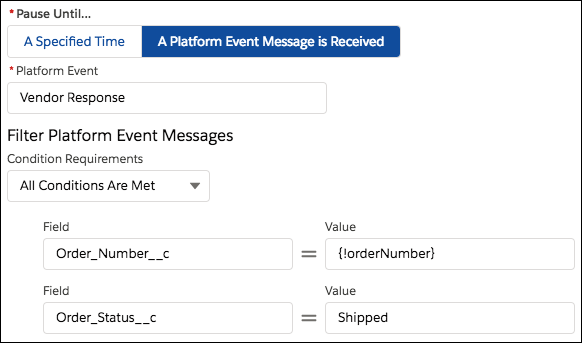
When the correct event message is received and the flow resumes, the flow stores the event message's data in a record variable. That way, you can reference the expected delivery date to calculate when the supplies are scheduled to be installed.

Create Records Element
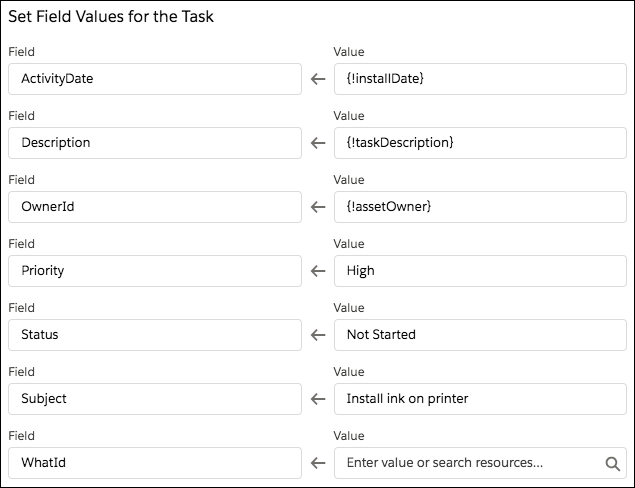
When the flow resumes, it creates a task for the asset owner to install the new supplies.
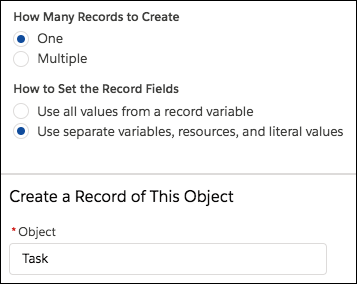
For the task's field values, the flow uses these resources.
- {!installDate}—A formula that calculates the day after the event's expected delivery date.
- {!taskDescription}—A text template that gives more details about the installation.
- {!assetOwner}—Provided by the process that launches the flow
- {!assetId}—Provided by the process that launches the flow