Create a flow that sends an email after waiting for a specific event to occur, such as
waiting one day after a contract is activated before sending a feedback request.
You're designing a flow that requests feedback from customers after a contract is
activated, but you want to delay the email by a day.
Example
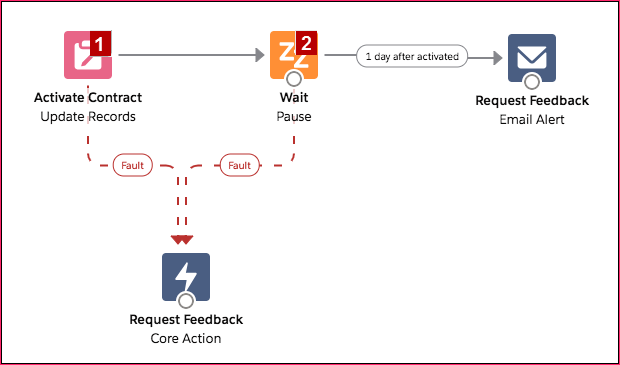
This flow already contains the following populated variables. The flow activates a contract
(1) and then pauses (2).
{!customerEmail} contains the email address for the customer
{!creatorEmail} contains the email address for the flow's
creator
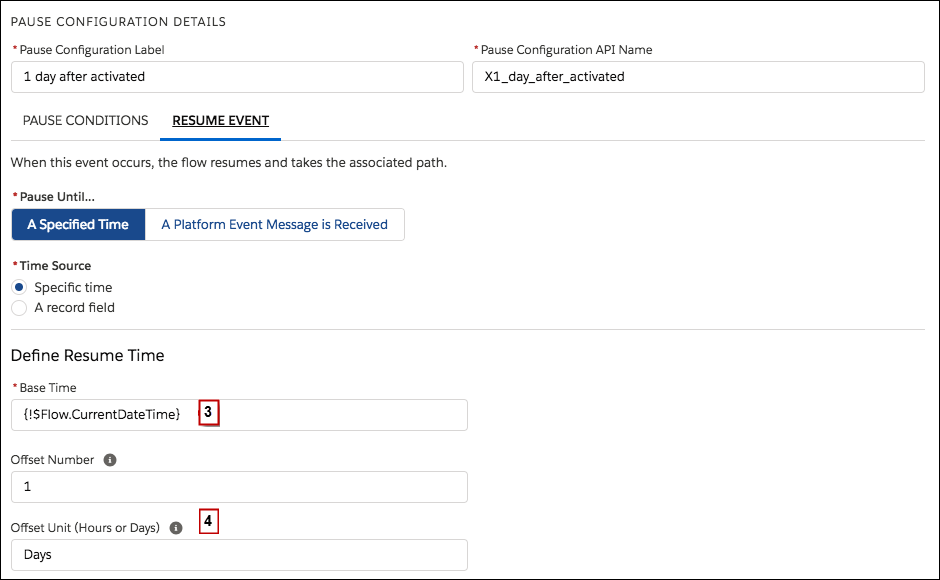
Within the Wait element, a single resume event is defined (1 day after activated). The flow
sends the feedback request one day after the contract is activated, so configure a
flow-based resume time. The base time is the {!$Flow.CurrentDateTime}
global variable (3), and the offset is one day (4).
Because there's only one wait configuration and you only want the feedback request to be
sent one time, don't set any wait conditions for this wait configuration. However, just in
case something goes wrong, don't forget to set a fault path. In this example, the fault path
sends an email that contains the fault message to the user who created the flow.
We use three kinds of cookies on our websites: required, functional, and advertising. You can choose whether functional and advertising cookies apply. Click on the different cookie categories to find out more about each category and to change the default settings.
Privacy Statement
Required Cookies
Always Active
Required cookies are necessary for basic website functionality. Some examples include: session cookies needed to transmit the website, authentication cookies, and security cookies.
Functional Cookies
Functional cookies enhance functions, performance, and services on the website. Some examples include: cookies used to analyze site traffic, cookies used for market research, and cookies used to display advertising that is not directed to a particular individual.
Advertising Cookies
Advertising cookies track activity across websites in order to understand a viewer’s interests, and direct them specific marketing. Some examples include: cookies used for remarketing, or interest-based advertising.