You are here:
Debug a Template-Triggered Prompt Flow Example
Debug a prompt flow that integrates with a prompt template that generates a list of events.
Required Editions
| Available in: Lightning Experience |
| View supported editions. |
| This feature requires the Einstein for Sales, Einstein for Service, or Einstein Platform add-on. To purchase, contact your Salesforce account executive. |
| User Permissions Needed | |
|---|---|
| To open, edit, create, activate or deactivate a flow using all flow types, elements, and features available in Flow Builder, including Einstein and Agentforce for Flow: | Manage Flow |
| To create and manage prompt templates in Prompt Builder: | Prompt Template Manager permission set |
Template-triggered prompt flows aren’t compatible with prompt templates created in Winter ’24.
Before creating your sales email prompt template, you debug the flow to troubleshoot any flow failure.
- Create or open the Get Marketing Events prompt flow in Flow Builder.
- Click Debug.
-
Set the debug options and input variables.
If you want to run the flow as another user, ensure that Let admins debug flows as other users is enabled in Process Automation Settings.
 Warning If you debug a flow without choosing to run the flow in rollback mode, the flow performs its actions, including any DML operations and Apex code execution. Remember, closing or restarting a running flow doesn’t roll back its previously executed actions, callouts, and changes committed to the database.
 -
Enable Run flow in rollback mode under Debug Options.
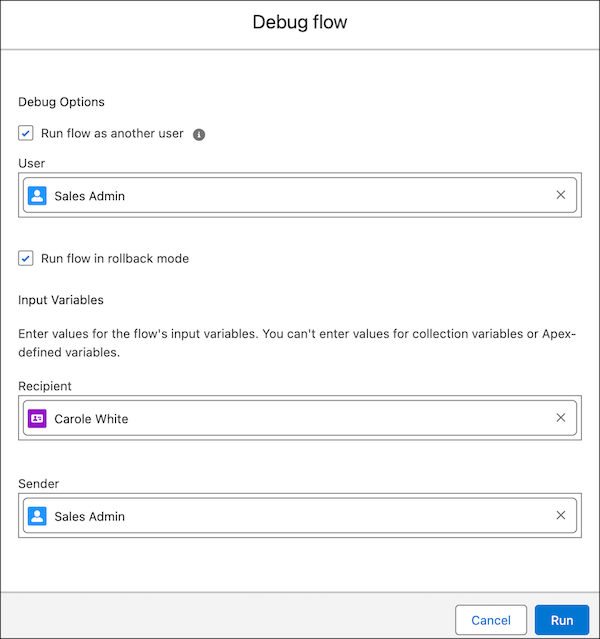
-
Click Run.
The debug details for the run appear in a panel on the right.
-
Review the Debug Details to see the results.
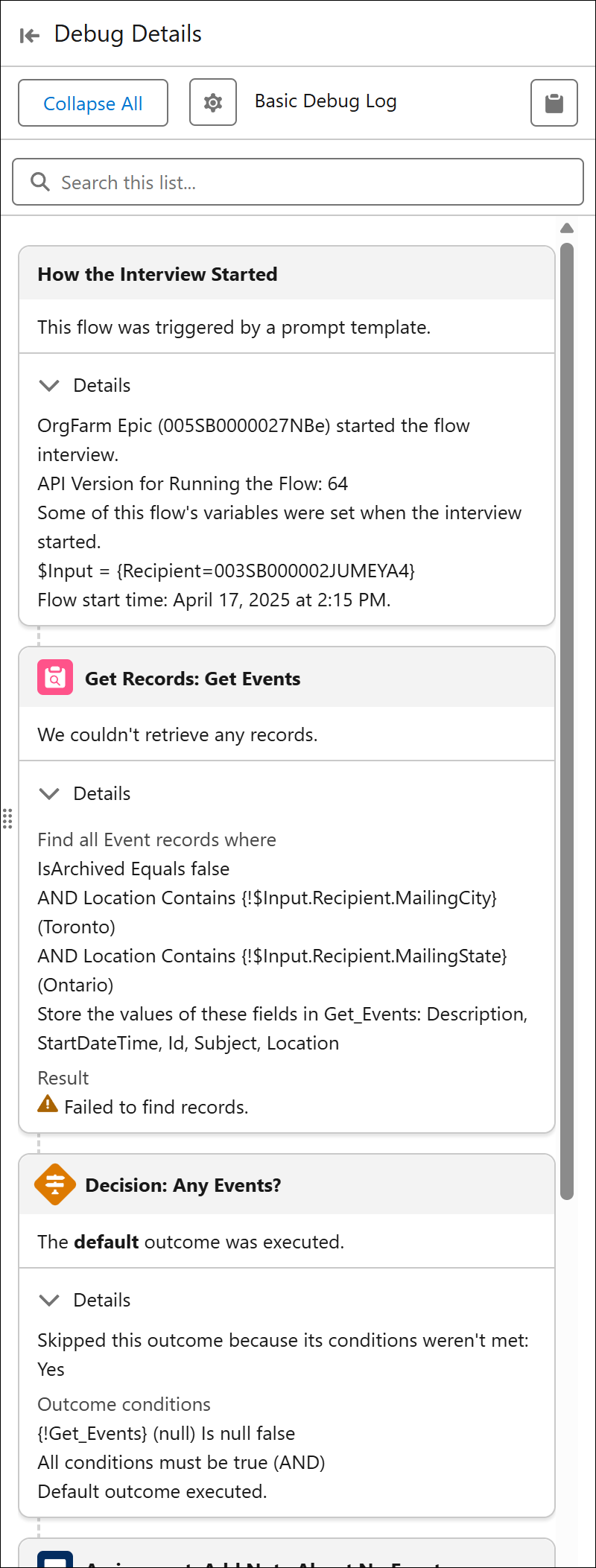
-
(Optional) To restart the flow by using the same or different values for the input
variables, click Debug Again.
You can’t convert the debug run to a test in the prompt flow.
Did this article solve your issue?
Let us know so we can improve!
