You are here:
Use Customer Satisfaction to Drive Recommendations
Use Einstein Next Best Action to tailor recommendations based on customer satisfaction scores. For example, offer a service contract discount to customers with low satisfaction or a new product preview to those with high satisfaction. Drive retention and upsell with targeted offers.
Required Editions
| View supported editions for Next Best Action. |
| User Permissions Needed | |
|---|---|
| To open, edit, or create a flow in Flow Builder: | Manage Flow |
Preparation
To record customer satisfaction scores and use them to determine which recommendation to display, this example includes two custom fields. To follow along with the example, set up these two fields before you begin.
Contact object custom field:
- Field Label: CSAT score
- API Label: CSAT_score
- Field type: Number (length 2, decimal places 0)
Recommendation object custom field:
- Field Label: Category
- API Label: category_c
- Field type: Text (length 18)
To set up these Next Best Action recommendations:
- Create action flows for the high and low CSAT recommendations.
- Create recommendation records for the high and low CSAT recommendations.
- Create a strategy flow that determines how the recommendations are presented to the customer service or account rep.
- On the Contact record page, add the Next Best Strategy component that displays the recommendations and executes the strategy.
Create Action Flows
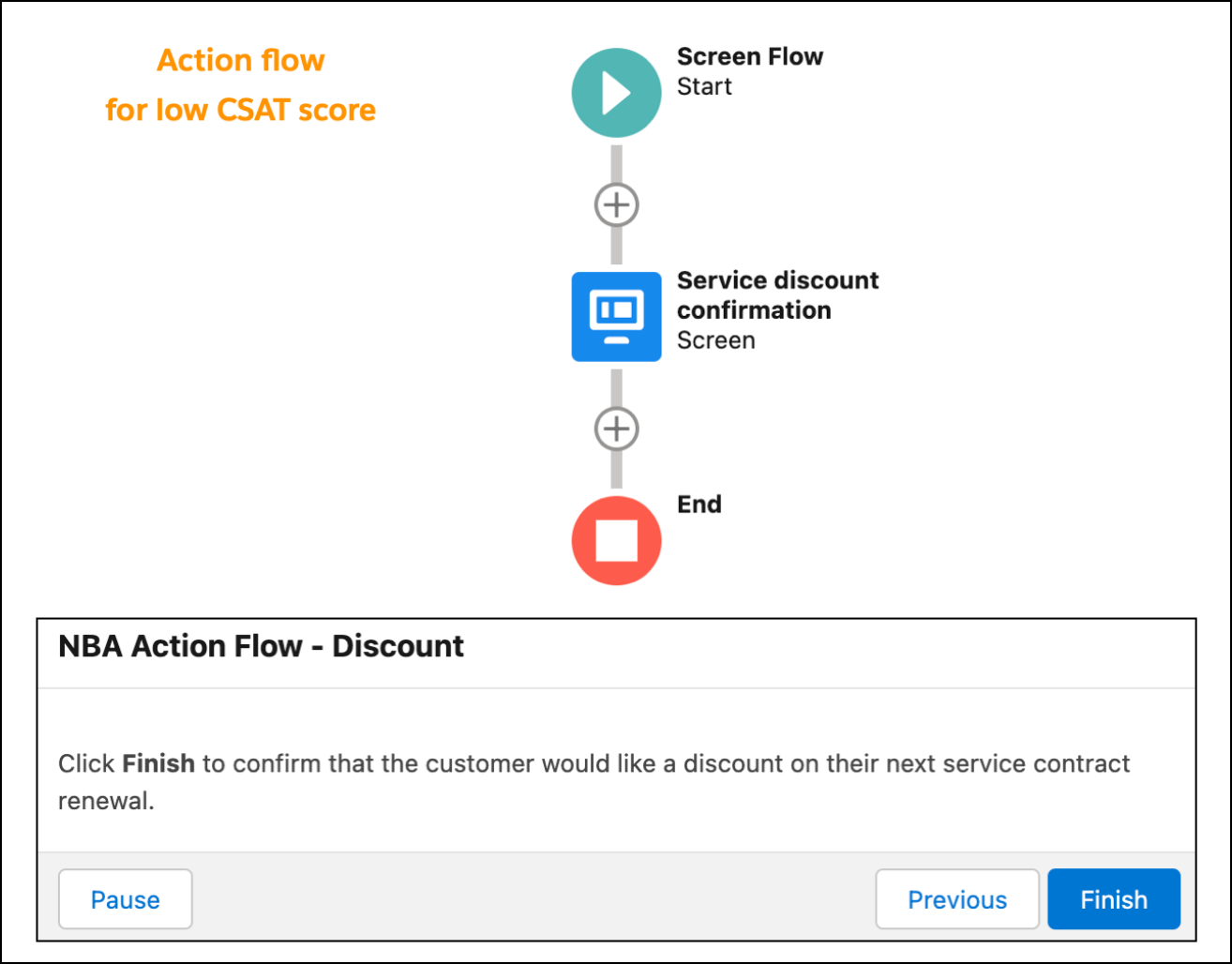
Create two simple screen flows, one to execute an action for the low CSAT recommendation and one to execute an action for the high CSAT recommendation.
This example keeps things simple by displaying a different text message for each recommendation but not incorporating other automation. For a real-world application, you can add additional elements to implement the service contract discount and the new product preview. For an example of using an action flow to send an email request, see Offer a Gift Basket to Each of Your Accounts.
- From Setup, in the Quick Find box, enter Flows, select Flows, and then click New Flow.
- Select Start from Scratch, and then click Next.
- Select Screen Flow, and then click Create.
- Add a Screen element to the flow.
- Enter a label and API name.
- Drag a Display Text component to the canvas.
- Enter an API name for the component.
-
Add text for the high or low CSAT recommendation.
- Click Done
- Save the flow and name it CSAT Action Flow - Discount or CSAT Action Flow - Product Preview.
- Activate the flow.
- Repeat these steps to create the second action flow.
Create Recommendation Records
Create records for the low CSAT and high CSAT recommendations.
-
From the App Launcher (
 ), in the Quick Find box, enter
Recommendations, and select
Recommendations.
), in the Quick Find box, enter
Recommendations, and select
Recommendations.
- Click New.
-
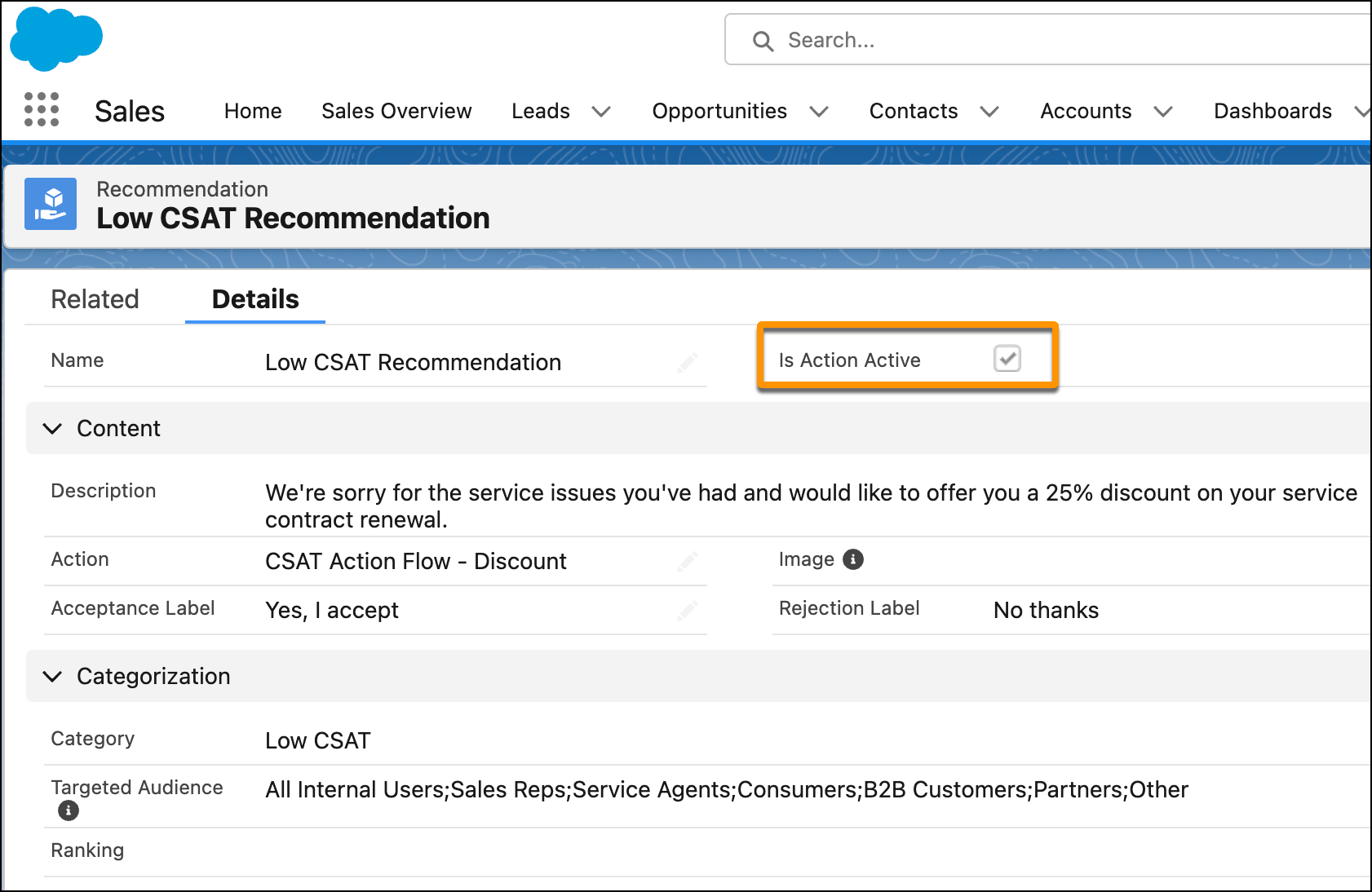
Enter a name and description for the recommendation.
The description appears in the Next Best Action component on the Lightning record page. Make the description specific to the particular recommendation (low CSAT or high CSAT).
- For Action, select the low CSAT or high CSAT action flow.
-
To add an image (optional), click Upload Image and follow the
instructions.
For best results, use a 1000 px x 380 px image at 72 dpi or one with a similar ratio.
- Enter text for the acceptance and rejection buttons.
- Select the target audiences for the recommendation.
-
Click Save.
The Is Action Active checkbox is automatically selected, which makes the recommendation available to Einstein Next Best Action.
- Repeat these steps to create the second recommendation record.
Create a Recommendation Strategy Flow
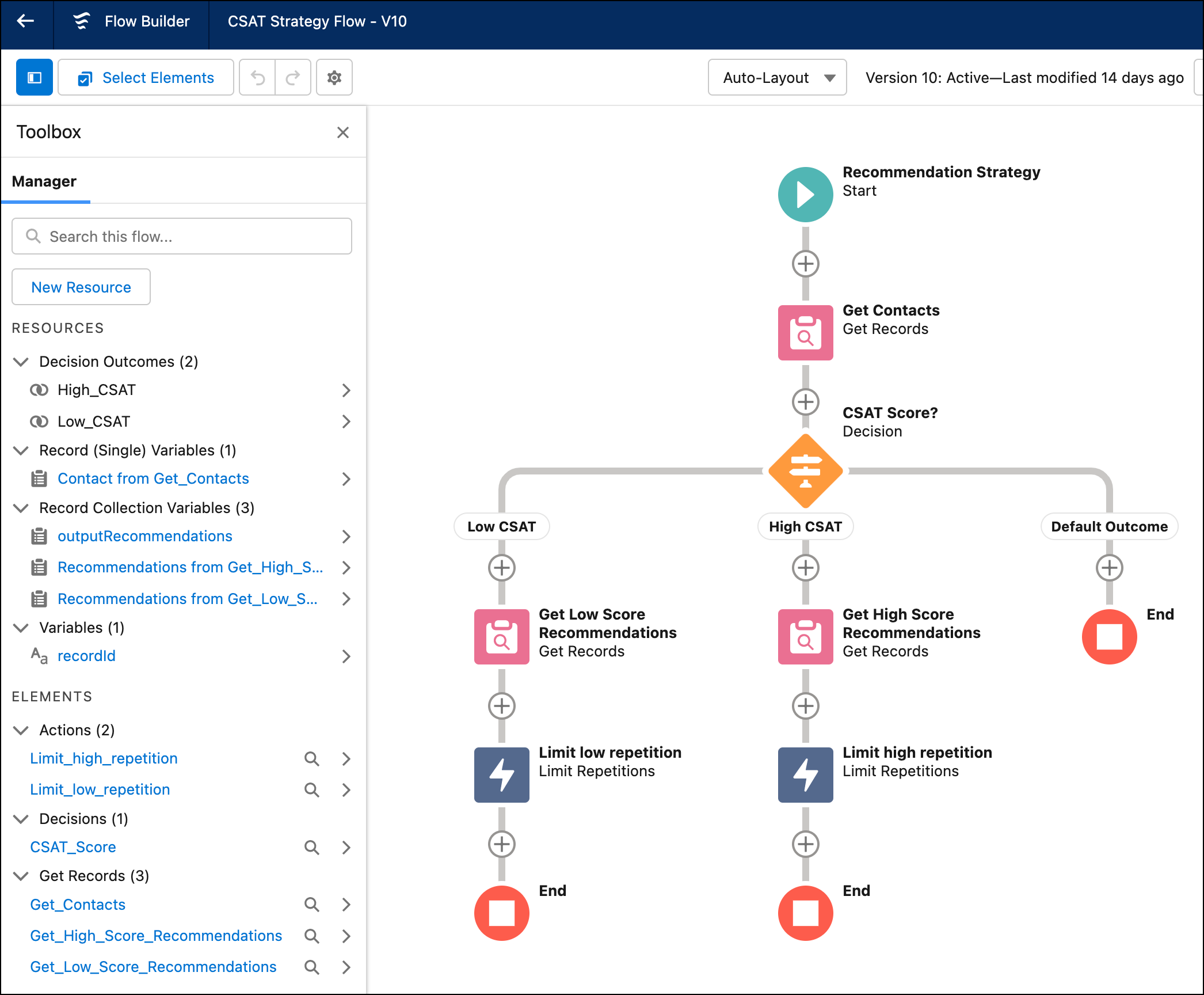
The recommendation strategy flow specifies when and how the recommendations are presented on the Contact record page.
- From Setup, in the Quick Find box, enter Flows, select Flows, and then click New Flow.
- In the quick search box, enter recommend, and select Recommendation Strategy.
-
Load the Contact records that you want to use for your recommendations by adding a Get
Records element to the flow.
- Enter a label and API name.
- For Data Source, select Salesforce Object.
- Select the Contact object.
- In the Filter section, add the condition Contact ID equals recordId.
- Select the options to store all records and all fields.
-
To accommodate different recommendations based on the customer’s CSAT score, add a
Decision element after the Get Records element.
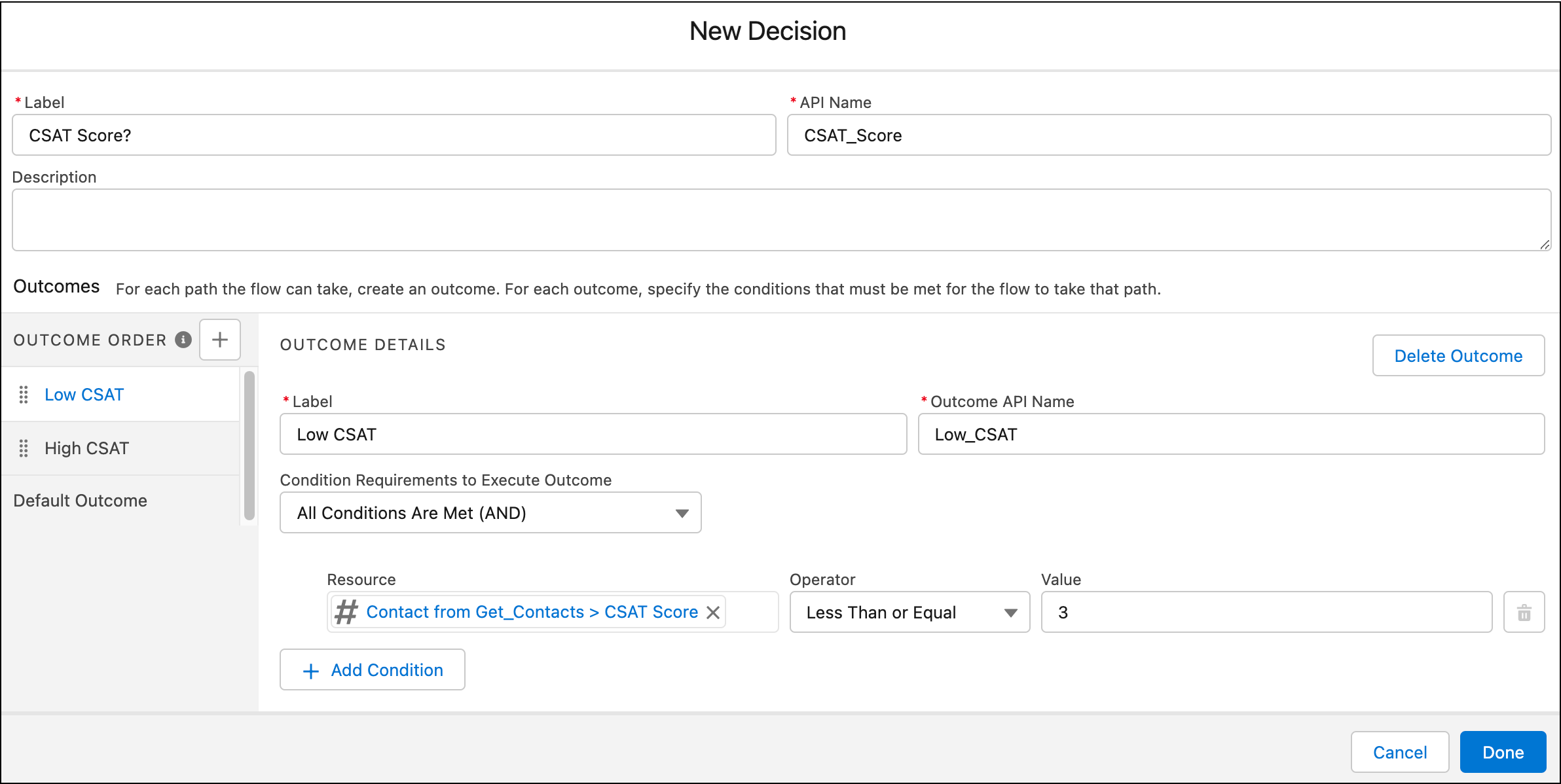
- Enter the label CSAT Score? and the API name CSAT_score.
- For Select Decision Logic, select Define Manually (Default).
- Use the first outcome to define a Low CSAT outcome with the condition that the value of the CSAT Score field on the Contact record is 3 or lower.
- Add an outcome, and configure it for a High CSAT outcome with the condition that the value of the CSAT Score field on the Contact record is 4 or higher.
- Keep the Default outcome as-is for customers who don’t have a CSAT score.
- Click Done.
-
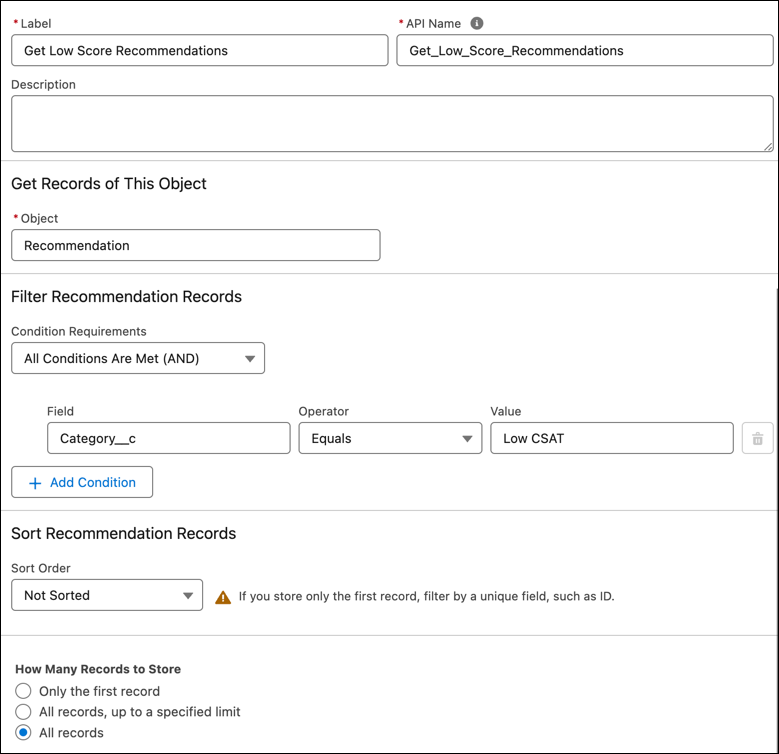
Bring in the appropriate recommendation for the low and high CSAT conditions by adding
a Get Records element for each.
- Enter a label and API name.
- Select the Recommendation object.
- In the Filter section, add the appropriate condition by selecting the API name of the Category field in the Recommendation object and specifying the low or high condition.
- Select the options to store all records and all fields.
- Click Done.
-
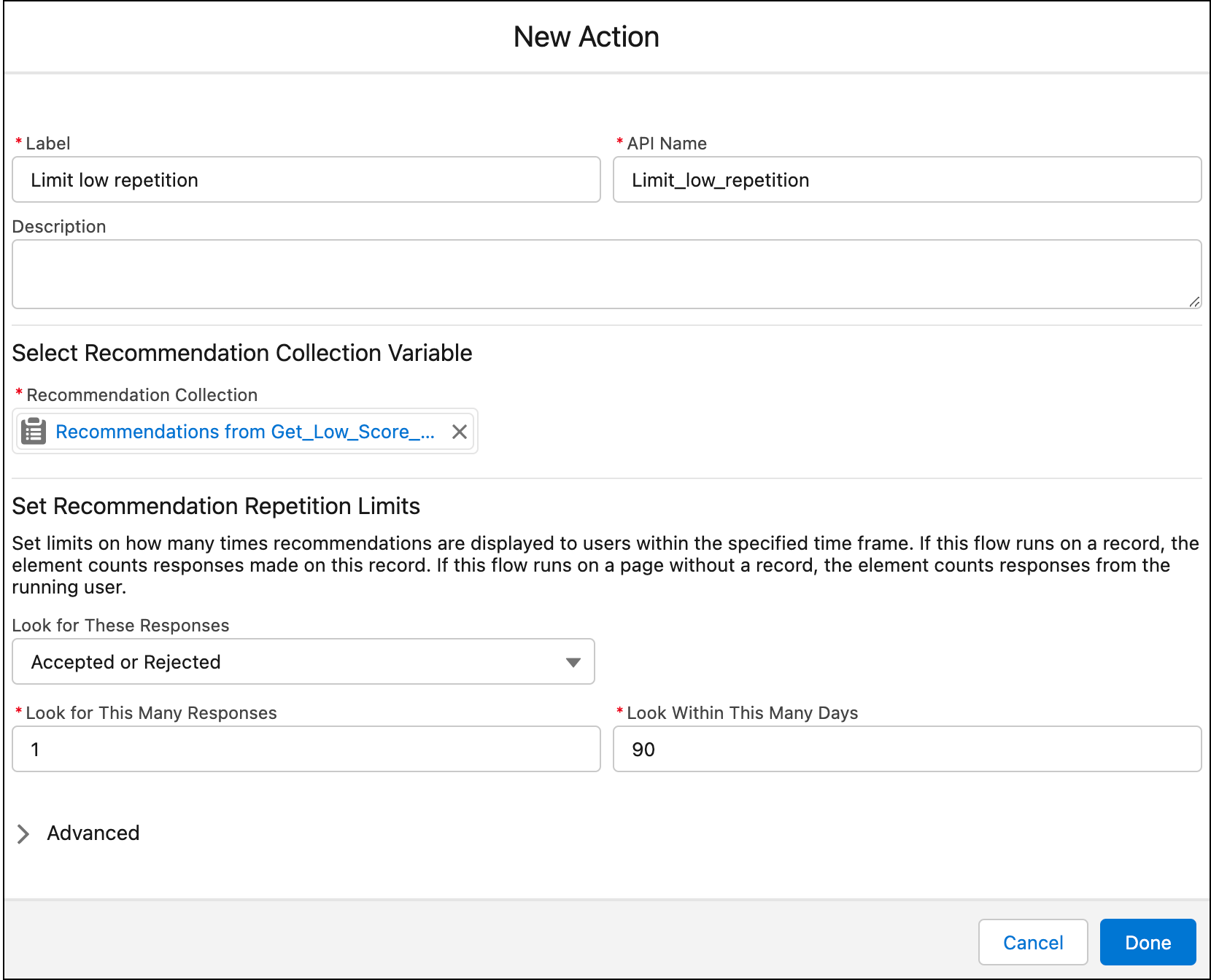
To show the recommendation only one time for each Account record and to assign the flow
output, add a Limit Repetition element for the low and high score paths.
- Enter a label and API name.
- For Recommendation Collection, select the low score or high score recommendation.
- For Look for These Records, select Accepted or Rejected.
- For Look for This Many Messages, keep the default setting of 1.
- To make the output from this path available to Next Best Action, click Advanced, select Manually assign variables, and then select outputRecommendations.
- Click Done.
-
Save the flow and name it CSAT Strategy Flow.
- Activate the flow.
- To return to the Flows page, click Back.
Display the Next Best Action Recommendations
To make the recommendations available to the customer service or account rep, display the Next Best Action component on the Contact record page.
- Open a Contact record page.
-
Click the Setup icon (
 ), and select Edit Page.
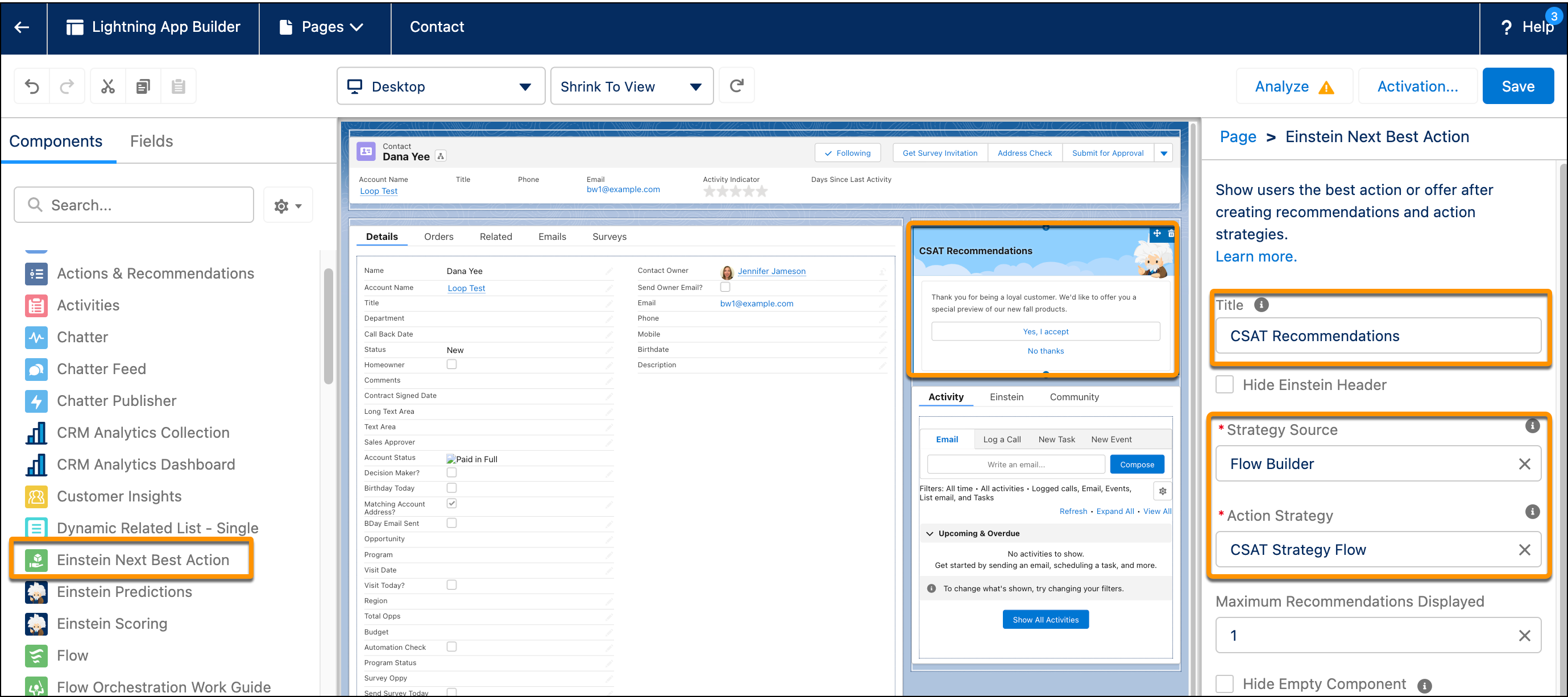
- Drag the Einstein Next Best Action component to the desired location on the page layout.
- Add CSAT Recommendations as the component title.
-
For Strategy Source, select Flow Builder and then select the name of
the recommendation strategy.
- Save your changes.
- Return to the Contact record and refresh the page.
Based on the contact’s CSAT score, the correct recommendation is displayed. When the customer accepts the offer and the account rep clicks Yes I Accept, a form opens with the appropriate confirmation message.
