You are here:
Offer a Gift Basket to Each Account
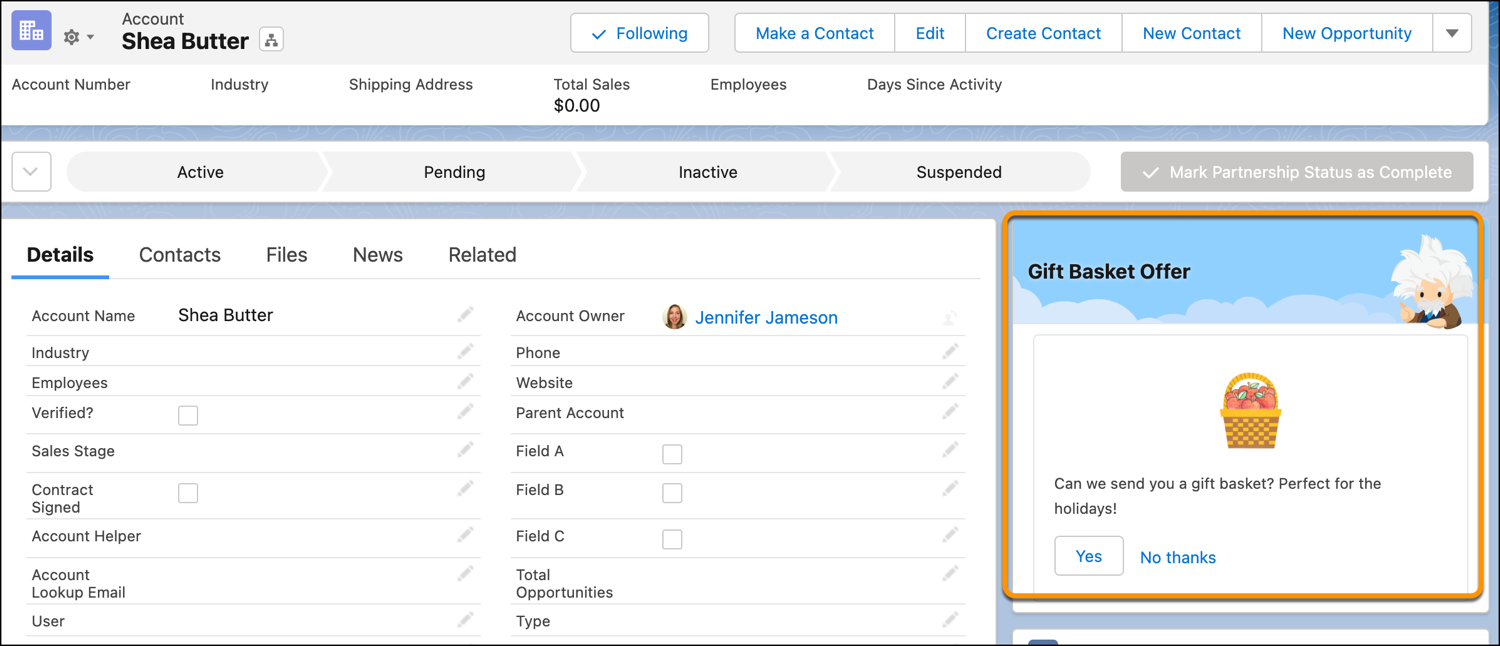
Use a Next Best Action component on the Lightning Account record page to offer a gift basket to each of your accounts. When a customer accepts the offer, a form opens to collect the recipient’s name and shipping address. After the form is submitted, a request email is sent to the shipping department.
Required Editions
| View supported editions for Next Best Action. |
| User Permissions Needed | |
|---|---|
| To open, edit, or create a flow in Flow Builder: | Manage Flow |
To configure this Einstein Next Best Action recommendation:
- Create an action flow that executes when the gift basket recommendation is accepted.
- Create a recommendation that specifies how to present the gift basket offer.
- Create a recommendation strategy flow that determines when and how the recommendation is presented.
- Add a Next Best Action component that displays the recommendation on the Account record page and executes the strategy.
Create an Action Flow
Create a flow that collects the recipient’s name and address and sends an email to the shipping department.
- From Setup, in the Quick Find box, enter Flows, select Flows, and then click New Flow.
- Select Start From Scratch and then click Next.
- Select the Screen flow type and then click Create.
-
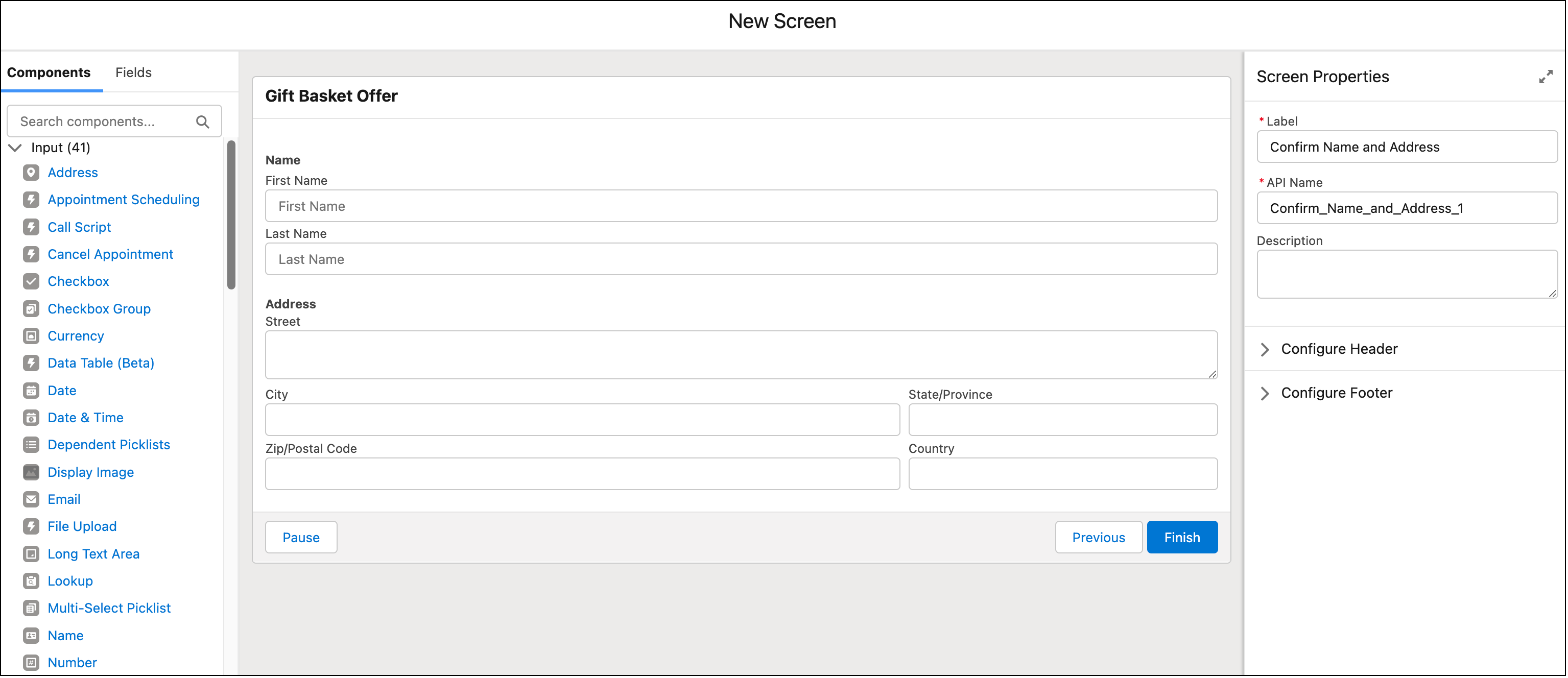
To collect the recipient’s name and address, add a Screen element to the flow.
- Enter a label and API name.
- Drag the Name and Address components to the canvas and assign an API name to each.
- Click Done.
-
To create the text of the email message to send to the shipping department, click
New Resource in the Flow Builder Toolbox. If the toolbox isn’t
visible, toggle the toolbox icon in the upper left corner of the Flow Builder
canvas.
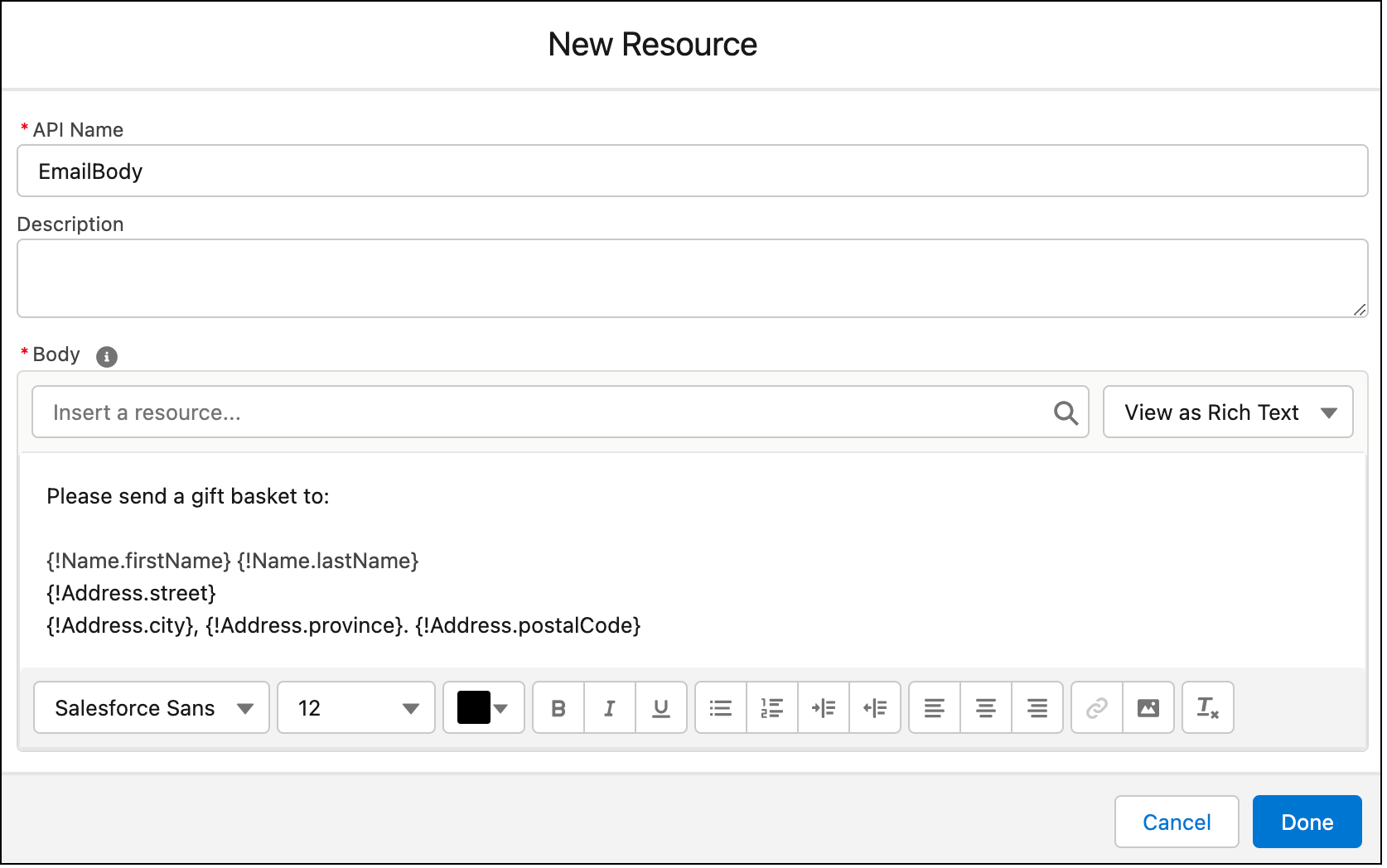
- Add a Text Template resource type.
- Enter EmailBody as the API name.
- In the Body area, enter the email text, inserting the name and address resources.
- Click Done.
-
To create a task for the shipping department, click
 below the Screen element and add an Action element to the flow.
- In the Action dropdown list, enter Send Email and select the Send Email action.
- Enter a label and API name.
- For Recipient Address List, add the email address of the shipping department.
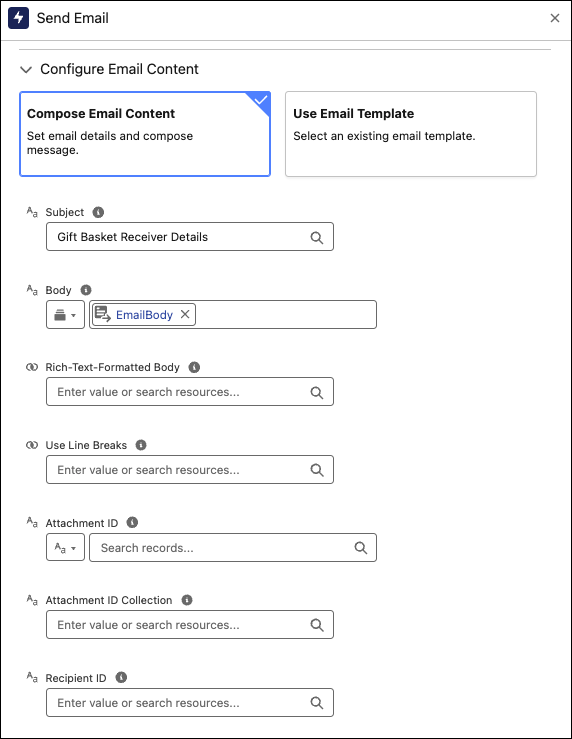
- Click Compose Email Content.
- For Subject, enter the text.
- For Body, select Search Resources from the dropdown and then search for and click EmailBody.
- For the Rich-Text-Formatted Body value, click True.
- Set any other values as needed.
- Save the flow and name it Gift Basket Offer.
- Activate the flow.
- To return to the Flows page, click Back.
Create a Recommendation Record
Create a recommendation that specifies how to present the gift basket offer.
-
From the App Launcher (
 ), in the Quick Find box, enter
Recommendations, and select
Recommendations.
), in the Quick Find box, enter
Recommendations, and select
Recommendations.
- Click New.
-
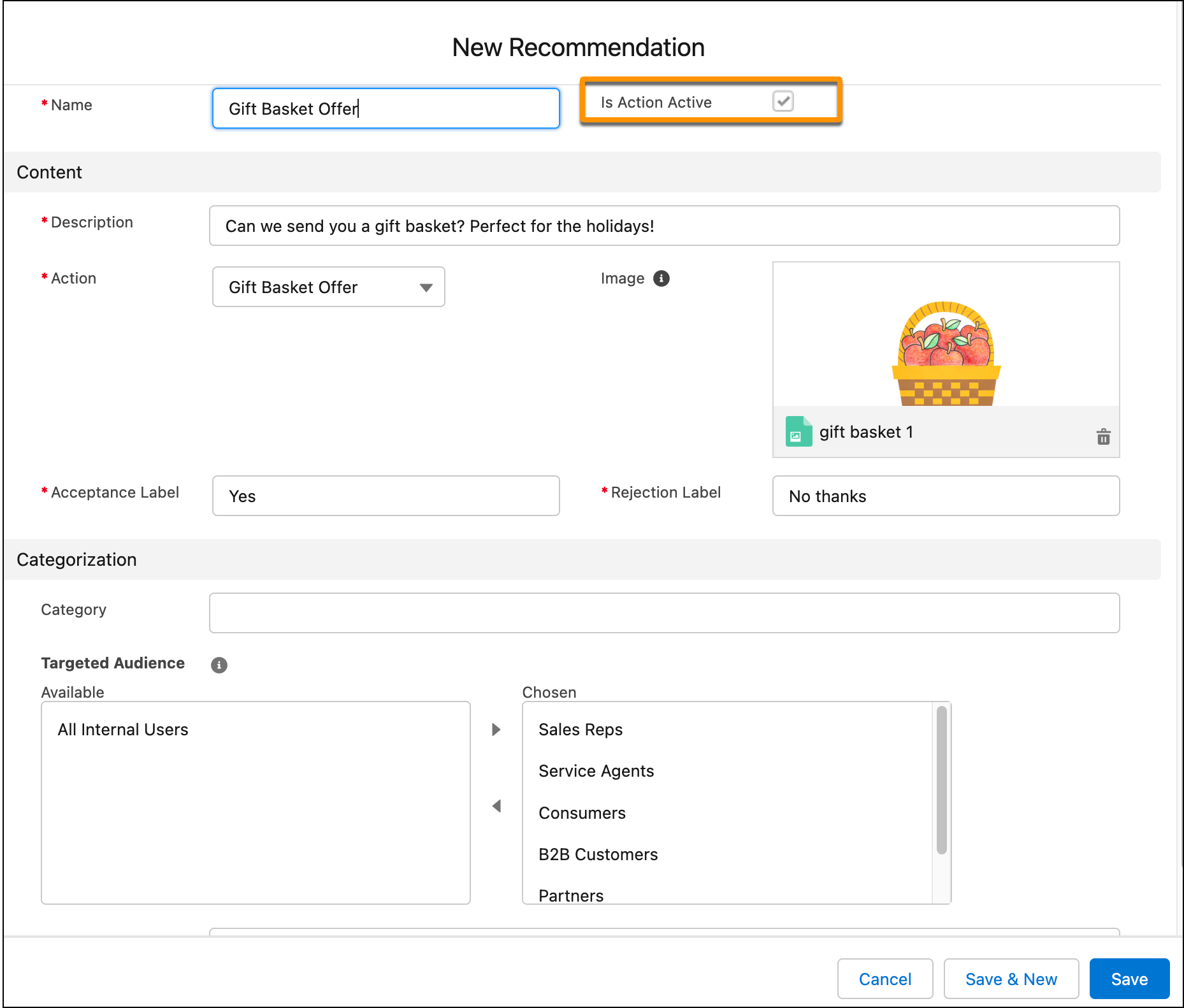
Enter a name and description for the recommendation.
The description appears in the Next Best Action component on the Lightning record page.
- For Action, select the action flow that you created.
-
To add an image (optional), click Upload Image and follow the
instructions.
For best results, use a 1000 px x 380 px image at 72 dpi or one with a similar ratio.
- Enter text for the acceptance and rejection buttons.
- Select the target audiences for the recommendation.
-
Click Save.
The Is Action Active checkbox is automatically selected, which makes the recommendation available to Einstein Next Best Action.
Create a Recommendation Strategy Flow
The recommendation strategy flow determines when and how the recommendation is presented.
- From Setup, in the Quick Find box, enter Flows, select Flows, and then click New Flow.
- Select Use a Template and then click Next.
- Select the Recommendation Strategy flow type and then click Create.
-
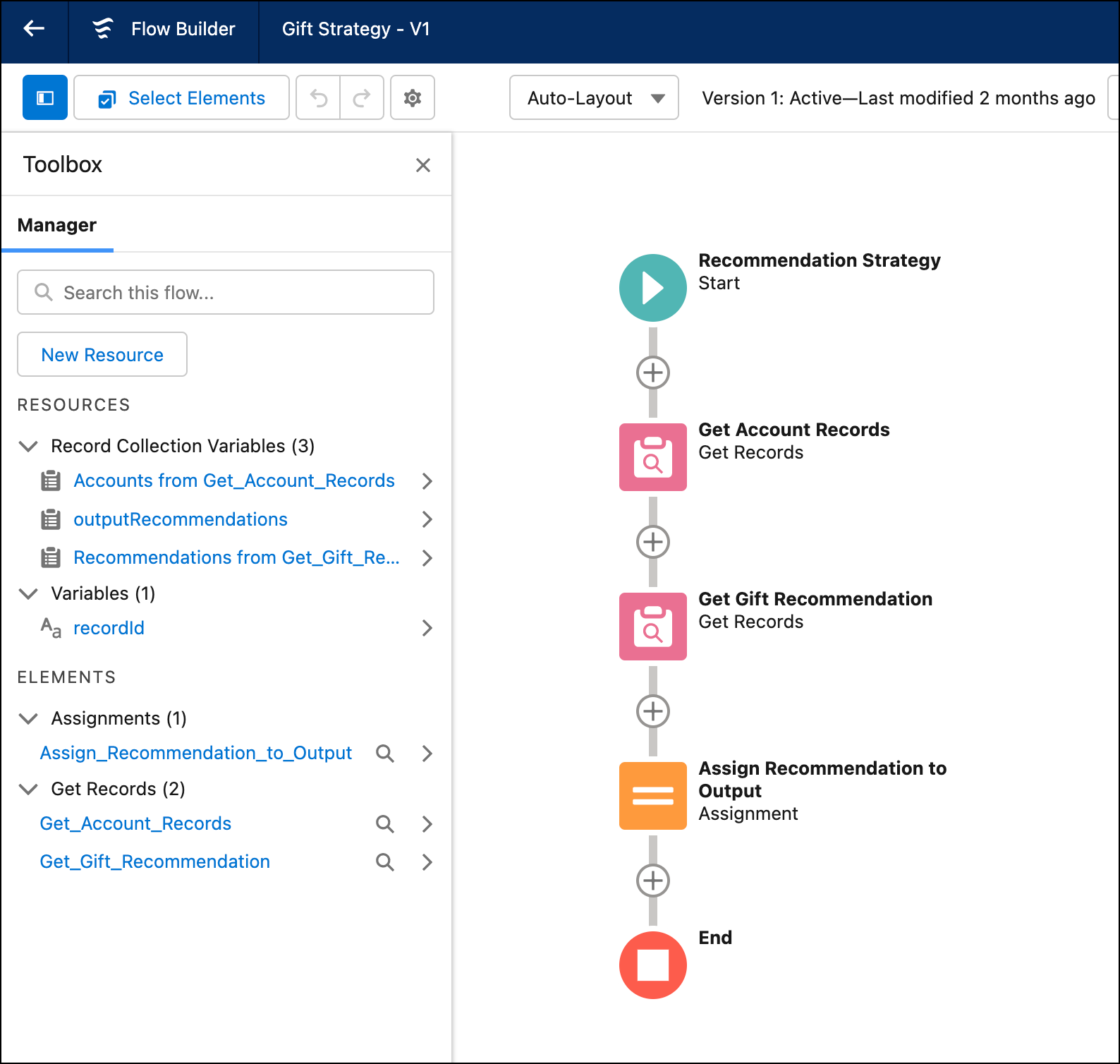
To specify which records to use for the recommendation, add a Get Records element to the
flow.
- Enter a label and API name.
- Select the Account object.
- In the Filter section, add the condition Id equals recordId.
- Select the options to store all records and all fields.
- Click Done.
-
To load possible recommendations into the strategy, add a Get Records element.
- Enter the label Get Gift Recommendation and the API name. Get_Gift_Recommendation.
- Select the Recommendation object.
- In the Filter section, add the condition Name contains Gift Basket.
- Select the options to store all records and all fields.
- Click Done.
In Flow Builder, you define which recommendations are displayed by making sure that they’re in the outputRecommendations collection variable at the end of the strategy flow. The next step uses the Assignment element to add the recommendations to outputRecommendations. To learn how to use the Limit Repetition element to assign the outputRecommendation variable while also limiting the number of times that the user sees the recommendation, see Create Recommendations Based on Customer Satisfaction Scores. -
To move the recommendation output out of this flow so it becomes available to Einstein Next
Best Action, click + below the Recommendation Assignment element and add
an Assignment element.
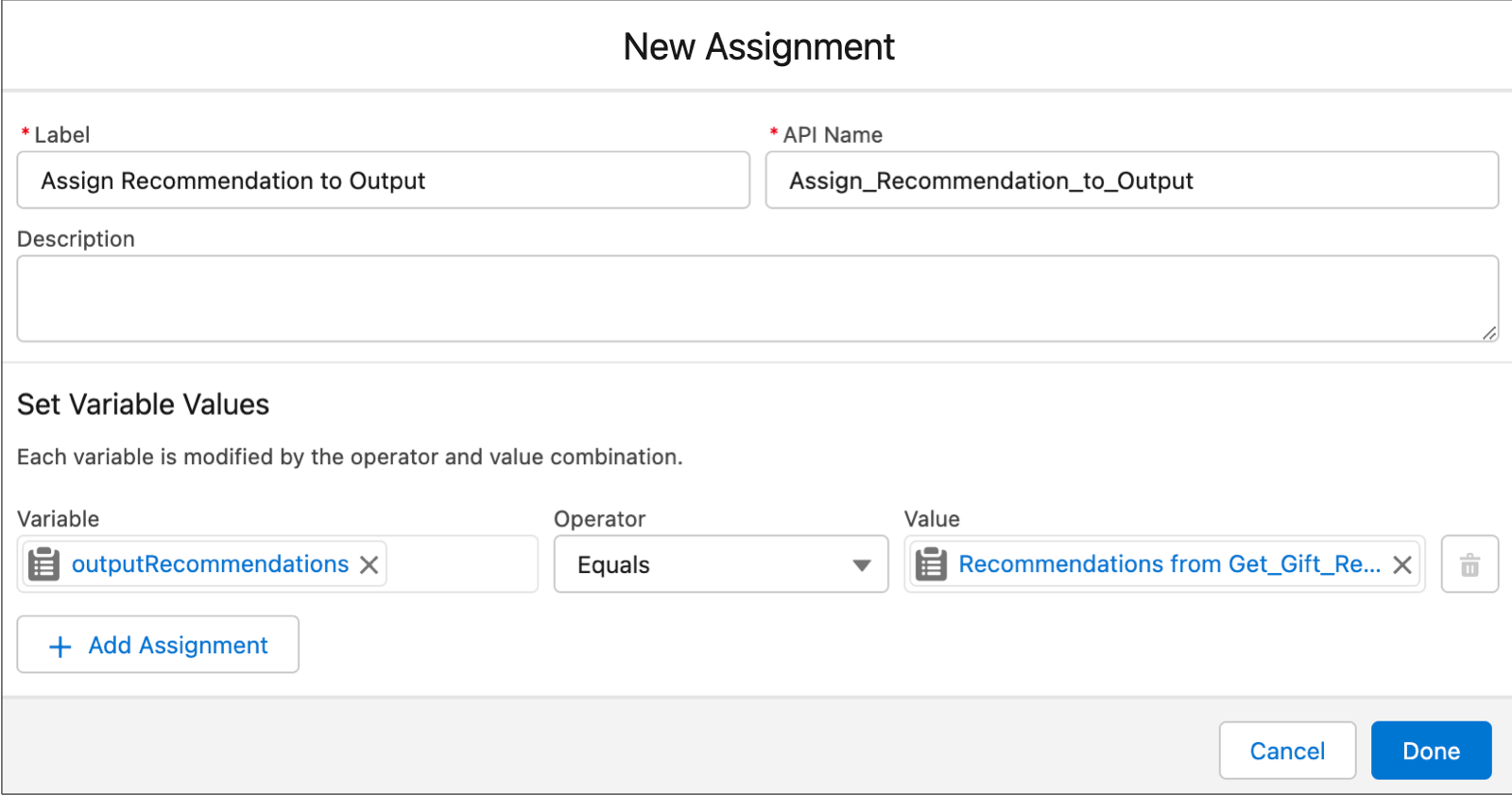
- Enter a label and API name.
- For Variable, select outputRecommendations.
- For Operator, select Equals.
- For Value, select Recommendations from Get Gift Recommendation.
- Click Done.
- Save the flow and name it Gift Strategy.
- Activate the flow.
- To return to the Flows page, click Back.
Display the Next Best Action Recommendation
Display the Next Best Action recommendation on the Account record page.
- Open an Account record page.
-
Click the Setup icon (
 ), and select Edit Page.
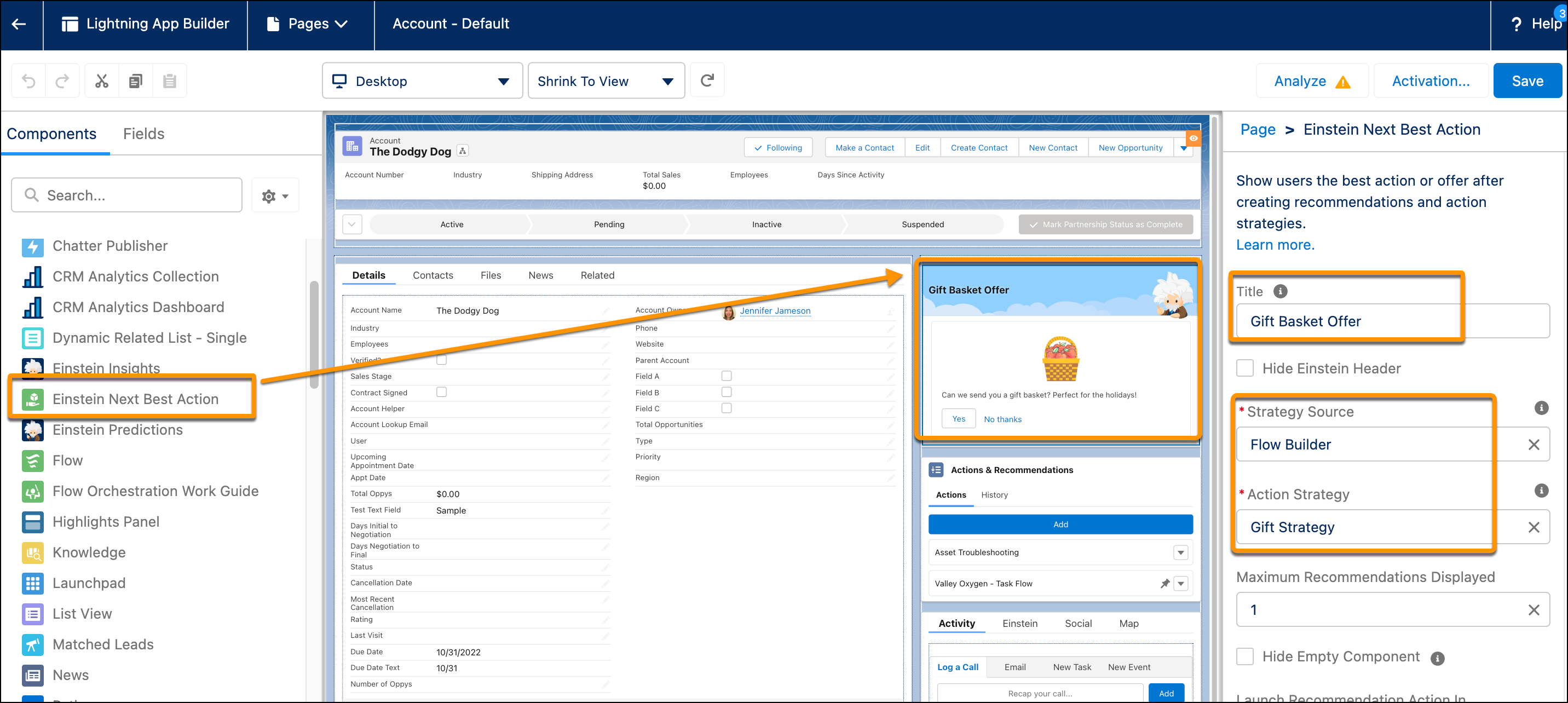
- Drag the Einstein Next Best Action component to the desired location on the page layout.
- Add Gift Basket Offer as the component title.
-
For Strategy Source, select Flow Builder and then select the name of
the recommendation strategy.
- Save your changes.
- Return to the Account record and refresh the page.
The recommendation is displayed. If the account rep clicks Yes, a form opens with entries for name and address. Completing the form generates an email request for the shipping department to fulfill the order.
