You are here:
Get Started with Einstein Next Best Action
Just getting started with Einstein Next Best Action? Follow these steps to complete each phase of the Next Best Action setup process, create personalized recommendations for your users, and put decisions into action.
Required Editions
| View supported editions for Next Best Action. |
Einstein Next Best Action is a solution that uses flows, strategies, and the Recommendation object to recommend actions to users. You can display these recommendations on many different types of pages, including Lightning pages in your Salesforce org, Experience Cloud sites, or external sites.
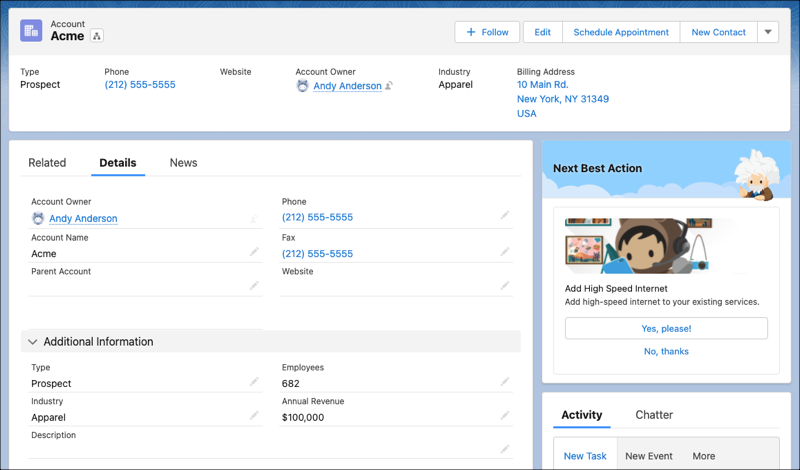
Recommendations are displayed to users with the option to accept or reject the recommended action. Each recommendation contains an image, important text values such as button text and a description, and an assigned flow that runs when a user responds. They can be stored and referenced in the Recommendation standard object, or they can be manually assembled when building a strategy.
Strategies determine which recommendations to display to users, based on your data and business processes. When you set up Einstein Next Best Action on a page, you assign a strategy to that location, which then defines the recommendations that appear there.
You can control which recommendations are displayed in any situation, even if your org has a large number of recommendation records. Strategies can filter recommendations based on any available value, including recommendation fields, fields related to the running user, and fields related to the record that’s currently displayed.

- Plan Your Recommendations and Automation
Decide where the recommendation appears, who it appears to, and the conditions in which it appears. Create a plan for the automation that you want to run when a user accepts the recommendation.
- Read
Build a Flow
In Flow Builder, design and build the flow that runs when a user accepts or rejects the recommendation. You can assign only screen flows and autolaunched flows to a recommendation. If an inactive or invalid flow is assigned, the recommendation isn’t displayed to users.
- Create Recommendations
Recommendations are standard Salesforce records, similar to accounts and contacts. To create recommendations, you can:
- Create recommendation records on the Recommendation object.
- Build recommendations from other data when creating your strategy. In Flow Builder, use the Recommendation Assignment element or a custom Apex invocable action.
- Generate recommendations automatically through AI with Einstein Recommendation Builder.
- Create a Strategy
After you create a flow and make a plan for your recommendation records, use Flow Builder to create your strategy.
To build a strategy in Flow Builder, follow these steps.
- Go to the Flows page in Setup, and click New Flow.
- Select Use a Template, and then clickNext.
- Select the Recommendation Strategy flow type, and then click Create.
- To retrieve data from Salesforce records, such as the Recommendations object or an object related to the currently displayed record, add Get Records elements. To filter which recommendations are stored in the element’s collection, use condition requirements in the Get Records element. Or you can build recommendations from other data with the Recommendation Assignment element or a custom Apex invocable action.
- To limit the number of recommendations that users see, add logic elements. Use Collection Sort and Collection Filter elements to arrange and reduce the recommendations from the Get Records collection. If needed, you can also add other Flow elements such as Decision and Loop to create more complex, branching logic.
- To set recommendations in the outputRecommendations collection, add the Assignment element. When running a strategy built in Flow Builder, Einstein Next Best Action displays only recommendation records in the outputRecommendations collection.
-
Read Display Next Best Actions
After creating a strategy, choose a page to run your strategy and display your recommendations. You can use a Lightning record page, an app’s home page, an Experience Cloud site page, a Visualforce page, or an external site, depending on where you want recommendations to appear.
-
Einstein Next Best Action Component
Use the Einstein Next Best Action component to display recommendations to users on Experience Cloud sites or most Lightning pages within your Salesforce org, including record pages, home pages, and app pages.
-
