You are here:
Einstein Next Best Action Component
Einstein Next Best Action uses strategies that apply your org’s business rules to display context-sensitive suggested offers and actions on your Lightning record pages.
Required Editions
| View supported editions for Next Best Action. |
| User Permissions Needed | |
|---|---|
| To create and save Lightning pages in the Lightning App Builder: | Customize Application |
| To run a recommendation strategy on a Lightning record page: | Run Flows OR Flow User field enabled on the user detail page OR For Experience Cloud, the FlowSites perm provides org-wide access. To restrict access to users by profile or permission set, add a component visibility filter to the Suggested Actions component. |
- Create a recommendation strategy in Flow Builder.
- Drag the Einstein Next Best Action component onto your record page.
 Note In Experience Builder, the component is called Suggested Actions.
 - In the property editor, select the strategy you want to display (1). Enter the maximum
number of recommendations to display (2) and choose where recommendations open when accepted
(3).
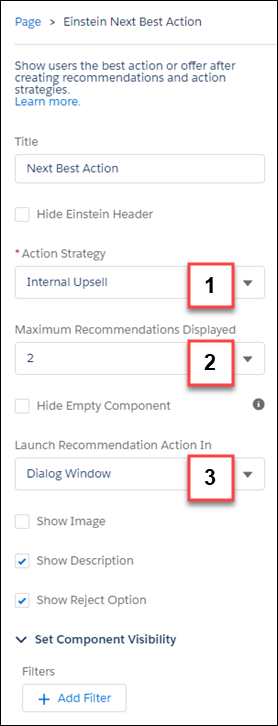
Component Description Title Displays the title for the component on the Record page. Hide Einstein Header Hides the Einstein Recommendations graphical header. Strategy Displays all available strategies created in Flow Builder. Maximum Recommendations Displayed Displays up to four recommendations. Hide Empty Component Displays the component only when there are recommendations available initially. Launch Recommended Action In Specifies whether recommendations open in a display window or a new browser window. Show Image Shows images associated with each displayed recommendation. If there isn’t an image, a placeholder displays. Show Description Displays the recommendation descriptions.
To see the full text of longer messages, adjust the browser's zoom percentage.
Show Reject Option Displays the reject option. Set Component Visibility Allows Dynamic Lightning Pages by adding filter conditions and logic to the component properties in the Lightning App Builder.
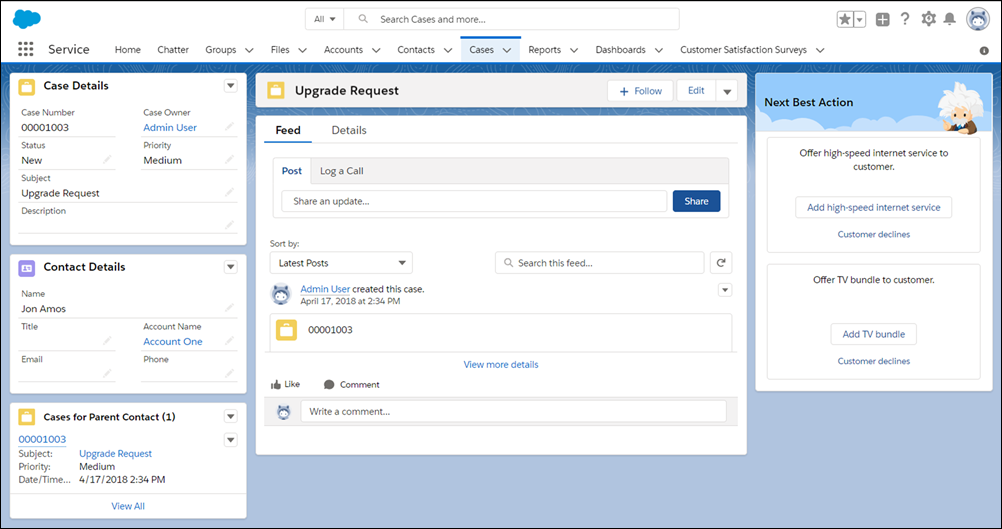
Here’s how a strategy looks with the Einstein header and no images in the Service console:
Did this article solve your issue?
Let us know so we can improve!
