You are here:
Create Recommendations
Create offers or actions to recommend to users using Einstein Next Best Action. Recommendations are standard Salesforce records, similar to accounts and contacts, that are processed by strategies and associated with flows. Strategies determine which recommendation records are surfaced using business rules, predictive models, and other data sources. The result of this process is context-specific recommendations that you present to your users.
Required Editions
| View supported editions for Next Best Action. |
| User Permissions Needed | |
|---|---|
| To create or manage recommendations: | Modify All Data OR Manage Next Best Action Recommendations |

Note
- Salesforce has both a Recommendation object for Einstein Next Best Action (that’s this page) and a Recommendation component for Experience Builder sites. The Recommendation component isn’t related to Next Best Action.
- If you don't see Recommendations in the App Launcher, in Setup, select Default On in the Recommendations tab settings for your user profile or permission set.
- You can load and filter the records of a Recommendation object. Or load and filter the records of any object, and convert them into recommendations at the end of a strategy using the Map element.
Before creating recommendations, create the action flow that runs when a customer accepts the recommendation. For examples of action flows for Next Best Action, see Einstein Next Best Action Examples.
-
In the Recommendations tab, click New Recommendation.
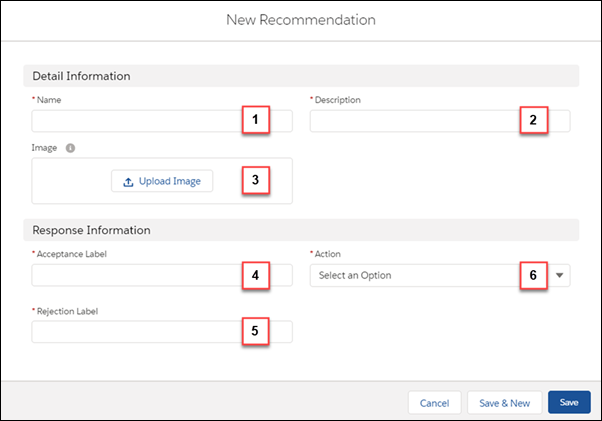
- Enter a friendly name (1) and a brief description (2) for your recommendation. The description appears on the recommendation that is surfaced to users.
- Optionally, click to upload an image (3) that you can display as a header for your recommendation. For best results, use a 1000 by 380 pixel image at 72 DPI, or an image with a similar ratio. You can choose whether the image displays using component properties. After it’s uploaded, a thumbnail of your image displays on the Recommendations page. Customers can see the full image as a header for your recommendation in either the Lightning App Builder or Experience Builder component.
- Enter an acceptance label (4) and a rejection label (5) for the buttons that customers click to, respectively, accept and reject the recommendation.
- Create a flow. When a user accepts your recommendation, they’re taken to the flow specified in Action (6).
-
Choose the flow that runs when a customer accepts the recommendation (6) and click
Save. You can also choose a flow that runs when a customer accepts or
rejects the recommendation. The Action list displays both active and inactive flows. Choosing a
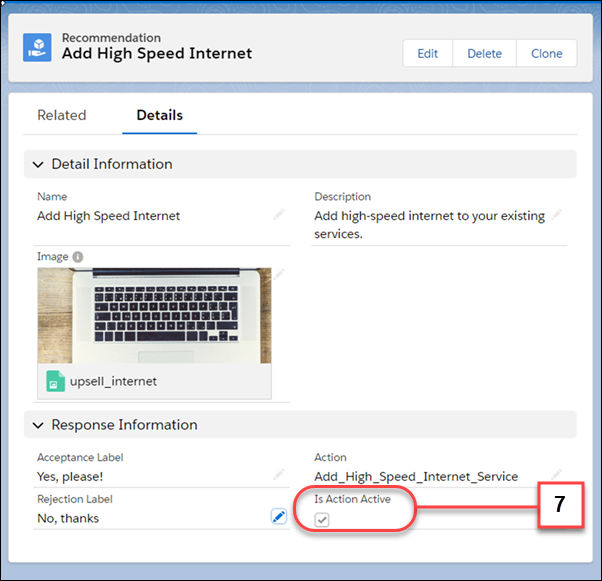
flow that isn't active hides the recommendation. When you’ve saved your recommendation, you can
see if the flow is active from Is Action Active (7).
- Create a recommendation strategy in Strategy Builder that determines how your recommendations surface.
- Optionally add a custom Category field to the Recommendation object and the Recommendation Layout. Adding a custom Category field can simplify loading, filtering, and sorting recommendations in Strategy Builder.
- Recommendation Fields
Recommendations are suggested actions that users see and interact with through Einstein Next Best Action strategies. When creating a recommendation, use these fields to define its look and feel. - Launch a Flow When a Recommendation Is Accepted
Each recommendation is associated with a single flow. By default, Next Best Action launches a flow when a user accepts a recommendation. The flow then performs an action, such as updating a case or sending an email. - Launch a Flow When a Recommendation Is Accepted or Rejected
Each recommendation is associated with a single flow. By default, Next Best Action launches a flow when a user accepts a recommendation. The flow then performs an action, such as updating a case or sending an email. But you can also launch a flow when a user rejects a recommendation, which gives you more flexibility. For example, a flow could run an automated process, write to another system, or create a reminder email when a recommendation is rejected. - Add a Limit Repetitions Element to a Next Best Action Flow
You can add a Limit Repetitions element to your Recommendation Strategy flow to limit the number of times that the same recommendation or offer appears on the same record or for the same user during a time period.
Did this article solve your issue?
Let us know so we can improve!
