You are here:
Create a Strategy Builder Action Strategy Connection
Use Apex actions to integrate external data sources and information from your Salesforce org into your strategies.
Required Editions
| View supported editions for Next Best Action. |
| User Permissions Needed | |
|---|---|
| To create or manage action strategies: | Modify All Data OR Manage Next Best Action Strategies |
| To run an action strategy: | Run Flows OR Flow User field enabled on the user detail page |
Use Apex invocable actions to pull sources of data into your strategy.
- In Strategy Builder, click the Manager tab.
-
Click New Connection.
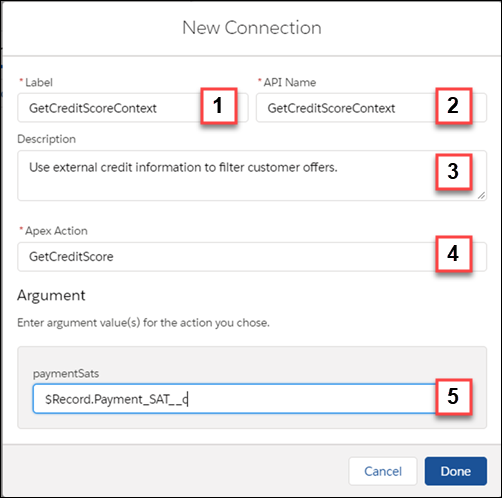
- Enter a label to visually identify the connection (1).
- Enter an API name. This name is used in Strategy Builder elements that require conditional statements, such as Branch Selector and Filter (2).
- Enter a brief description for the connection (3).
- Choose the action to use in logic elements’ conditions (4).
- Enter any parameters for the selected action (5) and click Done.
- Click the connection label to edit its associated information.
-
Click the > to the right of the connection label to edit or view its
details or to delete it.
Element Description Apex Action Assigns the invocable action that runs when the connection is referenced in elements’ conditions. API Name Specifies the connection name to use in logic elements’ conditions. For example, $GetCreditScoreContext.output >= 760. Note API Name is set to Label with underscores replacing spaces by default.
Argument Specifies one or more parameters that the selected invocable action requires. This textbox appears only when the action has one or more arguments. Description Specifies the description shown in the connection details. Label Specifies the label displayed in the Manager pane for your connection.
Did this article solve your issue?
Let us know so we can improve!
