You are here:
Manage Strategy Builder Action Strategies
Test, troubleshoot, and create strategies using Strategy Builder management tools.
Required Editions
| View supported editions for Next Best Action. |
- Save Strategy Builder Action Strategies
Save your strategies or use Save As to create new a new strategy based on an existing one. - Test Strategy Builder Action Strategies
Test your strategy within Strategy Builder to see what recommendations display, given different inputs. - Troubleshoot Strategy Builder Action Strategies
Strategies can be complex, which means it’s sometimes difficult to know where you went wrong when you encounter unexpected results. Use this page to determine the best tool for troubleshooting your strategy. - Inspect Strategy Builder Element Results
View the full details of each step of your strategy’s execution from Strategy Builder’s Inspector tab. Trace the path of recommendations through your strategy and identify problems in individual elements. Debug errors and see how your strategy is working behind the scenes.
Save Strategy Builder Action Strategies
Save your strategies or use Save As to create new a new strategy based on an existing one.
Required Editions
| View supported editions for Next Best Action. |
| User Permissions Needed | |
|---|---|
| To create or manage action strategies: | Modify All Data OR Manage Next Best Action Strategies |
| To run an action strategy: | Run Flows OR Flow User field enabled on the user detail page |
Save your new or updated action strategy by clicking Save. Create a strategy based on an existing one using Save As.
- To save your action strategy click Save.
- To create an action strategy based on an existing one, click Save As.
- Replace the existing name in Name.
-
Replace the existing API name in API Strategy.
You can have duplicate strategy names but we don’t recommend it. The API name must be unique.
To automatically generate a new API name, delete the existing API name after you rename the strategy. Click the Name textbox, and either tab over to or click the API Name textbox.
- Optionally, replace the existing description.
- If you want to base your strategy on a different object, click the Object Where Recommendations Display textbox and choose a new object.
- Click Done.
Test Strategy Builder Action Strategies
Test your strategy within Strategy Builder to see what recommendations display, given different inputs.
Required Editions
| View supported editions for Next Best Action. |
| User Permissions Needed | |
|---|---|
| To create or manage action strategies: | Modify All Data OR Manage Next Best Action Strategies |
| To run an action strategy: | Run Flows OR Flow User field enabled on the user detail page |
In Strategy Builder, you can test the strategies underlying your recommendations.
- Create or edit a strategy.
-
To save your changes, click Save.
 Note Always save before testing to test the most recent version of your strategy.
 - Click Test.
-
Select an object for the test.
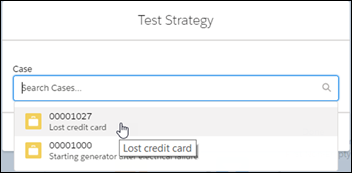 If you don’t see the object that you want to test the strategy against, close the Test Strategy window. Select the properties wheel above the left pane. Change the object that the strategy is linked to by selecting an object from Object Where Recommendations Display. If you don’t see an object listed, the strategy hasn’t been linked to a specific object.
 -
To test the underlying flow, choose a recommendation.
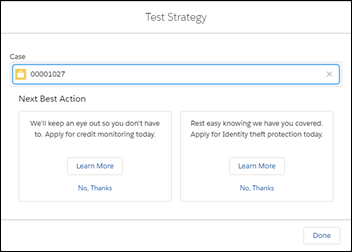 Note Images associated with recommendations aren’t displayed when testing in Strategy Builder.
The Test Strategy window doesn’t show all possible error messages. Strategies are executed from right to left, starting at Output. If a particular Branch Selector expression results in a closed branch, the child elements of that branch (the elements to the left) are not executed. This process makes strategy evaluation faster, but it also means that any branches with false expressions could have errors that aren’t exposed. The Test button shows what the user sees. To get a complete view of any errors occurring at run-time, use the Inspector tab in the Toolbox. Inspector highlights errors from all elements.
Troubleshoot Strategy Builder Action Strategies
Strategies can be complex, which means it’s sometimes difficult to know where you went wrong when you encounter unexpected results. Use this page to determine the best tool for troubleshooting your strategy.
Required Editions
| View supported editions for Next Best Action. |
If something goes wrong with your strategy, you have several troubleshooting options.
- Start by using the basic test function in Strategy Builder. After you create and save a strategy, click Test in the menu bar.
- For a more detailed view of your strategy execution, see the Inspector tab in the Strategy Builder Toolbox. The Inspector tab lists specific errors and gives you a detailed view of how your strategy executes.
- If you can’t find the problem in the Inspector tab, or you want to troubleshoot for a specific user, try using the Apex debug log. Next Best Action has a specific debug log category.
- To receive full error reports sent directly to your email, a Chatter post, a text message, or other outlet, try creating a custom notification flow and a Process Builder trigger. Using a Platform Status Alert Event, you can subscribe to Next Best Action events and respond when errors occur.
Inspect Strategy Builder Element Results
View the full details of each step of your strategy’s execution from Strategy Builder’s Inspector tab. Trace the path of recommendations through your strategy and identify problems in individual elements. Debug errors and see how your strategy is working behind the scenes.
Required Editions
| View supported editions for Next Best Action. |
| User Permissions Needed | |
|---|---|
| To create or manage action strategies: | Modify All Data OR Manage Next Best Action Strategies |
| To run an action strategy: | Run Flows OR Flow User field enabled on the user detail page |
When testing your strategy doesn’t return the recommendations you expect, investigate the execution details of the strategy or a selected element using the Inspector tab.
- Click the Inspector tab.
-
Click Test and select an object.
Note Provide a sample recordId to test your strategy in the inspector. You can do so in either of the following ways:
- While Inspector is open, click Test and select a record. The recordId of the selected record is pasted into the Record ID field of the inspector. Close the Test window and click Run in the inspector.
- Copy a record ID from the URL of a record page and paste it into the RecordId field manually.
-
Click Run.
Note Inspector can show a single element’s results, or the results for all elements in the strategy. If you select an element, you see recommendations surfaced by that element. If you have no elements selected, you see recommendations surfaced by the strategy.
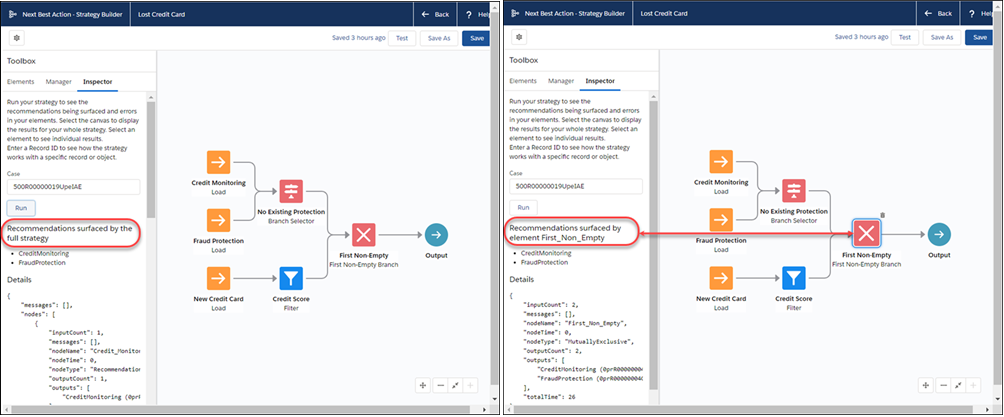 Note To see accurate results, you have to save your strategy before testing it. If you change the strategy or an element, Run becomes Save and Run.
 -
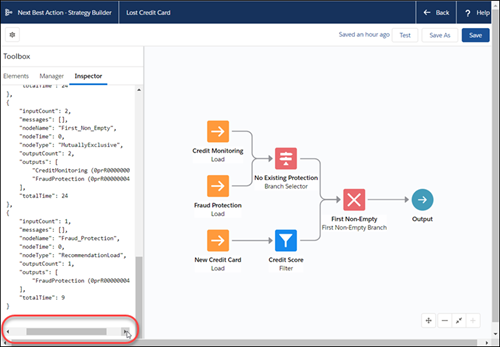
To scroll right, use the horizontal scroll bar at the bottom of the Inspector pane.
- If you want to view recommendations for a different object, click Test, clear your current selection, and choose a new object from the dropdown. To update the recommendations in the inspector, click Run.
