The Map element creates Recommendation fields and modifies
existing fields using formulas instead of Apex code. Use it to pass data from a Recommendation
field with one name to a flow input with a different name, or to personalize Description, Name,
and other fields with context-specific data.
If you load an object other than Recommendation, add a Map element after the Load element and
before the Output element in your strategy. Use the Map element to map fields from the records
to required fields on the Recommendation object. For example, map the product Title field to the
recommendation Name field. Mapping fields converts the filtered records into recommendations
that are surfaced via the Next Best Action component and your own apps.
Example You can include the name of a contact in a recommendation, and further personalize the
recommendation with text. Suppose that you have a recommendation with the description, “Thank you
for being a loyal customer. We truly appreciate your business!” Using the Map element, you can
personalize the description. Add the name of the contact to the description, for example, “Lauren
Boyle, Thank you for being a loyal customer. We truly appreciate your business!”
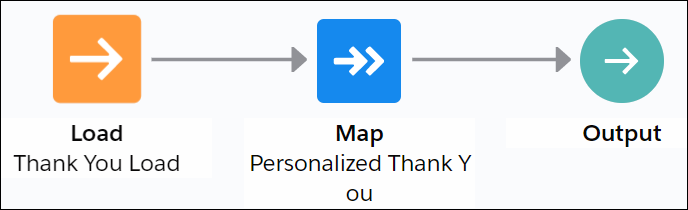
Use a Load element to load all the recommendations you want to change. Or you can add a
Generate element and pass in dynamically generated recommendations.
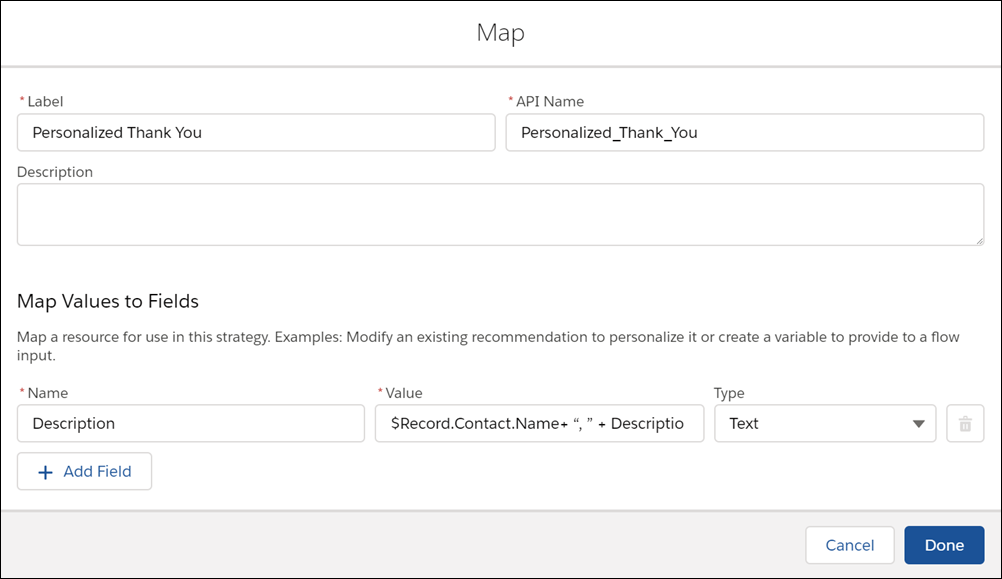
Add a Map element. In the Name field, select Description and in the
Value field, enter this expression:
$Record.Contact.Name+ “, ” +
       Description
. Leave the Type field as Text.
Place the “Personalized Thank You” Map element after the Load element. It modifies the
descriptions of all recommendations that pass through it.
When you execute the strategy, your recommendations include the contact name for the current
case.
Did this article solve your issue?
Let us know so we can improve!
Loading
Salesforce Help | Article
Cookie Consent Manager
Cookie Consent Manager
General Information
Required Cookies
Functional Cookies
Advertising Cookies
General Information
We use three kinds of cookies on our websites: required, functional, and advertising. You can choose whether functional and advertising cookies apply. Click on the different cookie categories to find out more about each category and to change the default settings.
Privacy Statement
Required Cookies
Always Active
Required cookies are necessary for basic website functionality. Some examples include: session cookies needed to transmit the website, authentication cookies, and security cookies.
Functional Cookies
Functional cookies enhance functions, performance, and services on the website. Some examples include: cookies used to analyze site traffic, cookies used for market research, and cookies used to display advertising that is not directed to a particular individual.
Advertising Cookies
Advertising cookies track activity across websites in order to understand a viewer’s interests, and direct them specific marketing. Some examples include: cookies used for remarketing, or interest-based advertising.