You are here:
Write a Strategy Builder Expression
Create unique expressions using logic from the Salesforce expression builder to filter recommendations, select or deselect branches, and determine which recommendations are available for consideration in a strategy.
Required Editions
| View supported editions for Next Best Action. |
Strategy Builder expressions, found on the Filter and Branch Selector elements, use standard Salesforce formula functions. To learn more about creating formulas in Salesforce, see Formula Operators and Functions by Context.
Strategies are designed to work with a particular object like Case or Contact. Strategy Builder elements use $Record as a placeholder for the actual record that gets passed in when a strategy runs.
- Select the element you need for your strategy: Filter or Branch Selector.
- Enter your expression. You can build expressions in two different modes: standard and advanced. Standard is declarative: search and select to build your formula. Use advanced mode for more complex expressions, when a given operator is unavailable in standard mode, or when you use concatenation.
- In standard mode, set up conditions. At run time, the conditions are evaluated in the order you specify.
| Column Header | Description |
|---|---|
| Resource | Recommendation resource whose value you want to evaluate, such as acceptance or
rejection label, action, ID, name. For example, a strategy is associated with a
Case. Your resource can be $Record.Account.Type
or $Record.Account.Contact.Name. |
| Operator | Select an appropriate operator for that resource, for example Equals, Does Not
Equal, Starts With, Contains, Less Than Or
Equal To, and Is Blank. The
available operators depend on the data types associated with that resource. Data
types include text, number, Boolean, or picklist. |
| Value | Options:
Resource and Value in the same row must have compatible data types. When you add or subtract a number from a date value, the date adjusts in days, not hours. |
| Option | Behavior for Decision Outcomes |
|---|---|
| All Conditions Are Met | If one of the conditions is false, the recommendation evaluates the next outcome’s conditions. |
| Any Condition Is Met | If one of the conditions is true, the recommendation immediately takes this outcome’s path. |
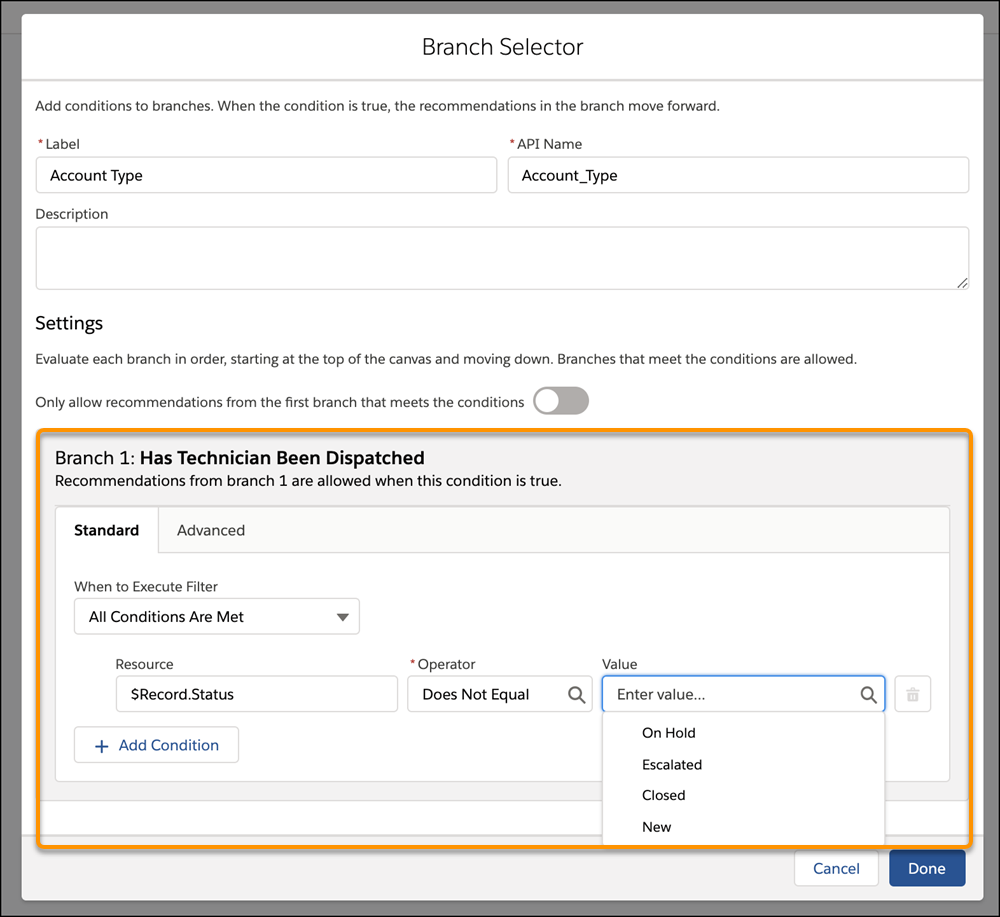
For example, say you create the custom field Has_Mobile_Service__c on the contact record. If you use $Record.Contact.Has_Mobile_Service__c = false in a Strategy Builder expression, and you’re working with a case record, the recordID provided with the request replaces $Record when the expression resolves. The recordID replaces $Record because case records have a lookup relationship with contacts.
- Reference the context object in your formula using the $Record function.
For example, ISPICKVAL($Record.Account.Tier__c, 'Premium')

The Context object is the object where you plan to surface your recommendations. Choose the Context object, or change it, by editing your strategy and choosing an object under Object Where Recommendations Display.
- Reference fields from the Recommendation object using the plain text label name. This option is available only in Filter and Load elements, not Branch Selector elements.
For example, AcceptanceLabel = =‘Yes, please’
- Access fields returned from external connections using $nameOfExternalConnection.dataFromExternalConnection syntax. Manage your external connections through the Manage tab in the Toolbox.
For example, $GetCreditScoreContext.output >= 760
- Use $Request to access information the user types into forms and use that information to request specific recommendations. This option is available only on the Search and Contact Support pages in Experience Builder sites.
For example, CONTAINS($Request.search, 'paperless billing') || CONTAINS($Request.search, 'order checks') || CONTAINS($Request.search, 'new address')
For multi-select picklist fields, enter values like Includes ($Record.CarType__c, ‘Audi,’‘BMW’)
