You are here:
Configure an External Account Hierarchy
Set up an external account hierarchy to share data seamlessly with other external users.
Required Editions

Note This feature is available in orgs with Partner or Customer Community Plus licenses.
| Available in: Salesforce Classic and Lightning Experience |
| Available in: Enterprise, Performance, Unlimited, and Developer Editions |
| Applies to: LWR, Aura, and Visualforce sites |
| User Permissions Needed | |
|---|---|
| To manage external users: | Manage External Users |
| To create, edit, and delete profiles: | Manage Profiles and Permission Sets |

Tip Check
out this feature in Salesforce Go! Find a guided setup experience, explore more content,
discover related features, and monitor feature usage. See Discover and Set Up Features With Salesforce Go.
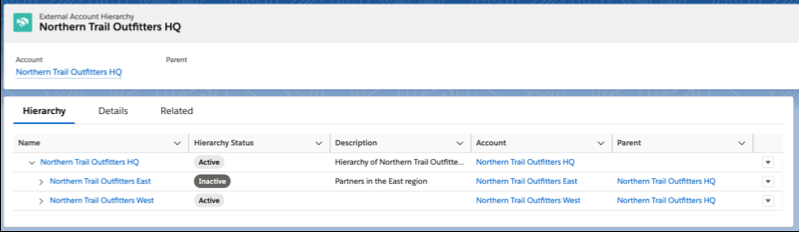
External account hierarchies work like Salesforce role hierarchies. You can share data without creating sharing rules. For example, if you have a child record and a parent record in the same external account hierarchy, the record data owned by users associated with child accounts is shared with users in parent accounts.
Note Sharing rules can work along with external account hierarchies. Data shared by
sharing sets doesn’t roll up in role hierarchies.
Learn more about external account hierarchies in this video.
- Enable external account hierarchies.
- To create a hierarchy, enter External Account Hierarchies in the App Launcher and then select External Account Hierarchies.
- Click New.
- Enter a name for the external account hierarchy, and select the account that it’s associated with.
- Check the Is Hierarchy Active box.
- For the Hierarchy Type, select Partner.
- Save your changes.
- To create a level within your hierarchy, click the dropdown arrow on the External Account Hierarchy tab, and select New External Account Hierarchy.
- Specify a name for the new hierarchy and the account that it’s associated with.
- Select the external account hierarchy that you created in Step 4 as the Parent for this hierarchy.
- Repeat steps 5 through 7.
- You can continue to build your hierarchy up to five levels deep. If you need a hierarchy that’s more than five levels deep, contact your Salesforce account executive.
- External Account Hierarchies Considerations
Account records owned by users with roles in child accounts that are part of an external account hierarchy share data with the parent accounts in that hierarchy.
Did this article solve your issue?
Let us know so we can improve!
