You are here:
Create and Use Orchestration Templates
Save orchestrations as templates to reuse them as starting points for new orchestrations. Distribute templates through managed packages so subscribers can build orchestrations based on them.
Required Editions
| View supported editions for Flow Orchestration. |
| User Permissions Needed | |
|---|---|
| To open, edit, or create an orchestration in Flow Builder: | Manage Flow |
Create a Template from an Orchestration
Save a copy of an existing orchestration as a template.
- Open an orchestration.
-
Click Save As New Version.
The Save as window opens.
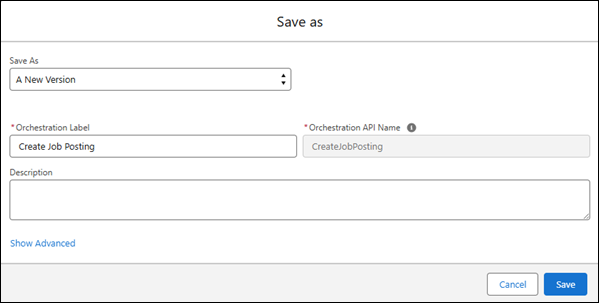
- For the Save As field, select A New Orchestration, and enter a label, API name, and description for your orchestration template.
-
Click Show Advanced.
The window shows advanced options for the orchestration.
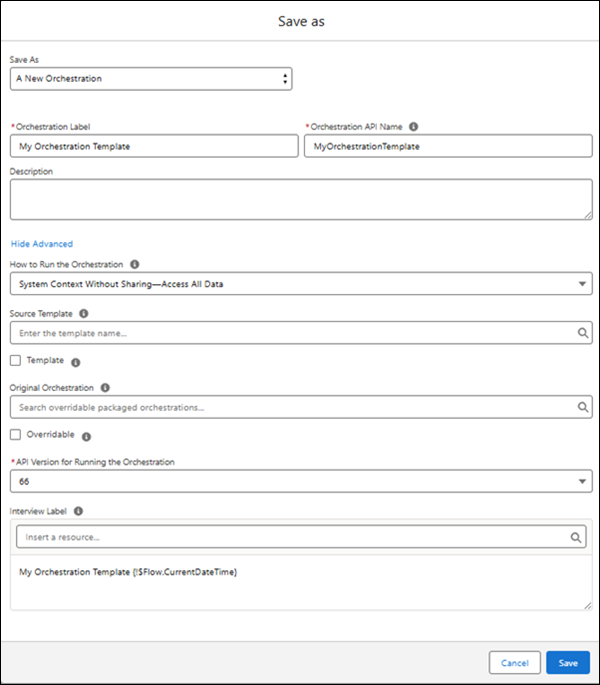
- Select Template and click Save.
Convert an Orchestration to a Template
Turn an existing orchestration into a template. After saving, any changes to the orchestration also update the template.
- Open an orchestration.
-
Click
 next to Save As New Version, and then select Save as
Template.
The Save as Template window opens.
next to Save As New Version, and then select Save as
Template.
The Save as Template window opens.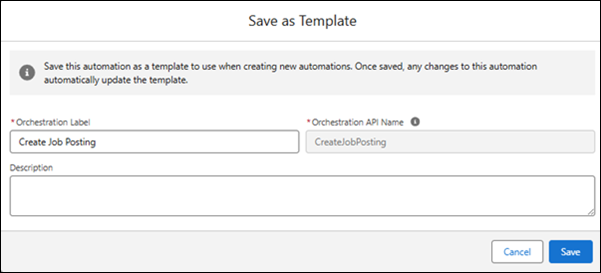
-
Make sure that the orchestration template has an accurate description.
The description appears under the orchestration template’s name in the New Automation window and gives users information about what your template does.
- Click Save.
Use an Orchestration Template
Build orchestrations faster by starting with a template and customizing it to your needs.
-
Open the New Automation window.
- From the Automation app, on the Orchestrations tab, click New.
- From Setup, in the Flows view, click New Flow.
The New Automation window opens.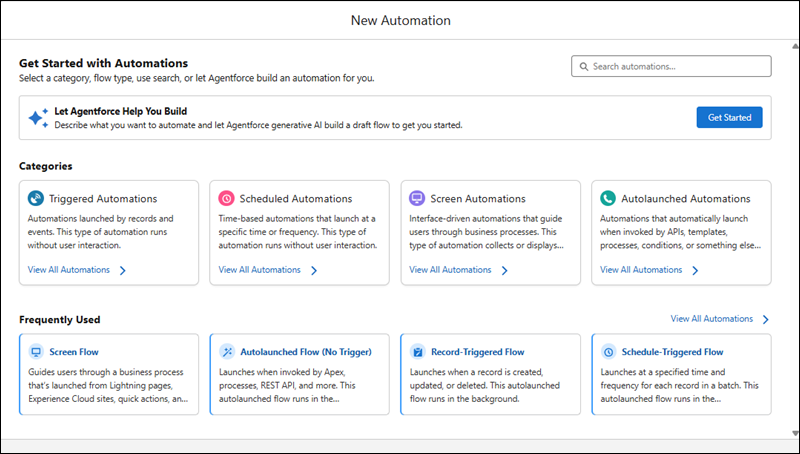
-
In the search box, enter the name of the template.
The template appears under Templates in the New Automation window.
-
Select the template.
A copy of the orchestration opens in Flow Builder.
Did this article solve your issue?
Let us know so we can improve!
