You are here:
Publish an Orchestration Event
To allow an external system to make a paused orchestration evaluate its stage and step conditions, add a custom field to the affected object, configure a background step that calls the external system, and then use a record-triggered flow to publish an orchestration event.
Required Editions
| Available in: Lightning Experience |
| Available in: Enterprise, Performance, Unlimited, and Developer Editions |
| This feature is supported in Government Cloud and Government Cloud Plus. |
| User Permissions Needed | |
|---|---|
| To open, edit, or create an orchestration in Flow Builder: | Manage Flow |
See Also
Add a Custom Field to the Affected Object
Add a custom field to the affected object to hold the orchestration run ID.
- In Object Manager in Setup, select the object that the external system is changing, and then select Fields & Relationships.
- Click New, then select Text, and then click Next.
- For label, enter Orchestration Run ID.
- For description, enter Stores an orchestration run ID to publish an Orchestration Event for.
- Click Next.
- Click Next.
- Click Next.
- Save your work.
Next, create an autolaunched flow that accepts an orchestration run ID and passes it to an action that invokes the external system to interact with.
Update the External System Action
Add an input to the action that you use to interact with your external system and add logic to set the custom field on the affected offect when the action is successful.
Make sure you have defined a custom field on the affected object that can store an orchestration run ID.
- Add an input parameter to the action that accepts an orchestration run ID.
-
Add logic at the end of the action that determines whether the action completed its
task.
- If the task completed and the action affects only one record, set the custom Orchestration Run ID field on the affected record to the value of the orchestration run ID input parameter that you added to the action in step 1.
- If the task completed and the action affects multiple records, set the custom Orchestration Run ID field of each affected record to the value of the orchestration run ID input parameter that you added in step 1.
Call the external system action from a background step.
Call an External System from an Autolaunched Flow
Create an autolaunched flow with an input variable that contains an orchestration run ID. In the flow, call an action that invokes the external system you want input from, and pass the orchestration run ID to the action.
You must have an action that interacts with your external service and accepts an orchestration run ID as an input parameter.
- Create an Autolaunched Flow (No Trigger) type flow.
-
To store the ID of the orchestration run associated with an approval submission, add
an input variable.
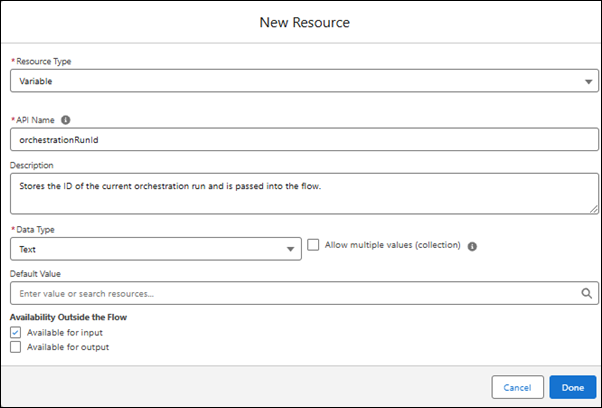
- In Toolbox Manager, click New Resource, and then from the Resource Type dropdown, select Variable.
- For API name, enter orchestrationRunId.
- For description, enter Stores the ID of the current orchestration run and is passed into the flow.
- For Data Type, select Text.
-
Select Available for input, and then click
Done.
The variable is added to the Variables list under the Resources heading in Toolbox Manager. -
Add an Action element to the flow.
- Search for and select the external system action that accepts an orchestration run ID as an input parameter.
-
Set the action’s orchestration run ID input parameter to the
orchestrationRunIdinput variable.
- Save and activate the flow.
Call the autolaunched flow you just created from a background step in your orchestration.
Call the Autolaunched Flow from a Background Step
To interact with the external system, call the active, autolaunched flow that invokes your updated external system action from your orchestration.
You must have an active, autolaunched flow that calls an external system action with an input parameter that accepts an orchestration run ID.
- Add a background step to your orchestration.
- Enter a label, API name, and description for the step.
- For Action, search for and select the name of the active, autolaunched flow you created in Call an External System from an Autolaunched Flow.
- Save your work.
Create a record-triggered flow to run when the custom field changes on an affected record.
Create a Record-Triggered Flow
Create a record-triggered flow that publishes an orchestration event when the value stored in the custom Orchestration Run ID field of a record changes. If you have records of more than one object affected by an external system, create a record-triggered flow for each object.
You must have a background step in your orchestration that updates the value of the custom orchestration run ID field on a record when an external system action has been completed.
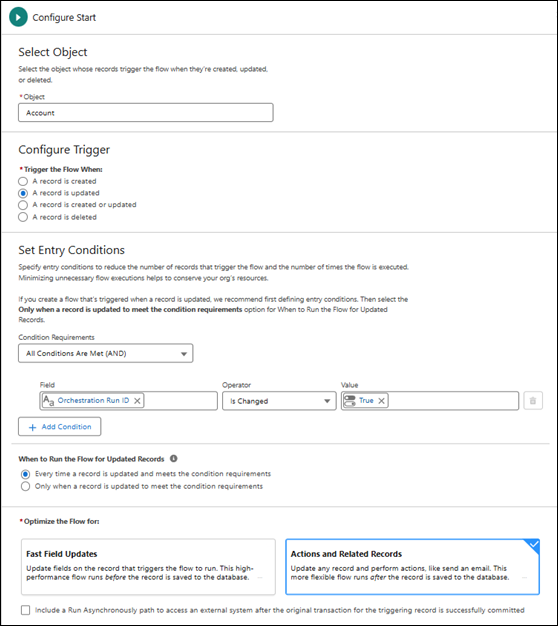
-
Create a record-triggered flow that runs when the custom orchestrator run ID field is
updated on a record.
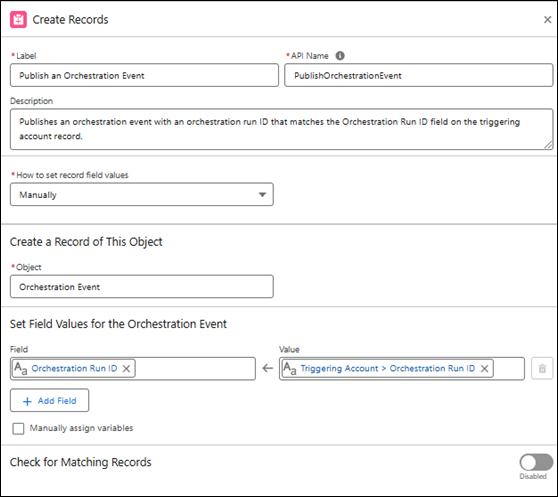
- Add a Create Records element to the record-triggered flow.
- Enter a label, API name, and description for the element.
- For How to set record field values, select Manually.
-
Create an orchestration event.
- For Object, search for and select Orchestration Event. Orchestration Run ID is automatically selected for Field.
-
For Value, search for Triggering and select the triggering
record. Then, search for and select the name of the custom Orchestration Run ID
field on the triggering record.
For example, if your flow is triggered by a change to the custom Orchestration Run ID field of an account, select Triggering Account. Then, search for Orchestration and select Orchestration Run ID on the triggering record.
- Save and activate the new record-triggered flow.
