You are here:
Flow Orchestration Interactive Steps
An interactive step references an active screen flow and generates an orchestration work item. An assigned user completes the active screen flow in the Flow Orchestration Work Guide on the related record page. You can control when an interactive step is ready to start or when its status is set to completed. All interactive steps are processed asynchronously.
Required Editions

Interactive Step Work Cycle
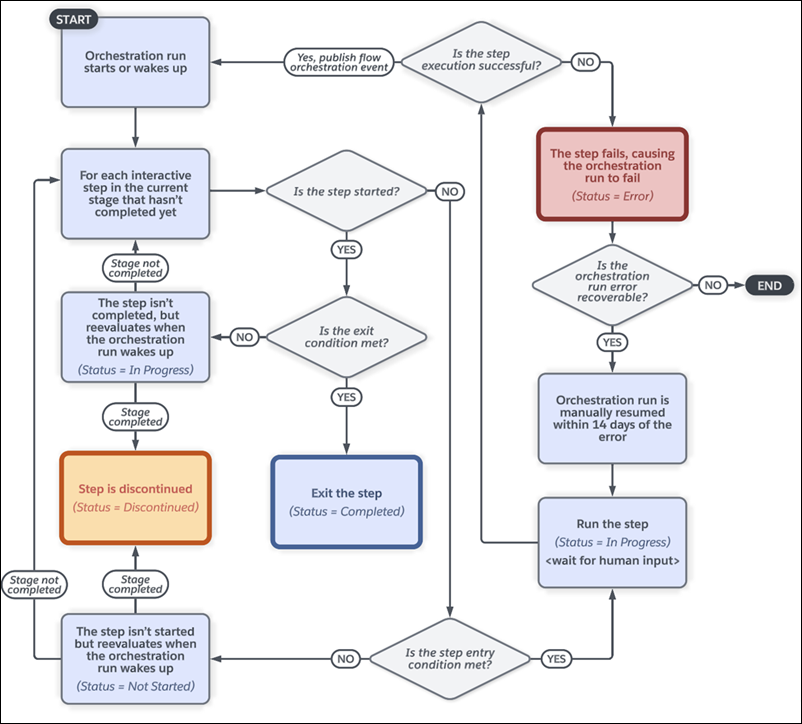
For flows running in version 57.0 and earlier, after an interactive step is marked as complete, an orchestration run resumes in the context of the user who completed the associated work item. If the person who completed a work item has granular access to specific flows without the Run Flows permission, the orchestration run can't resume. To resume the orchestration, someone with the Run Flows permission can run another work item or an admin can trigger a Flow Orchestration Event with the ID of the paused orchestration run.
When to Start the Step
To control when an interactive step starts, select a condition.
| Step Condition | Requires |
|---|---|
| When the stage starts, the step starts | — |
| When another step is marked Completed, the step starts | The name of the step that must be completed before the step can start |
| When the specified requirements are met, the step starts | Up to 10 requirements that determine whether the step can start |
| When the specified evaluation flow returns True, the step starts | The name of the active evaluation flow that determines whether the step can start |
When to Complete the Step
To control when an interactive step completes, select a condition.
| Step Condition | Requires |
|---|---|
| When the assigned user has completed the screen flow, the step is marked Completed | — |
| When the specified requirements are met, the step is marked Completed | Up to 10 requirements that determine whether the step can be completed |
| When the specified evaluation flow returns True, the step is marked Completed | The name of the evaluation flow that determines whether the step can be completed |
Who Completes the Step
When an orchestration is designed, an interactive step is assigned to a user, group, or queue.
| Type | Description |
|---|---|
| User |
|
| Group |
|
| Queue |
|
| Resource | The API name of a resource that contains one of these items at run time:
|
At run time, assigned users, groups, and queues receive emails, notifying them that they have assigned work items. If you don’t want to send email notifications to assignees, see Disable All Email Notifications for Work Item Assignments.
| Assignee Type | Notification |
|---|---|
| Internal user | Personalized email notification with a link to the internal related record page |
| Credentialed Experience Cloud site visitor | Personalized email notification with a link to the related record page of the oldest live Experience Cloud site that they're a member of |
| Group or queue of internal users | General email notification with a link to the internal related record page |
| Group or queue of credentialed Aura or LWR site visitors who are all members of the same site | General email notification with a link to the related record page of the live Experience Cloud site that they're all members of |
| Group or queue of credentialed Aura or LWR site visitors who are all members of one or more common sites | General email notification with a link to the record page of the oldest live Experience Cloud site that they're all members of |
| Group or queue of credentialed Aura or LWR site visitors who have no site in common | General email notification with a link to the internal related record page The link is invalid for Experience Cloud site visitors, because they don't have access to internal pages. They can use the Orchestration Work Item Object List page to view and access their assigned work items from an Experience Cloud site that they're a member of. |
| Group or queue of internal users and credentialed Aura or LWR site visitors | General email notification with a link to the internal related record page The link is invalid for Experience Cloud site visitors, because they don't have access to internal pages. They can use the Orchestration Work Item Object List page to view and access their assigned work items from an Experience Cloud site that they're a member of. |
Orchestrations send email notifications from the Automated Process User Email Address specified in Process Automation Settings. If you don't specify this setting, Salesforce looks for an organization-wide email address with a purpose of Default No-Reply Address. If that doesn't exist, Salesforce uses any verified organization-wide email address. If no organization-wide email address exists, Salesforce uses the email address of the user running the orchestration. If the orchestration is running in system context without a user, Salesforce doesn't send the email. See Set Up an Org-Wide Email Address for Orchestrations.
You can customize the work item email notification sent to the initial assignee. If an orchestration work item is reassigned, Salesforce uses the default notification. For more information on customizing notification emails, see Customize Emails to Assignees.
Where to Complete the Step
The assignee or a person from the assigned group or queue completes the associated screen flow on a related record page. A link to this related record page is included in the email sent to the assigned person, group, or queue.
Running Context of a Flow Called by an Interactive Step
An active screen flow called by an interactive step runs in the context of the person who’s completing it.
