You are here:
Flow Builder for Flow Orchestration
Get to know the Flow Builder requirements and user interface for Flow Orchestration.
Required Editions
| View supported editions for Flow Orchestration. |
| User Permissions Needed | |
|---|---|
| To open, edit, or create an orchestration in Flow Builder: | Manage Flow |
Tour the Flow Builder User Interface for Flow Orchestration
Flow Orchestration uses the Auto-Layout canvas in Flow Builder.
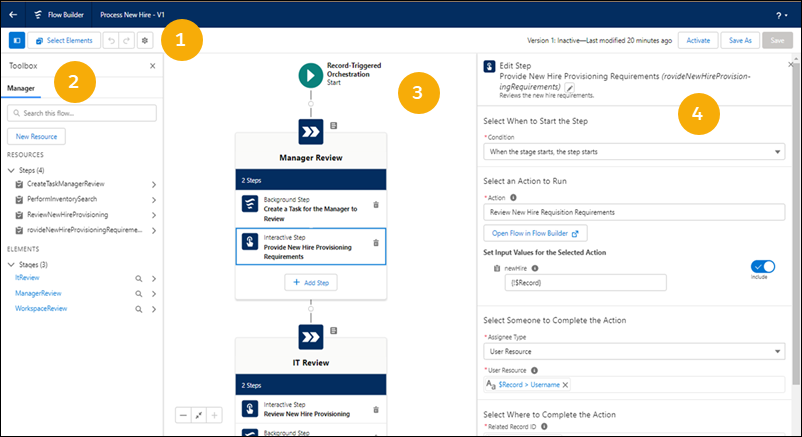
Button Bar (1)—Manage your orchestration as you build it.
- To run the most recent saved version of the orchestration that’s open,
click Run.
 Note The Run button is only available for autolaunched orchestrations.
 - To the left of the buttons, you can see the version’s active or inactive status and when it was last saved.
- To see errors and warning for the orchestration, click the Show Error icon (
 ).
).
Toolbox (2)—Create variables, constants, formulas, or text templates to use in your
orchestration. Or view a list of all resources and elements that you added. To see the
Toolbox, click the Toggle Toolbox icon ( ) in the Button bar.
Errors and Warnings (not shown)—View errors and warnings for your orchestration. The Errors
tab shows all errors to resolve before you can activate your orchestration. The Warnings tab
shows all warnings that relate to the orchestration. To see Errors and Warnings, click the
Show Error icon () on the Button Bar.
Canvas (3)—Build an orchestration on the canvas. As you add elements to the canvas and connect them, you can see a diagram of your orchestration.
 .
Flow Builder then shows the options and possible elements for this location.
.
Flow Builder then shows the options and possible elements for this location.Properties (4)—Set attributes for the element selected in the canvas. To close the
Properties panel, click  .
.
Keyboard Shortcuts
Use these handy keyboard shortcuts for macOS and Windows to quickly navigate orchestrations.
| Action | macOS | Windows |
|---|---|---|
| Zoom in | Cmd+Option+= | Ctrl+Alt+= |
| Zoom out | Cmd+Option+- | Ctrl+Alt+- |
| Zoom to fit | Cmd+Option+1 | Ctrl+Alt+1 |
| Zoom to view | Cmd+Option+0 | Ctrl+Alt+0 |
| View available keyboard shortcuts | Cmd+/ | Ctrl+/ |
