Loading
Salesforce now sends email only from verified domains. Read More
Automate Your Business Processes
Table of Contents
Select Filters

          No results
          No results
          Here are some search tips

          Check the spelling of your keywords.
          Use more general search terms.
          Select fewer filters to broaden your search.

          Search all of Salesforce Help
          Use Orchestration Reports

          Use Orchestration Reports

          Use sample Flow Orchestration reports to track orchestration usage. Sample reports include Orchestration Runs, Orchestration Stage Runs, Orchestration Step Runs, Orchestration Work Items, and Orchestration Run Logs. These sample reports are based on the Orchestration Runs Spring ’24, Orchestration Stage Runs Spring ’24, Orchestration Step Runs Spring ’24, Orchestration Work Items Spring ’24, and Orchestration Run Logs Spring ’24 custom report types.

          Required Editions

          View supported editions for Flow Orchestration.
          User Permissions Needed
          To create, edit, and delete reports in public and private folders:
          • Report Builder

            OR

          • Report Builder (Lightning Experience)
          Note
          Note Orchestration reports aren’t added to your org when it has the maximum number of defined custom reports.
          Note
          Note If a sample report is deleted, you can’t regenerate it.

          Sample orchestration reports are public reports. The reports only show work items assigned directly to a user. To view work assignments for groups or queues that the user belongs to, change the filter to show all work items assigned to them.

          The custom report types for Flow Orchestration include enhanced sObject relationships. With these relationships you can add related objects to your reports and create composite reports. Enhanced relationships also make it possible to use Flow Orchestration reports in dashboards.

          You can customize the sample reports or create your own reports from the custom report types by adding related objects. For example, create a report based on the Orchestration Runs custom report type and add Orchestration Stage Runs as a related object. All fields from Orchestration Stage Runs then become available as selectable columns alongside orchestration run fields. You can show orchestration run data and orchestration stage run data together in the same report. Similarly, you can add Orchestration Step Runs to access step-level details, or Orchestration Work Items to include work item information.

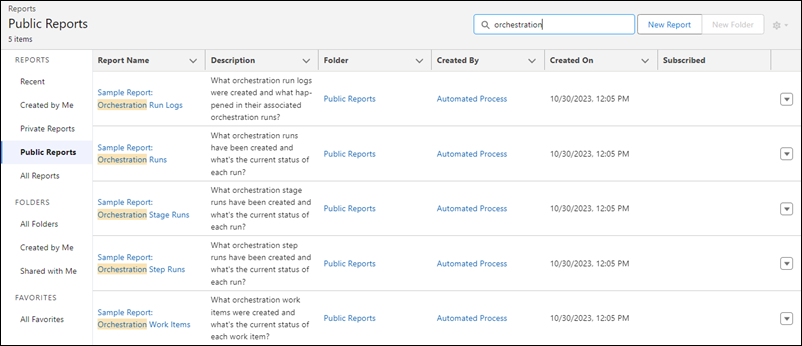
          1. In the Reports list view, click Public Reports.
          2. In the Search public reports box, enter orchestration.
            The five sample orchestration reports are listed.
            A list of the Flow Orchestration sample reports in the Public Reports list view.
          3. To customize a sample report, edit the relevant report.
           
          Loading
          Salesforce Help | Article
