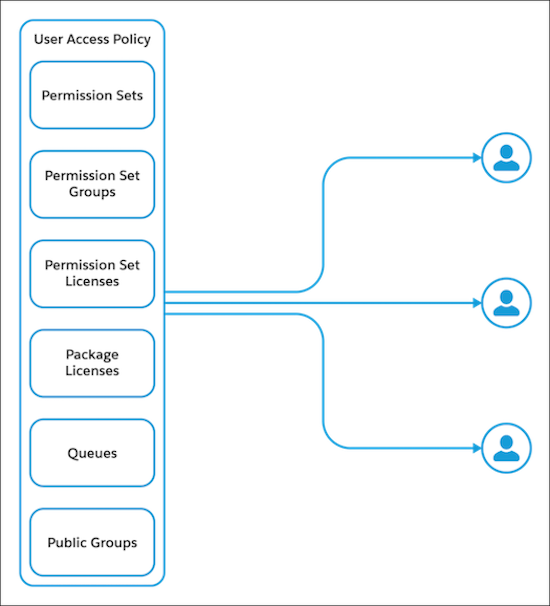
With user access policies, you define aggregated access for your users in a single
operation. Automate your users’ assignments to permission set licenses, permission sets,
permission set groups, package licenses, queues, and public groups. You can create policies that
grant or remove access whenever users are created or updated, or in a one-time manual
migration.
Required Editions
Available in: both Salesforce Classic (not available in all orgs) and Lightning
Experience
Available in: Enterprise and Unlimited editions
Watch how you can create user access policies to manage your users’ access to data.
Managing your users’ access can be a difficult task because there are so many features that you
can assign. You can streamline and simplify your user management by creating user access
policies. There’s no need to separately assign your users licenses, permission sets, public
groups, and other features. Instead, you can assign (or remove) features all at once.
Manual User Access Policies
By default, a user access policy is a one-time process to grant or revoke bulk access for
designated users. Use this option to run a single update on a group of selected users. For large
groups of users, you can run the user access policy as an asynchronous process.
For example, you're migrating permissions for a group of users from a profile to permission
sets and permission set groups. Create filters to identify the users assigned to the profile.
Then create actions in the user access policy to add access to the appropriate permission sets
and permission set groups.
Active User Access Policies
Use an active user access policy to automatically grant or revoke user access. An active user
access policy automatically runs off a triggered event, such as a created or updated user
record. If users meet the criteria for multiple active policies, the policy with the lowest
Order value is applied.
For example, you want to automate the assignment of multiple access mechanisms for Sales Reps
in your org. You create a user access policy and set the trigger type to “Create and Update” so
that it targets both new users and existing users whose role has changed. You create a filter to
identify users who have the Sales Rep role. Then you create actions to grant these users the
permission set licenses, permission sets, and permission set groups that they require to do
their everyday tasks.
On the detail page for each user access policy, you can see recent user access changes applied
by the policy.
We use three kinds of cookies on our websites: required, functional, and advertising. You can choose whether functional and advertising cookies apply. Click on the different cookie categories to find out more about each category and to change the default settings.
Privacy Statement
Required Cookies
Always Active
Required cookies are necessary for basic website functionality. Some examples include: session cookies needed to transmit the website, authentication cookies, and security cookies.
Functional Cookies
Functional cookies enhance functions, performance, and services on the website. Some examples include: cookies used to analyze site traffic, cookies used for market research, and cookies used to display advertising that is not directed to a particular individual.
Advertising Cookies
Advertising cookies track activity across websites in order to understand a viewer’s interests, and direct them specific marketing. Some examples include: cookies used for remarketing, or interest-based advertising.