You are here:
Set Assignment Expiration Details for Users in Permission Sets and Permission Set Groups
Use the assignment expiration option to determine the effective time period that users receive certain permissions. You can set assignment expiration dates via permission sets and permission set groups. Assigned users receive access to all aggregate permissions until the expiration date.
Required Editions
| Available in: both Salesforce Classic and Lightning Experience |
| Available in: Essentials, Contact Manager, Professional, Group, Enterprise, Performance, Unlimited, Developer, and Database.com Editions |
| User Permissions Needed | |
|---|---|
| To assign a permission set: | Assign Permission Sets |
| To enable the feature: | Customize Application |
To assign users to permission set groups, create the permission set group with the permission sets and permissions that you want to assign to users before you begin.
- To activate this feature, enable Permission Set & Permission Set Group Assignments with Expiration Dates in User Management Settings.
-
Access the Permission Sets or Permission Set Groups Setup page.
- To edit a permission set, from Setup, in the Quick Find box, enter Permission Sets, and then select Permission Sets.
- To edit a permission set group, from Setup, in the Quick Find box, enter Permission Set Groups, and then select Permission Set Groups.
-
In the list view, click the name of the permission set or permission set group name that
you want to update.
 Note If a permission set or permission set group contains any of the following permissions, it can’t have an expiration date associated with it:
- Assign Permission Set
- Manage Profiles
- Manage Users
- Permission Sets
- Click Manage Assignments.
- On the Current Assignments page, click Add Assignment.
- Optionally, select or create a list view to refine your user list.
-
Select the users that you want to assign, and click Next.
Search for a name by typing it in the search bar.
-
Select an assignment expiration option for the users you selected.
- If you don’t want the assignments to expire, select No expiration date.
-
To choose an expiration date and time zone, select Specify the expiration
date.
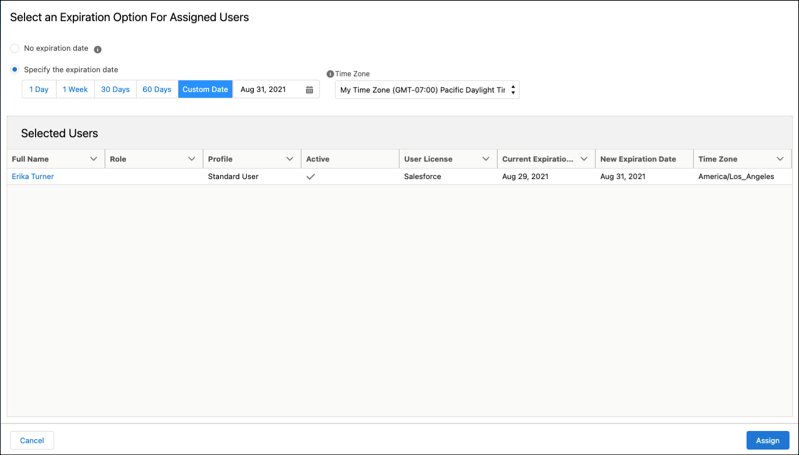
- Click a time frame, such as 30 days, or to enter a custom date, click Custom Date.
-
Select a time zone. Assignments expire at 11:59 PM on the date and in the time zone that
you specify.
If you select My Local Time Zone, expiration occurs at 11:59 PM in your time zone. For example, if you have a user with an assigned expiration who uses Japan Standard Time. You use Pacific Daylight Time as your time zone. If you select My Local Time Zone as the time zone expiration option, the user’s assignment expires at 11:59 PM Pacific Daylight Time.
- Click Assign.

Suppose you need consultants in the San Francisco office to evaluate language used in sales contracts, but they only need access for the duration of a project. Assign the consultants to a permission set group that contains the permissions that they need. When you assign the consultants to the group, specify that the assignment expires in 30 days (GMT-07:00) Pacific Daylight Time (America/Los Angeles). If you assign the permissions on June 1, the assignments expire on June 30 at 11:59 PM Pacific Time.
When you have permission set groups with user assignments that expire, you can make updates to the permission sets in the group. If you update the permission sets by adding or removing permissions, the assigned users receive or lose permissions after the permission set group recalculation occurs. When the assignment expiration date is reached, assigned users lose access to the permissions in the group.
- Permission Assignment Expiration Considerations
When working with permission assignments that expire, keep these considerations in mind.
