You are here:
Update Records from a Process
Update one or more records that are related to the record that started the process by manually entering values or by using the values from related records.
Required Editions
| Available in: both Salesforce Classic (not available in all orgs) and Lightning Experience |
| Available in: Essentials, Professional, Enterprise, Performance, Unlimited, and Developer Editions |
| User Permissions Needed | |
|---|---|
| To create, edit, or view processes: | Manage Flow AND View All Data |

After December 31, 2025, existing processes continue to run, and you can activate, deactivate, and edit them; however, we recommend using Flow Builder. To migrate existing processes, plan your switch to Flow Builder and use the Migrate to Flow tool. For new automations, create flows in Flow Builder.
After you’ve created an action and selected “Update Records” for the action type, fill in the relevant fields to add the action to your process. The records’ Last Modified By field is set to the user who started the process by creating or editing a record.
- Enter a name for this action. This text appears on the canvas and helps you differentiate this action from others in your process. The name truncates to fit on the canvas.
- For Record Type, select the record or records that you must update, and
then click Choose.
You can update only the record that started the process or records that are related to it. For example, you can reference [Case].ContactId, but not [Case].Contact.AccountId.
- To update the record that started the process, click the appropriate radio button. For
example, if your process is based on a case record, click next to Select the Case
record that started your process.
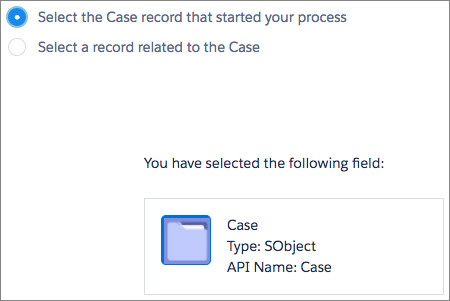
- To update a record that’s related to the record that started the process, click the
appropriate radio button and select one of the field names in the dropdown list.
If you select a field that ends in “ID,” you’re selecting a single record. This field name corresponds to a lookup field on the original record. For details on lookup fields, see Custom Field Types.
For example, if a case record started the process and you select Account Id, this action updates the account that’s associated with the case.
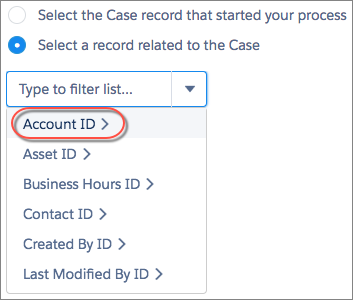
If you select a plural item that doesn’t end in “ID,” you’re updating all the records of that object type that are related to the record that started the process. This plural item corresponds to child records of the original record, which can appear in a related list on the original record.
For example, if you select CaseComments, this action updates all the case comments that are related to the case.
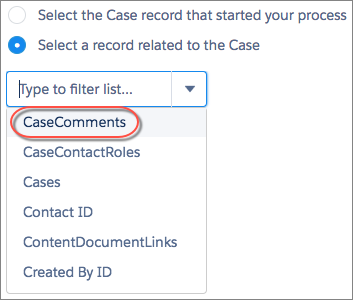
- To update fields on a related record, click a field with
 next to it (ending in “ID”) to
access that record’s fields.
next to it (ending in “ID”) to
access that record’s fields.For example, let’s say that, for a process that evaluates a case record (1), you want to update all contacts that are related to the case’s parent account. Click Account ID
(2), then Contacts (3),
and then Choose.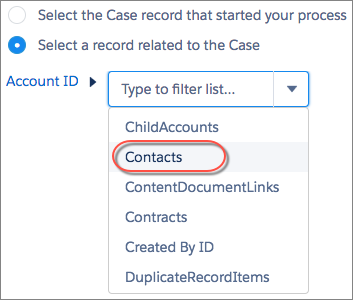
- To update the record that started the process, click the appropriate radio button. For
example, if your process is based on a case record, click next to Select the Case
record that started your process.
- Optionally, specify conditions to filter the records you’re updating. For example, if your
process updates the status of a parent case, specify conditions so that you don’t update the
parent case if its status is set to On Hold.
When you define conditions for updating records, you can’t:
- Reference a Long Text Area field
- Reference a Rich Text field
- Reference a child record’s related fields.
For example, you can reference [Case].ContactId, but not [Case].Contact.AccountId.
When you define multiple filters, the filter logic usually defaults to
AND. However, if multiple filters have the same field selected and use the equals operator, the filters are combined withOR. For example, your filters check whether a case’s Type equals Problem (1), Type equals Feature Request (2), and Escalated equalstrue(3). At run time, the filters are combined to(1 OR 2) AND 3.If you’re updating the record that started the process, Process Builder adds an implicit filter for you in the background:
[Object].Id equals
         myCurrentVariable.Id
. If you add filter criteria that set the record’s ID to a value using the equals operator, at runtime the[Object].Id equalsfilters are combined usingORfilter logic. For example, you update the case that started the process and add this filter:[Case].Id equals 500D00000044XgV. At runtime, your filter is combined with the implicit filter ([Case].Id equals myCurrentVariable.Id) withOR.
- Select Updated records meet all conditions.
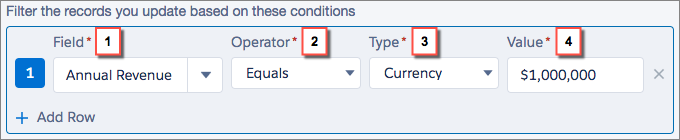
- Set the conditions that you want to use to filter the updated records.
Field Select the field whose value you want to evaluate. Operator The available operators depend on the field’s data type. Type The available value types depend on the field’ data type. See Process Builder Value Types for details. Value Identify the value that you want to evaluate the field for. For example, if your process updates account records, you can choose to update only accounts with an annual revenue (1) greater than (2) $1,000,000 (3).
- Specify the new field values.
Field Select the field whose value you want to set. To filter the dropdown list, type the name of the field.
You can assign values to fields only on the record or records that you identified in the Object field. Use a separate Update Records action to update fields on related records.
Type Select the type of value that you want to use. The available types depend on the field that you’ve selected. Value Set a value for the field. For example, if you select a Formula value type, click Build a formula... to create a formula value for the field. - Save the action.
