This example uses Process Builder to manage documents in Salesforce. The example moves
a document to a shared folder in Quip whenever the record that the document is associated with
is created or updated. This process ensures that the documents associated with a Salesforce
record object are always available to users who have access to the shared folder.
Available in: Essentials,
Professional, Enterprise, Performance, Unlimited,
and Developer Editions
Important Support and updates for Process Builder have ended as
of December 31, 2025. This means that support won't be provided for any process and bugs in
the Process Builder product won't be fixed. See Workflow Rules & Process Builder End of Support.
After
December 31, 2025, existing processes continue to run, and you can activate, deactivate, and
edit them; however, we recommend using Flow Builder. To migrate existing processes, plan
your switch
to Flow Builder and use the Migrate to Flow tool. For new
automations, create flows in Flow
Builder.
In the example, it’s assumed that:
The Account object has a custom field labeled Quip Account Plan Doc (API name
Quip_Account_Plan_Doc__c). For each account, the custom field stores the URL of an
associated document that contains a plan for the account.
All the Account Plan documents are in a shared folder. The folder’s URL is
https://acme.quip.com/123FakeURL456.
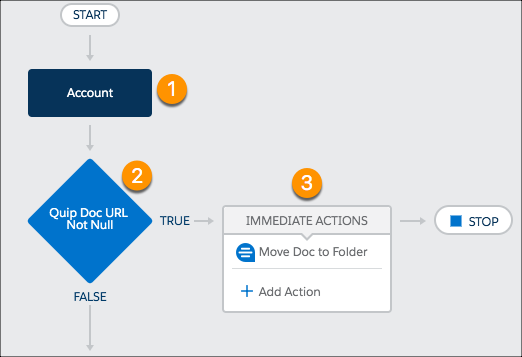
The process starts when an Account record (1) is created or updated.
The criteria (2) checks whether the value of the Quip Account Plan Doc custom field has
changed and whether the field isn't null. If both conditions are true, an immediate action
(3) moves the Quip Account Plan doc to the specified shared folder. Let’s dig a little
deeper into the criteria and action in this sample process.
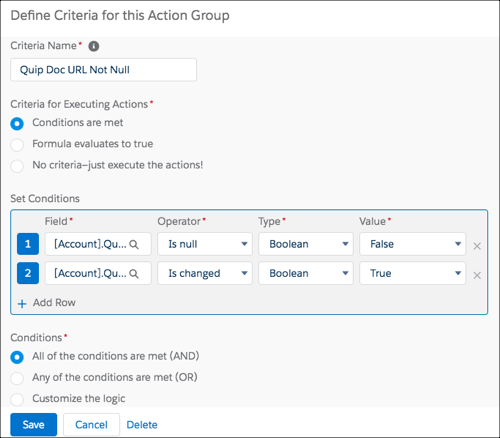
The criteria’s Set Conditions section defines which conditions must be met in the Quip
Account Plan Doc field to move a document. There are two conditions: the Quip Account Plan
Doc field isn’t null and that it’s changed. The Field column requires the full API name of
the field, in this case, [Account].Quip_Account_Plan_Doc__c. The Conditions section specifies that all
the conditions must be met to execute the action.
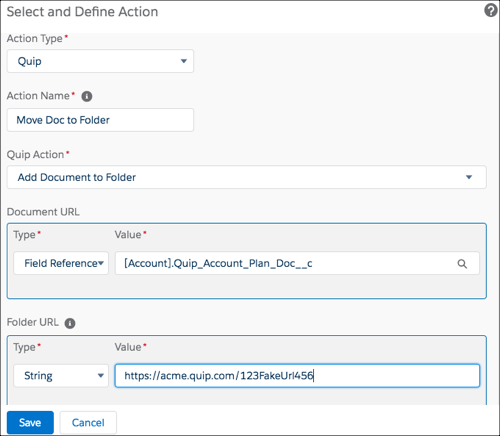
For the action definition, you select Quip for Action Type to view
the Quip-related actions. Enter an Action Name (Move Doc to Folder in
our example) then select the action (Add Document to Folder). The
Document URL is a field reference to the custom field ([Account].Quip_Account_Plan_Doc__c)
that contains the URL of the document to move. The Folder URL is a String type that
specifies the URL of the shared folder.
Note To replace the existing Process Builder processes and Workflow Rules
with flows before Process Builder and Workflow Rules reach end of support, see Quip Actions in Flow Builder.
Did this article solve your issue?
Let us know so we can improve!
Loading
Salesforce Help | Article
Cookie Consent Manager
Cookie Consent Manager
General Information
Required Cookies
Functional Cookies
Advertising Cookies
General Information
We use three kinds of cookies on our websites: required, functional, and advertising. You can choose whether functional and advertising cookies apply. Click on the different cookie categories to find out more about each category and to change the default settings.
Privacy Statement
Required Cookies
Always Active
Required cookies are necessary for basic website functionality. Some examples include: session cookies needed to transmit the website, authentication cookies, and security cookies.
Functional Cookies
Functional cookies enhance functions, performance, and services on the website. Some examples include: cookies used to analyze site traffic, cookies used for market research, and cookies used to display advertising that is not directed to a particular individual.
Advertising Cookies
Advertising cookies track activity across websites in order to understand a viewer’s interests, and direct them specific marketing. Some examples include: cookies used for remarketing, or interest-based advertising.