You are here:
Execute Actions for Multiple Criteria
Choose whether to stop or continue your process after specific criteria are met and associated actions execute.
Required Editions
| Available in: both Salesforce Classic (not available in all orgs) and Lightning Experience |
| Available in: Essentials, Professional, Enterprise, Performance, Unlimited, and Developer Editions |
| User Permissions Needed | |
|---|---|
| To create, edit, or view processes: | Manage Flow AND View All Data |

Important Support and updates for Process Builder have ended as
of December 31, 2025. This means that support won't be provided for any process and bugs in
the Process Builder product won't be fixed. See Workflow Rules & Process Builder End of Support.
After December 31, 2025, existing processes continue to run, and you can activate, deactivate, and edit them; however, we recommend using Flow Builder. To migrate existing processes, plan your switch to Flow Builder and use the Migrate to Flow tool. For new automations, create flows in Flow Builder.
For each criteria node and associated action group, choose whether to stop the process after executing the actions or to continue the process and evaluate the next criteria node.
Important When a process continues to the next criteria node, it evaluates the
values that the record had at the beginning of the process. For example:
- The status of a case is New.
- The case is edited.
- The process evaluates Criteria 1. The conditions are met, so the process updates the case’s status to Escalated.
- The process evaluates Criteria 2 using the record values from step 2.
- Make sure you’ve defined the next criteria and that your action group includes only immediate actions. You can’t evaluate the next criteria when an action group contains scheduled actions.
-
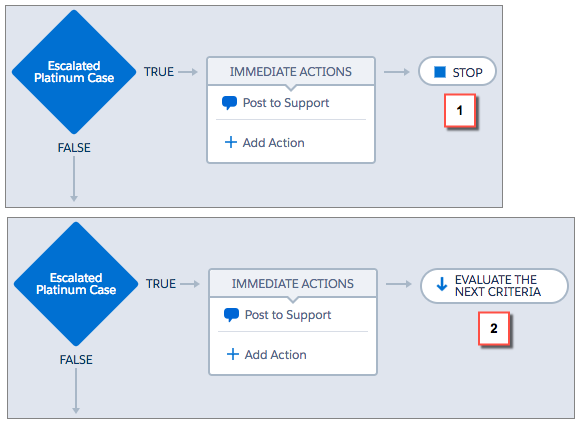
To change what happens after actions execute, click STOP (1) or
EVALUATE THE NEXT CRITERIA (2). Initially, each action group is
set to stop after executing actions.
- Save your changes, and your choice appears on the canvas.
Did this article solve your issue?
Let us know so we can improve!
