You are here:
Configure the Process Trigger
Every process includes a trigger, which tells the process when to start. How you configure that trigger depends on what type of process you’re creating.
Required Editions
| Available in: both Salesforce Classic (not available in all orgs) and Lightning Experience |
Available in: Essentials, Professional, Enterprise, Performance, Unlimited, and Developer Editions Event processes are available in: Performance, Unlimited, Enterprise, and Developer Editions |
| User Permissions Needed | |
|---|---|
| To create, edit, or view processes: | Manage Flow AND View All Data |

After December 31, 2025, existing processes continue to run, and you can activate, deactivate, and edit them; however, we recommend using Flow Builder. To migrate existing processes, plan your switch to Flow Builder and use the Migrate to Flow tool. For new automations, create flows in Flow Builder.
- Record Change
If the process starts when a record changes, associate the process with an object, and specify when to start the process. - Event
If the process starts when a platform event message is received, associate the process with a platform event and an object, and specify matching conditions. Because every process acts on a Salesforce record, it requires a single record as a starting point. That way, the criteria and actions know where to start evaluating and executing. - Invocable
If the process starts when another process invokes it, associate the process with an object.
Record Change
If the process starts when a record changes, associate the process with an object, and specify when to start the process.
- Click Add Object.
-
Configure the trigger.
For this field ... Select ... Object The object that you want to base this process on. Click Find an object. Type to filter the dropdown list. Start the process Which type of record change triggers the process.
- only when a record is created
- when a record is created or edited
If you're familiar with workflow rules and you're wondering what happened to the third option (created, and anytime it's edited to subsequently meet criteria), don't worry! You see that setting when you add criteria nodes if you selected when a record is created or edited.
Recursion - Allow process to evaluate a record multiple times in a single save operation? Yes, if you want the process to evaluate a record multiple times in a single save operation. To see this field, expand the Advanced area.
When enabled, the process can evaluate the same record up to five more times in a single save operation. It reevaluates the record because a process, workflow rule, or flow updated the record in the same save operation. For more information, see Reevaluate Records in the Process Builder.
- Before saving your changes, confirm the selection because you can’t change the object after you save it.
Event
If the process starts when a platform event message is received, associate the process with a platform event and an object, and specify matching conditions. Because every process acts on a Salesforce record, it requires a single record as a starting point. That way, the criteria and actions know where to start evaluating and executing.
- Click Add Trigger.
-
Configure the trigger.
For this field ... Select... Platform Event The platform event whose event messages can start the process. Object The object whose records you want to associate with the event. Matching Conditions Criteria to identify one record to associate the event with. We recommend using an ID or other field that uniquely identifies records so the process can pick exactly one record.
The process fails if it finds:
- Multiple records that match the criteria.
- No records that match the criteria.
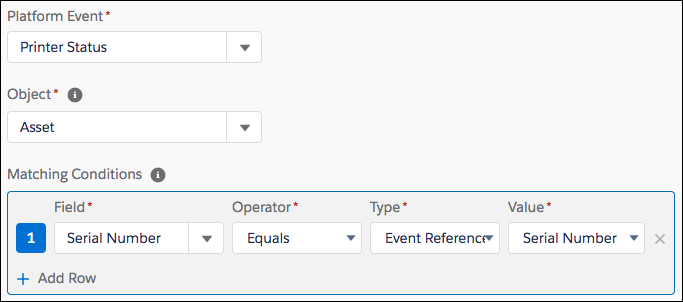
- Before saving your changes, confirm the selection because you can’t change the platform event or object after you save it.
Invocable
If the process starts when another process invokes it, associate the process with an object.
- Click Add Object.
-
Select an object to associate with the process. Type to filter the dropdown list.
This process can be invoked from any other process as long as the main process passes a record of this object type. For example, an Account-based invocable process can be called from a Contact-based record change process, because you can pass the contact’s account to the invocable process.
- Before saving your changes, confirm the selection because you can’t change the object after you save it.
