You are here:
Workflow Rule with an Email Alert Migration to a Flow Example
The majority of workflow rules are used to send email alerts or perform same-record field updates. While these types of workflow rules have a reputation for being fast, triggered flows are even faster. It’s time to migrate your workflow rules to Flow Builder.
Required Editions
| View supported editions. |
Let’s look at a common workflow rule. This rule sends an email alert when an Opportunity is Closed-Won and the Amount is more than $500.
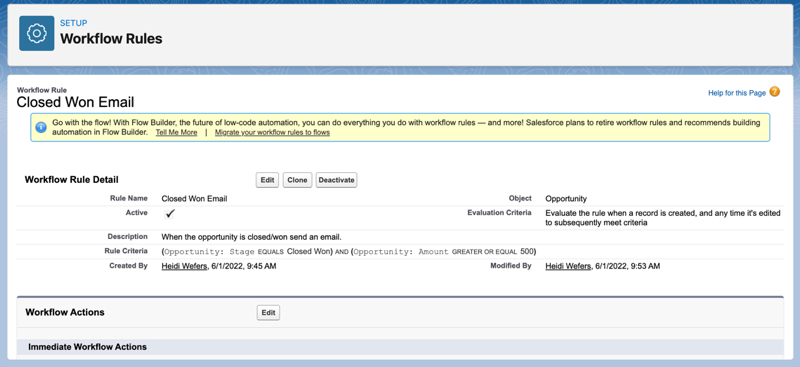
This workflow rule can be built easily in Flow Builder. Here are the elements in a workflow rules and their flow equivalent.
| Workflow Rule Element | What to Use in Flow |
|---|---|
| Create New Rule | Create a Record-Triggered Flow. |
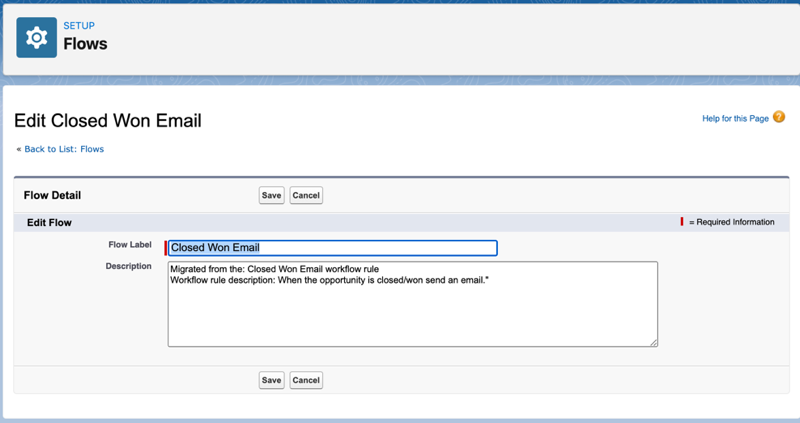
| Description | Use the Description field. This field is available when you save the flow. |
| Email Alerts | Use Send Email in the Action element. Existing Email Alerts can be selected. |
| Rule Name | Use the Flow Label field. This field is available when you save the flow. |
| Select Object | Use the Object field. This field is available in the Select Object section of Configure Start. |
Evaluation Criteria
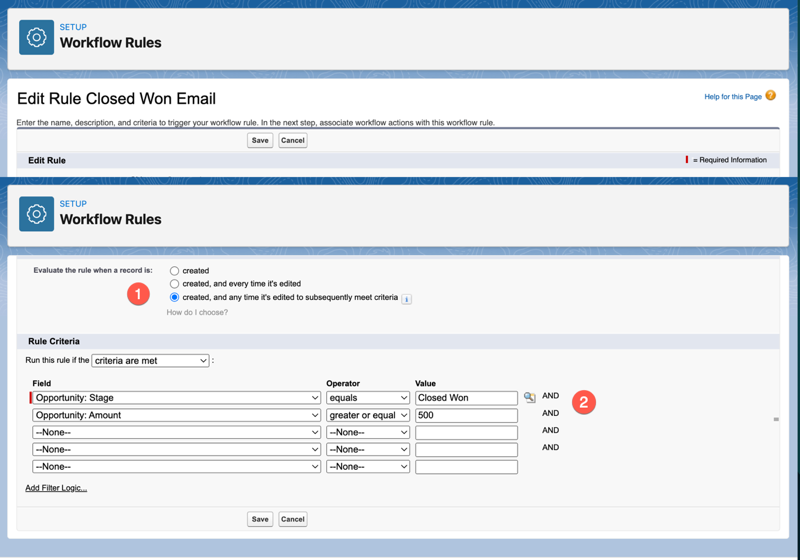
When you build a flow, the evaluation criteria are defined in the Start element, in the Set Entry Conditions section. Use as specific as possible Entry Criteria. This way you don’t run a flow when you don’t need to.
Workflow Rule
Flow:
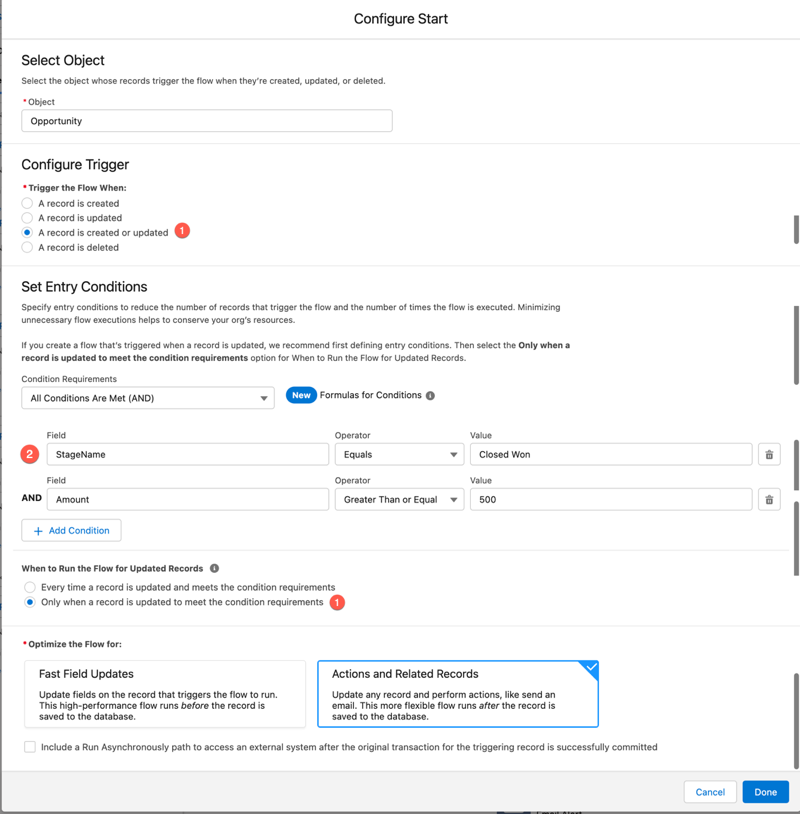
When to Run/Trigger (1)
Our example Workflow Rule uses created, and any time it's edited to subsequently meet criteria. For the flow, select “A record is created or updated under Configure Trigger”. And select “Only when a record is updated and meets the condition requirements” for When to Run the Flow for Updated Records. You choose this option in the Set Entry Conditions.
Rule Criteria/Set Entry Conditions (2)
The criteria/conditions are similar in both the WFR and the flow. The Condition Requirements field is set to “conditions are met”. The Field, Operator, and Value are almost identical. The field names are slightly different, as the Object isn’t included in the Field Name in a flow.
Add an Action
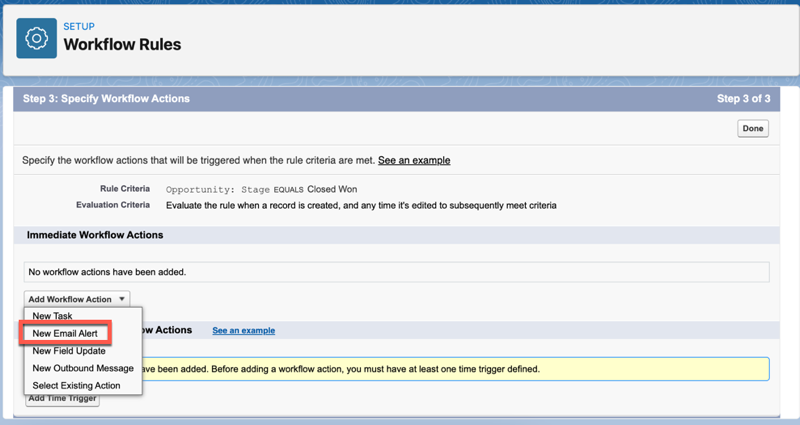
When you build a workflow rule, the action is selected after the Rule Criteria is entered.
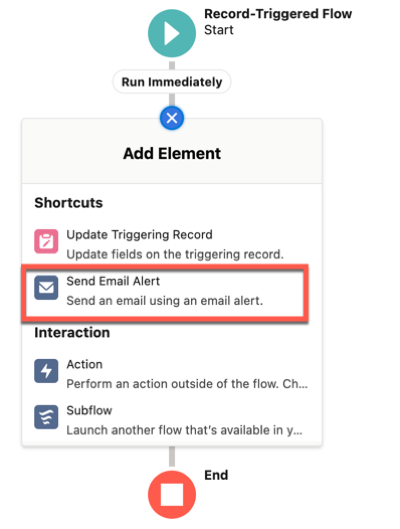
In Flow, there’s a Send Email Alert option from Add Element.
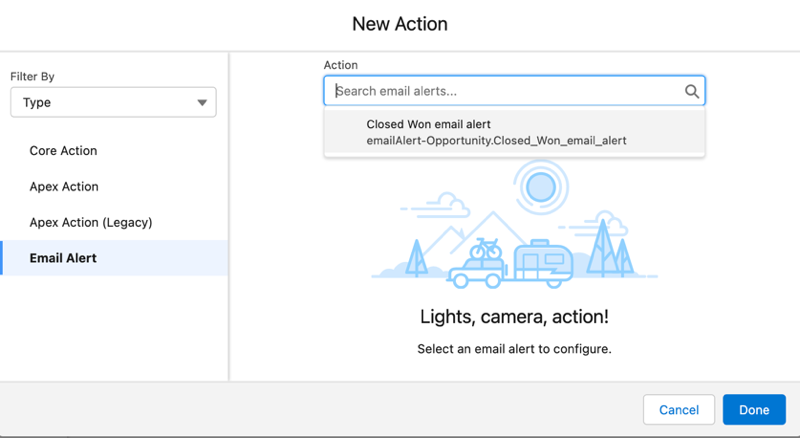
Select the email alert by clicking in the New Action window. Choose the alert to use from the list. You can use existing Email Alerts that you used previously in workflow rules. Configure Email Alerts to be used in flows just as you did for workflow rules. Email Alerts are configured under Workflow Actions in Process Automation.
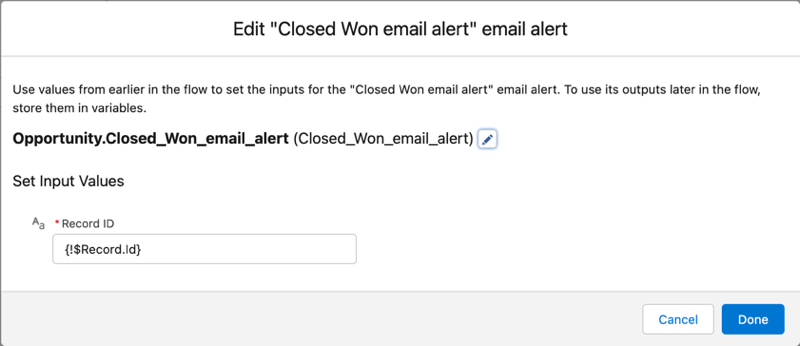
In the flow, enter $Record into the Record ID field. This global variable contains the values from the record that triggers it to run. So, there’s no need to add a Get Records element to obtain the record data. And, no flow variables have to be created to store the record data.
If you have a workflow rule similar to this example, use the migration tool. The migration tool does a great job and even adds the workflow rule name and description in the details of the new flow.