You are here:
Create a Scoping Rule
Determine which records your users see by default. When a scoping rule is applied to a user, the data that the user sees in list views and reports is filtered by the criteria you set.
Required Editions
| Available in: Lightning Experience |
| Available in: Performance, Unlimited, and Developer Editions |
| User Permissions Needed | |
|---|---|
| To create and manage scoping rules: | Manage Sharing |
| To view scoping rules: | View Setup & Configuration AND View Restriction and Scoping Rules |
Scoping rules are available for custom objects, accounts, cases, contacts, events, tasks, leads, and opportunities. You can create up to 2 active scoping rules per object in Developer edition and up to 5 active scoping rules per object in Performance and Unlimited editions.
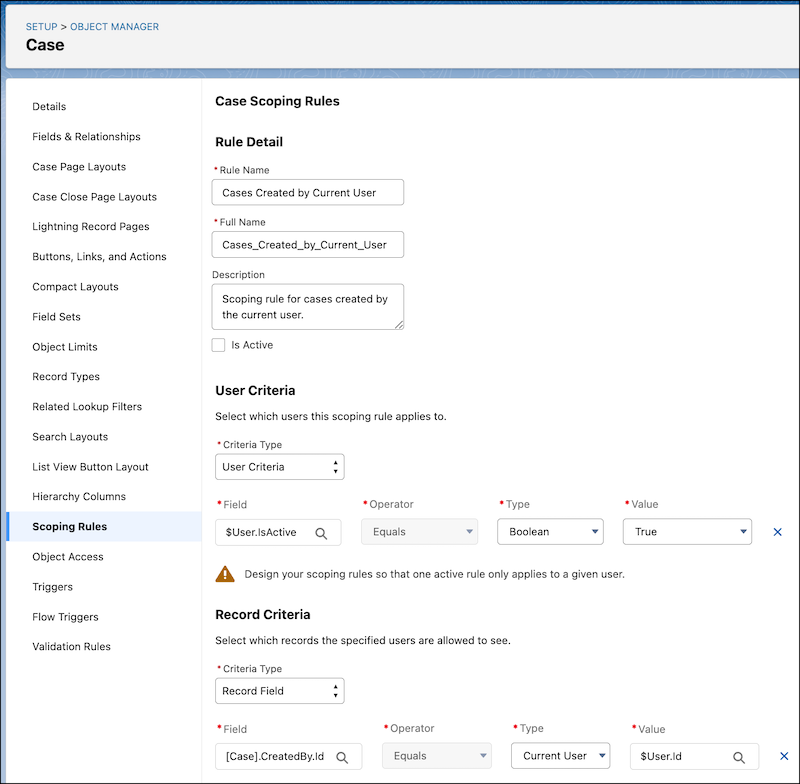
- In Object Manager, click the object name for your scoping rule.
- In the sidebar, click Scoping Rule, and then click New Rule.
- Enter the rule’s name and full name. The full name is the name of the component used by the API.
- To have the rule take effect upon saving, select Is Active.
-
Under User Criteria, select which users this scoping rule applies to.
- If the rule applies to a subset of users such as those in a given role, profile, or
department, select User Criteria. Then, select the field to use as
criteria.
Set the Type field as Current User when the rule applies to the currently logged-in user.
- If the rule applies to a subset of users with a custom permission, select Permission Criteria. To filter records for users with the custom permission, set the Boolean value to True. To filter records for users who don’t have the custom permission, set the Boolean value to False.
- If the rule applies to a subset of users such as those in a given role, profile, or
department, select User Criteria. Then, select the field to use as
criteria.
-
Under Record Criteria, select which records the specified users see by default. For the
Field value, you can reference another object’s field using dot notation.
For picklist values, select a picklist field, and then click Choose values. For other field types, to designate more than one value in the record criteria, you can specify a list of comma-separated strings or 15-character IDs in the Value field.
To include a single value that contains a comma, surround the value with double quotes (”).
-
Save the rule.
 Note Salesforce doesn’t validate that only one active rule applies for a given user. If you create two active rules, and both rules apply to a given user, only one of the active rules is observed.
After you activate a scoping rule, users select the filter option Filter by Scope to update their list view or report filter and focus on a filtered set of records.
