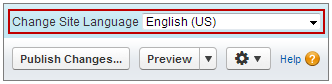
The default language is the language in which your site
initially displays. By default, it's set to English (US), and it serves as the starting
point when you add new languages. So for example, if you build your site and then
add French as a site language, the French version initially contains English (US) content
until you replace it with French-specific content.
Required Editions
Available in: Salesforce Classic
Available for purchase in: Enterprise, Performance, and
Unlimited Editions
Available (with limitations) in:
Developer Edition
After you add a language to your site, the Site.com Studio language selector appears on
the toolbar. It lets you switch between languages as you edit content on each page. For
example, if you add French and Spanish to your site, the language selector displays
French, Spanish, and English (US).
Content blocks display icons to let you know whether content for the selected language
has been replaced.
A warning icon () indicates
that the text that has not yet been replaced.
A globe icon () indicates that
the content has been replaced.
In addition, several page elements have language aware properties, meaning they can store different
values for each language. These properties are indicated in the Properties pane by a
globe icon ().
You can add content for each site language one of two ways:
Edit
the page content for each language directly using the Site.com Studio
language selector.
After you add language-specific content to your site, content on the page is
displayed in the following order, depending on which language content is
available:
Selected language
Fallback language
Default language
For example, if you delete the French contents of a content block, and Spanish is the
fallback language, the Spanish content is displayed rather than the default language
content. In turn, if you delete the Spanish content, then the default language
content is displayed.
Language–Aware Page Elements
The following page elements support translated content:
We use three kinds of cookies on our websites: required, functional, and advertising. You can choose whether functional and advertising cookies apply. Click on the different cookie categories to find out more about each category and to change the default settings.
Privacy Statement
Required Cookies
Always Active
Required cookies are necessary for basic website functionality. Some examples include: session cookies needed to transmit the website, authentication cookies, and security cookies.
Functional Cookies
Functional cookies enhance functions, performance, and services on the website. Some examples include: cookies used to analyze site traffic, cookies used for market research, and cookies used to display advertising that is not directed to a particular individual.
Advertising Cookies
Advertising cookies track activity across websites in order to understand a viewer’s interests, and direct them specific marketing. Some examples include: cookies used for remarketing, or interest-based advertising.