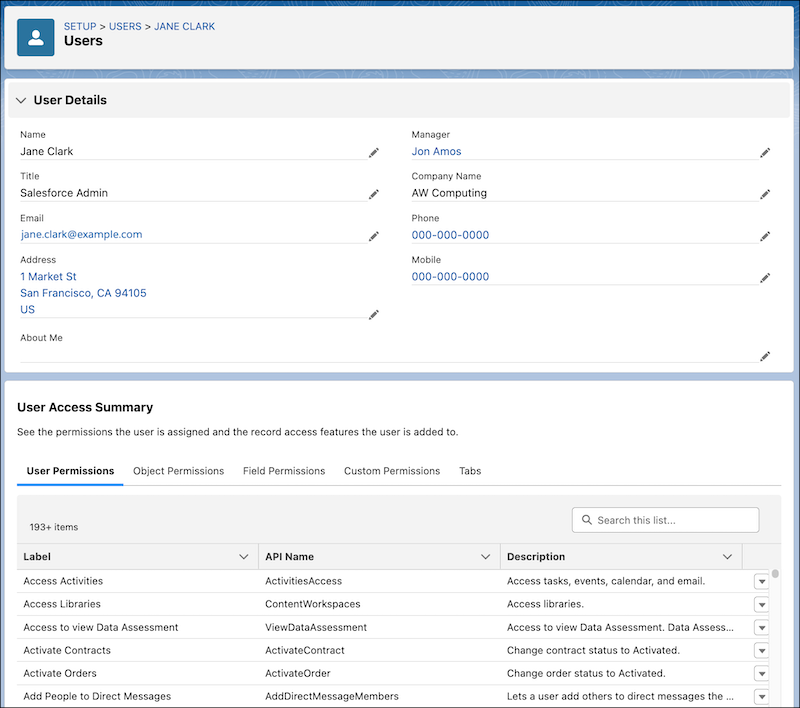
To make managing permissions and troubleshooting access easier, in the User Access
Summary, you can see a consolidated view of a user’s key details and assigned permissions and
tabs. You can also manage the user’s assigned permission sets, permission set groups, public
groups, and queues.
Required Editions
Available in: both Salesforce Classic and
Lightning Experience
Available in: all editions
User Permissions Needed
To view a user’s User Access Summary:
View Setup and Configuration
Note In some situations, updates to the user’s assignments aren’t displayed immediately. To make
sure you have the most up-to-date data, refresh the summary page in your browser.
The user can
be assigned other access features not listed in this summary.
From Setup, in the Quick Find box, enter Users, and then select
Users.
Select a user.
Click View Summary. To make sure you have the most up-to-date
data, refresh the summary page in your browser.
The standard and custom user fields that are displayed match the User Details
section of the user’s assigned user profile page layout.
Review the user’s assigned permissions and tabs. To see which profile, permission sets,
or permission set groups are granting the user a specific permission, click the
permission's row-level action, and then click Access Granted
By.
You can also view and update the permission sets, permission set groups, public
groups, and queues that the user is added to.
Note In the Field Permissions tab, only
fields whose access can be configured are displayed. Fields that don’t support
field-level security aren’t displayed.
We use three kinds of cookies on our websites: required, functional, and advertising. You can choose whether functional and advertising cookies apply. Click on the different cookie categories to find out more about each category and to change the default settings.
Privacy Statement
Required Cookies
Always Active
Required cookies are necessary for basic website functionality. Some examples include: session cookies needed to transmit the website, authentication cookies, and security cookies.
Functional Cookies
Functional cookies enhance functions, performance, and services on the website. Some examples include: cookies used to analyze site traffic, cookies used for market research, and cookies used to display advertising that is not directed to a particular individual.
Advertising Cookies
Advertising cookies track activity across websites in order to understand a viewer’s interests, and direct them specific marketing. Some examples include: cookies used for remarketing, or interest-based advertising.