
You are here:
Connect Your Email and Calendar to Salesforce with Einstein Activity Capture or Inbox
Depending on how your Salesforce admin configures Einstein Activity Capture, it’s possible that you’re responsible for connecting or reconnecting your Microsoft or Gmail account to Salesforce. If you use Lightning Email and have access to Inbox features, you must connect an account to Salesforce.
Required Editions
| Available in: Lightning Experience |
| Available with Einstein Activity Capture Standard in Sales in Starter, Pro Suite, Professional, and Enterprise Editions |
| Available with Unlimited Edition, Einstein 1 Sales Edition, and Agentforce 1 Edition |
| Available with Einstein for Sales, which is included in Einstein 1 Sales Edition and available for an extra cost in Enterprise and Unlimited Editions |
| Available with Sales Engagement, which is included with Sales in Performance and Unlimited Editions, and available for an extra cost in Professional and Enterprise Editions |
| Available with Revenue Intelligence, which is available for an extra cost in Enterprise and Unlimited Editions |

Note We’re reorganizing the Einstein Activity Capture documentation. We’re
moving some information around, but we aren’t deleting anything.
| User Permissions Needed | |
|---|---|
| To connect an account with Einstein Activity Capture: | Use Einstein Activity Capture |
| To connect an account with Inbox: | Use Inbox |
-
From your personal settings, in the Quick Find box, enter Connected
Accounts, and then select Email and Calendar
Accounts.
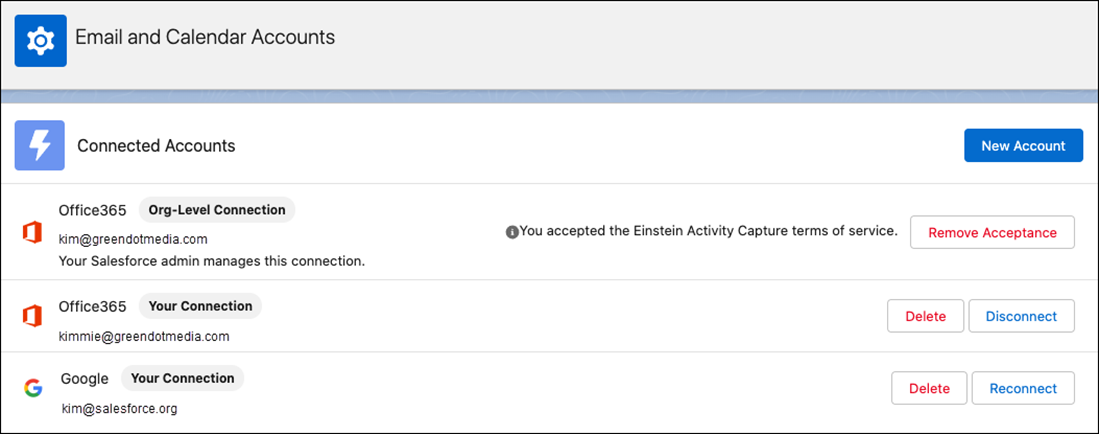
If your admin connected an account for you, it’s listed under Connected Accounts. If it’s not, try refreshing the page.
-
Click New Account.
-
Follow the steps to connect your account.
After you connect an account, it takes up to 24 hours for Einstein Activity Capture to add your emails and events to related Salesforce records. Inbox features are available right away.
- If your Salesforce admin upgrades your Microsoft Office 365 authentication method to Microsoft Graph and you're asked to reauthenticate, click Reconnect. Enter your Microsoft Office 365 credentials to reconnect your account and complete the upgrade.
- If your admin didn’t connect your account for you but added you to an Einstein Activity
Capture configuration that includes syncing, make sure that:
- Your primary account, which is the email account on your user record, is in the user principal name (UPN) format and connected to Salesforce.
- The account that you connect is the same email and calendar service that your admin connected to Salesforce. For example, if your admin connects Microsoft Exchange, you must connect a Microsoft Exchange account.
- If your admin connected your account for you through an org-level connection and you have access to Inbox, you must connect an account for Inbox to work. You can connect the primary account or a different account.
- All users can capture more data by connecting other accounts. However, if your admin connected your account for you through an org-level connection, the primary account is used to capture data through the org-level connection, so you don’t connect it again.
- When you disconnect an account, it doesn’t appear as disconnected until you log out of Salesforce and then log in again.
- When you delete an account, the data captured from that account is removed from Salesforce. If you connect the wrong account or run into problems with Inbox features, such as emails not tracking or available times not updating, we recommend that you delete the connected account. Then, connect it again as a new account.
- When your Salesforce admin upgrades the Microsoft Office 365 authentication method in Einstein Activity Capture, Inbox, or both, a banner message notifies you to reconnect to your Microsoft Office 365 account. Reconnect your account by August 03, 2026 to complete the upgrade and avoid service disruption.
- Einstein Activity Capture sends emails only from the Connect Account, which is listed on a user's Salesforce record. Alias addresses aren't supported. To change the primary sending address, update the Email field on the user's record to match their primary email address (in UPN format). For Microsoft environments, the UPN in Active Directory, the primary SMTP address, and the Salesforce User Email field must all match.
- When Sync Email as Salesforce Activity is not enabled, Einstein Activity Capture sharing settings apply globally to all connected accounts, including any secondary accounts you've added. If you select Share with Everyone, emails from your secondary or personal accounts can be visible to others. Before you connect a personal or secondary mailbox, review your sharing settings and your org default settings. To keep sensitive accounts private, select Don't Share, or search for Excluded Addresses in your personal settings to exclude specific email addresses.
- Einstein Activity Capture uses the email's unique ID to deduplicate captured emails. If the same email is synced from multiple connected accounts, Einstein Activity Capture checks for an existing record with the same ID before creating one, keeping the activity timeline clean.
- To avoid sync gaps, keep your account connection healthy. Check your connection status regularly, and reconnect your account when prompted by authentication changes or if your status is Needs Attention. See Monitor Einstein Activity Capture Operations.
- Email aliases aren’t separate mailboxes and can’t be authenticated as separate connected accounts.
Did this article solve your issue?
Let us know so we can improve!
