
You are here:
Set Up Buyer Relationship Map
Turn on Buyer Relationship Map and learn how to access it from an opportunity or account.
Required Editions
| Available in: Lightning Experience |
| Available in: Enterprise, Performance, Unlimited Editions with Sales, and Agentforce 1 Sales Edition |
| User Permissions Needed | |
|---|---|
| To enable or disable Buyer Relationship Map: | Customize Application OR Modify All Data |
| To view the Buyer Relationship Map setup page: | View Setup and Configurations |

Tip Check
out this feature in Salesforce Go! Find a guided setup experience, explore more content,
discover related features, and monitor feature usage. See Discover and Set Up Features With Salesforce Go.
- From Setup, in the Quick Find box, enter map, and then select Buyer Relationship Map.
-
Turn on Buyer Relationship Map.
The Buyer Attributes, Department Group, and Seniority Level fields are now available to add to contacts. To automatically complete these values from your email activity, enable Automatic Contact Enhancements.
- To see the new fields on the contact record, add them to the Contact record layout. Buyer Attributes, Department Group, and Seniority Level fields are available with all profiles except custom and minimum-access. To provide access, use field-level security in Object Manager.
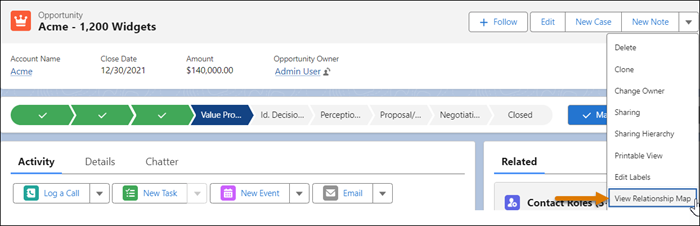
Access the map from any opportunity or account’s action menu.
Did this article solve your issue?
Let us know so we can improve!
