
You are here:
Add a Linking Custom Action to the Quote Line Editor
Create a custom action in the quote line editor that links to an internal or external URL. (Salesforce CPQ Managed Package)
Required Editions
| Available in: Salesforce CPQ Spring ’14 and later |
- On the Custom Actions home page, click New.
-
Give your custom action a name.
This name doesn’t appear on the button for your action. Use the name to organize your custom actions records.
-
Set these fields.
The Save and Navigate action is supported only when the Page field is set to Quote Line Editor and the Location field is set to Quote.
- Set the Page field to Quote Line Editor.
- Set the Location field to Quote.
- Set the Action field to Save and Navigate.
-
Give your custom action a label.
This label appears on the button for your action. You can pick from several default labels. You can also add labels by adding values to the Label field in the Custom Action object’s managed settings.
- If you want the custom action to be available only when certain conditions are met, use the Condition Met field to define the conditions.
- Choose a number for your custom action’s display order. Custom actions with lower display orders appear first on their target page.
- Select the Active checkbox.
-
Use the URL field to specify what the custom action links to.
When a Custom Action has URL Target = Popup, only Visualforce Pages are supported in the URL field.
- Set the URL Target field to Replace Page so that your target URL opens on your current page.

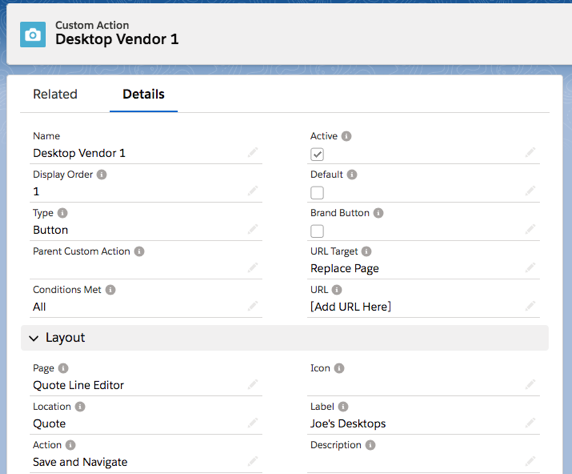
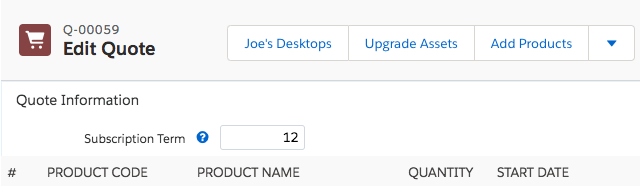
Example Your company sells custom desktops. You want to provide your sales rep with links
from the quote line editor to your largest vendor’s inventory pages. Here’s one way to
create the first custom action.
Did this article solve your issue?
Let us know so we can improve!
